
Moving built-in properties to the settings header in EPiServer 7 CMS
After the 7.1 CMS update the editors gets easy access to the settings header without entering the full forms editing view. The header is hidden above the content in on-page editing view, and is accessible through scrolling up with your mouse when the page is already scrolled to the top.
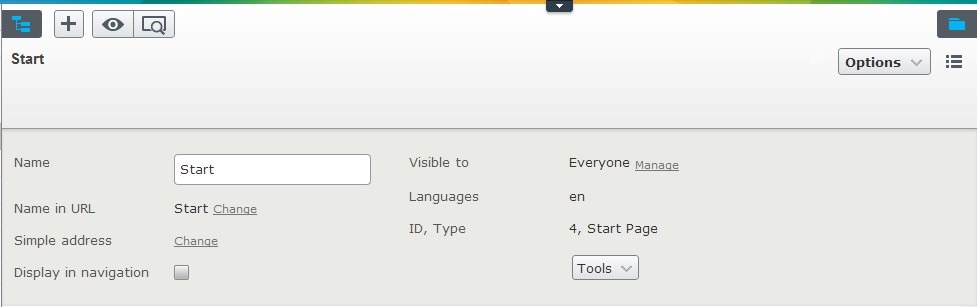
In the settings header some built-in properties is located for easy access but any properties can be placed here, my personal opinion is that the property to select categories should placed here from the beginning.
IMetadataExtender
For the built-in properties we need to use a programmatic approach to move the properties, the first step is to create a class implementing the IMetadataExtender interface and in the ModifyMetadata method you can check the property name and change their group name. The IMetadataExtender interface is located in the EPiServer.Shell namespace.
public class SiteMetadataExtender : IMetadataExtender
{
public void ModifyMetadata(ExtendedMetadata metadata, IEnumerable<Attribute> attributes)
{
foreach (ExtendedMetadata property in metadata.Properties)
{
if (property.PropertyName == "icategorizable_category")
{
property.GroupName = "EPiServerCMS_SettingsPanel";
property.Order = 1;
}
}
}
}
The trick to place properties in the settings header is to set the GroupName to "EPiServerCMS_SettingsPanel".
Next step is to register the metadata extender in an InitializableModule, it is important to set the ModuleDependency attribute to a module that is loaded after the default editor descriptor, otherwise your settings will be overwritten by the built-in. In my case I set a dependency to the EPiServer.Cms.Shell.InitializableModule located in the EPiServer.Cms.Shell.UI dll which usually is not referred by the site project, this dll is located in the /modulesbin folder in the web root.
[InitializableModule]
[ModuleDependency(typeof(EPiServer.Cms.Shell.InitializableModule))]
public class SiteMetadataExtenderInitialization : IInitializableModule
{
public void Initialize(Framework.Initialization.InitializationEngine context)
{
if (context.HostType == HostType.WebApplication)
{
var registry = context.Locate.Advanced.GetInstance<MetadataHandlerRegistry>();
registry.RegisterMetadataHandler(typeof(ContentData), new SiteMetadataExtender());
}
}
public void Preload(string[] parameters) { }
public void Uninitialize(Framework.Initialization.InitializationEngine context) { }
}
Recompile your project and reload your page, the category property are now moved to the settings header.

Remove a property
It is as easy to remove a property from the settings header, find the property and change the GroupName to the name of the tab where you want to place the property, I have moved the “Display in navigation” property in my example to the “Settings” tab.
public class SiteMetadataExtender : IMetadataExtender
{
public void ModifyMetadata(ExtendedMetadata metadata, IEnumerable<Attribute> attributes)
{
foreach (ExtendedMetadata property in metadata.Properties)
{
if (property.PropertyName == "icategorizable_category")
{
property.GroupName = SettingsPanelMetadataExtender.SettingsPanelGroup;
property.Order = 1;
}
else if (property.PropertyName == "PageVisibleInMenu")
{
property.GroupName = SystemTabNames.Settings;
}
}
}
}
Add any property
You can add any properties to the settings header, simply add the “EPiServerCMS_SettingsPanel” as GroupName in the Display attribute.
[Display(
GroupName = "EPiServerCMS_SettingsPanel",
Order = 2)]
public virtual string MyProperty { get; set; }

Subject to change
In the next version of EPiServer CMS it will be even easier to make this kind of changes, create your custom descriptor and inherit the default EditorDescriptor and override the ModifyMetadata method.
This is cool, I noticed "by accident" the other day I could scroll up to the settings panel and thought it was a css bug at first :-)
Nice! Thanks for sharing
Great post, Kalle!
Arild, that's actually one of my favorite features of the UI - although I also discovered it by accident. :)
Thanks Kalle, this is really useful and will help the editors a lot.
Very nice.
very helpful, Thanks!
Awesome. I often have to demo categorization of content and that property is behind too many doors by default. This is good stuff!
Nowadays there's an enum option called SystemTabNames.PageHeader which can be used to put any property in the header.