

Pick images from Optimizely DAM straight into rich text
Rich text editors in Optimizely CMS (SaaS), and in CMS 13.7.0 on sites that use the Content Manager, have a new image button. It puts images from the CMS or from Optimizely DAM straight into the text. Until now there was no way to add a DAM image to rich text on SaaS or CMS 13.
The image button is now a picker
In toolbars that had TinyMCE's image button, it has been replaced by the new Optimizely image picker.
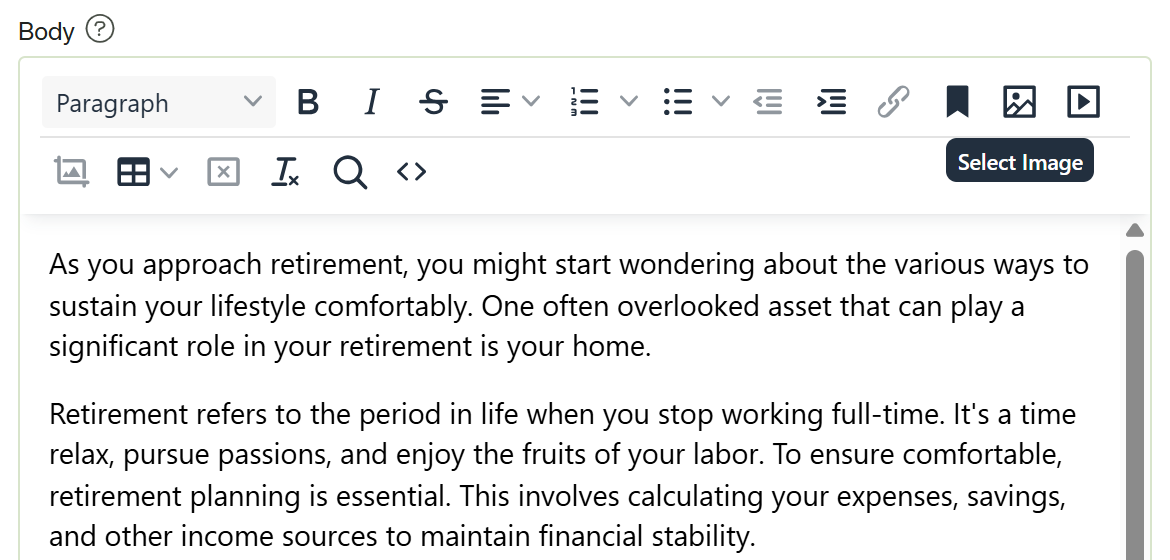
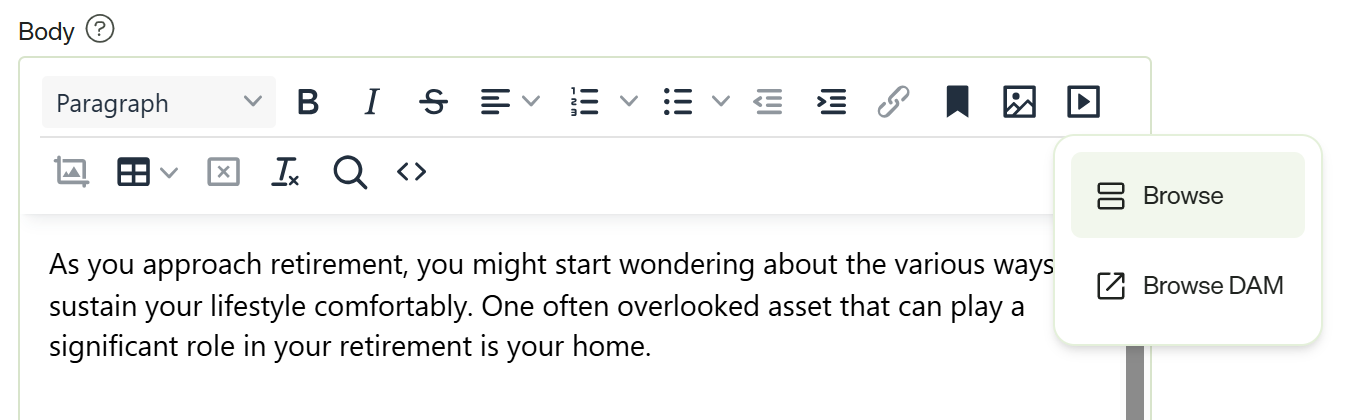
Click it and a menu opens with Browse, Browse DAM when Optimizely DAM is set up, and Upload to CMS.
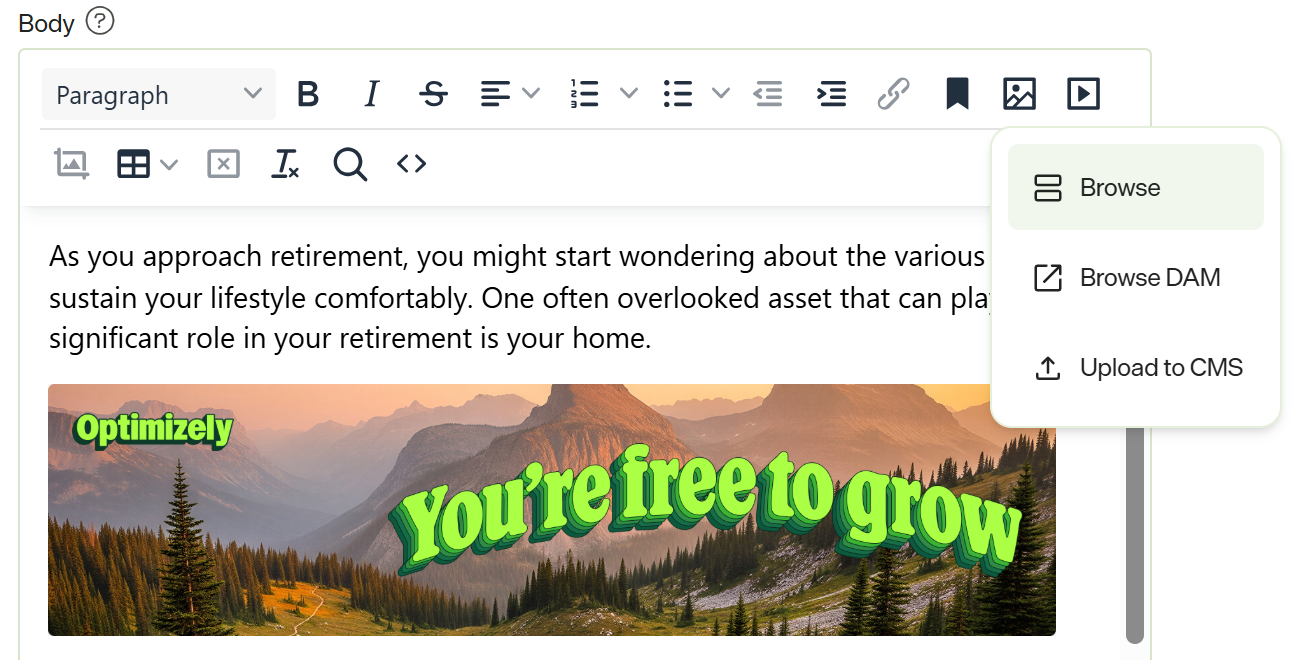
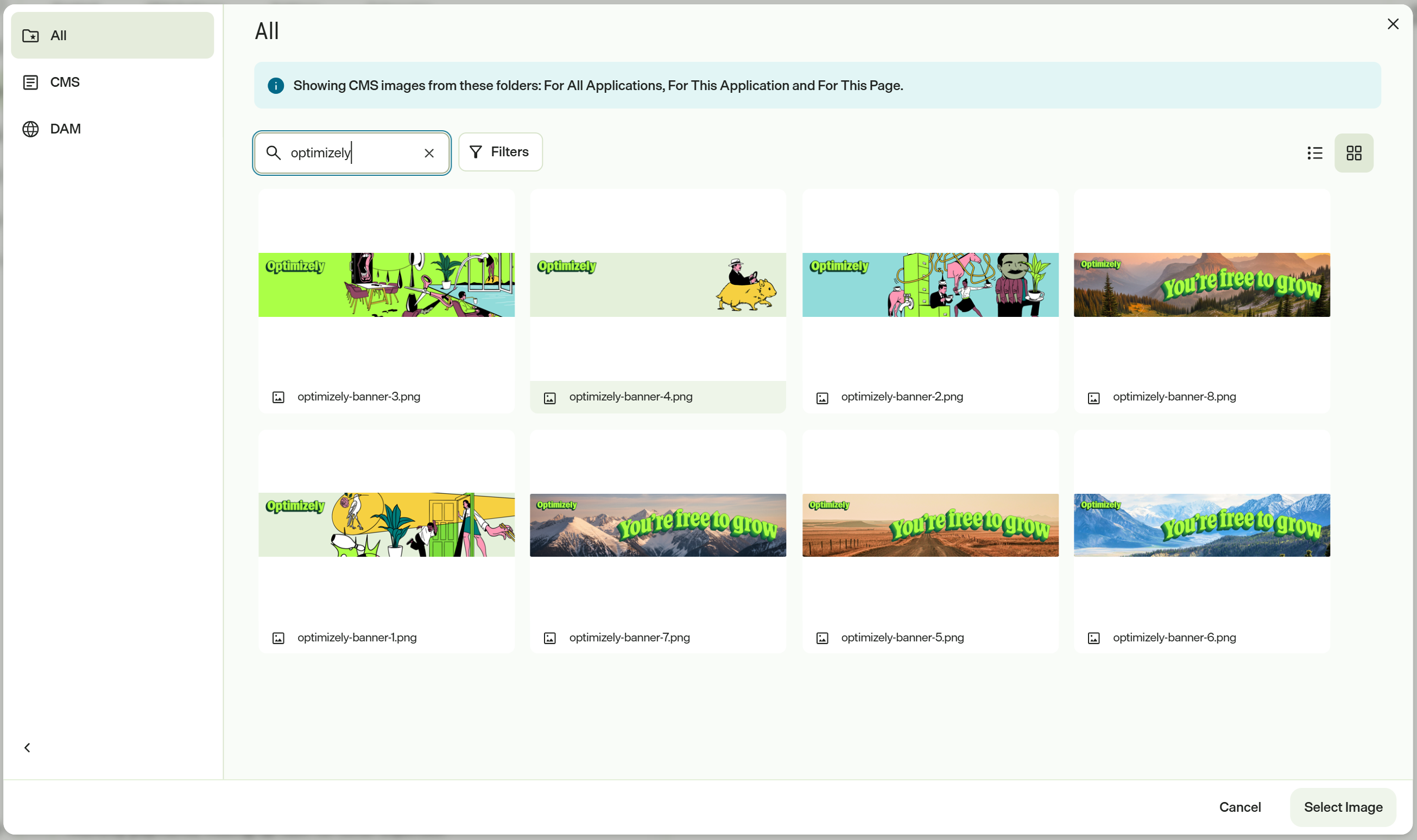
Browse the CMS and the DAM together
Browse opens the Content Manager, which lists the images you can use from the CMS and the DAM. You can search and filter them together, or switch to CMS or DAM on the left. Pick an image and choose Select Image.
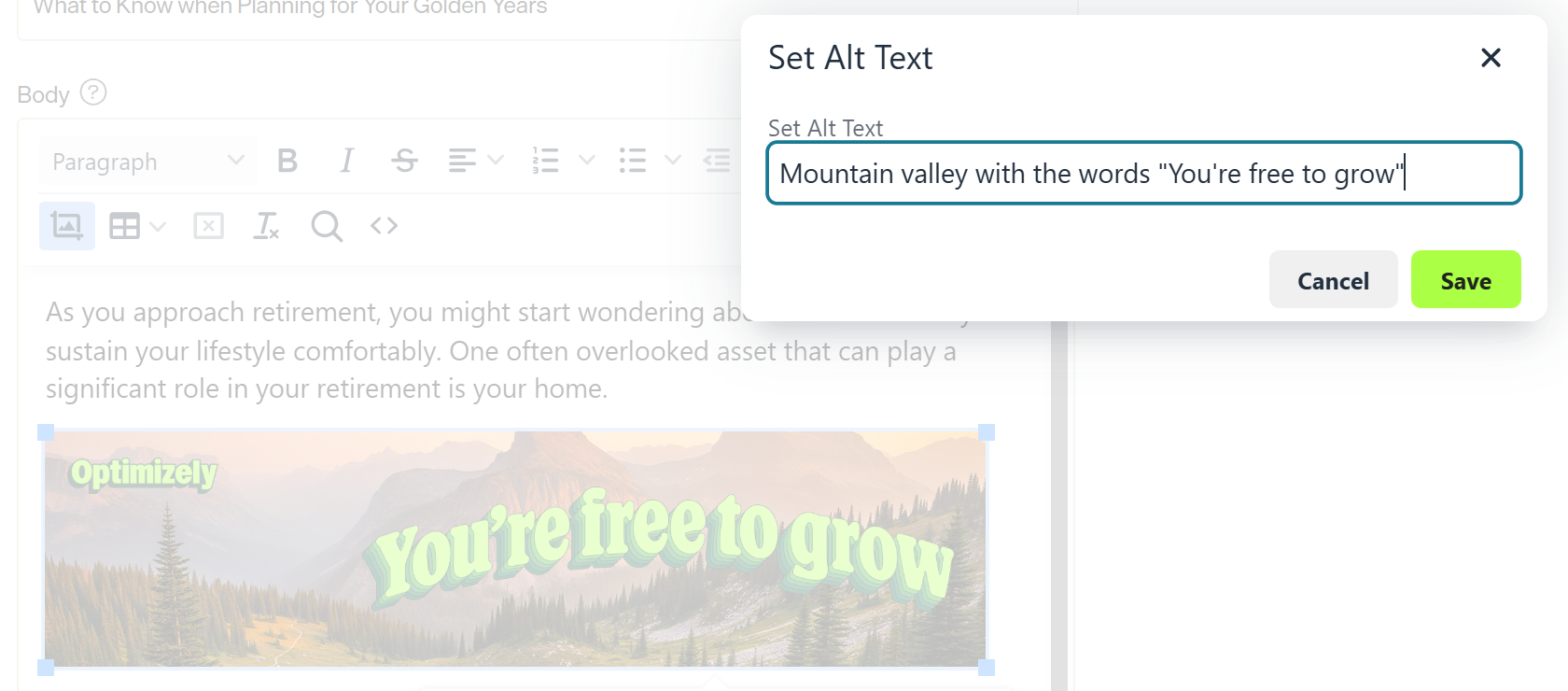
The image goes in with its alt text (or sets the alt text to the filename if it doesn't have one), at its own width and height. Drag its corner handles to resize it.
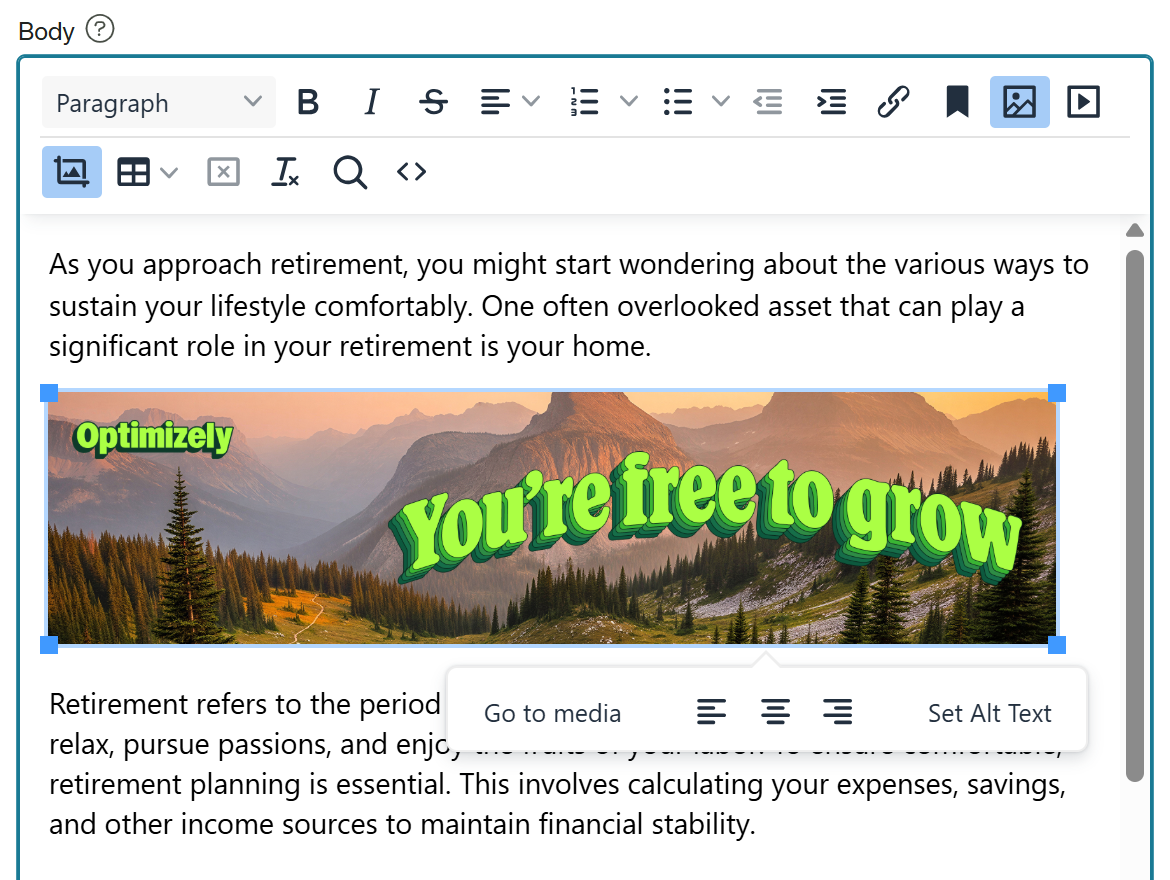
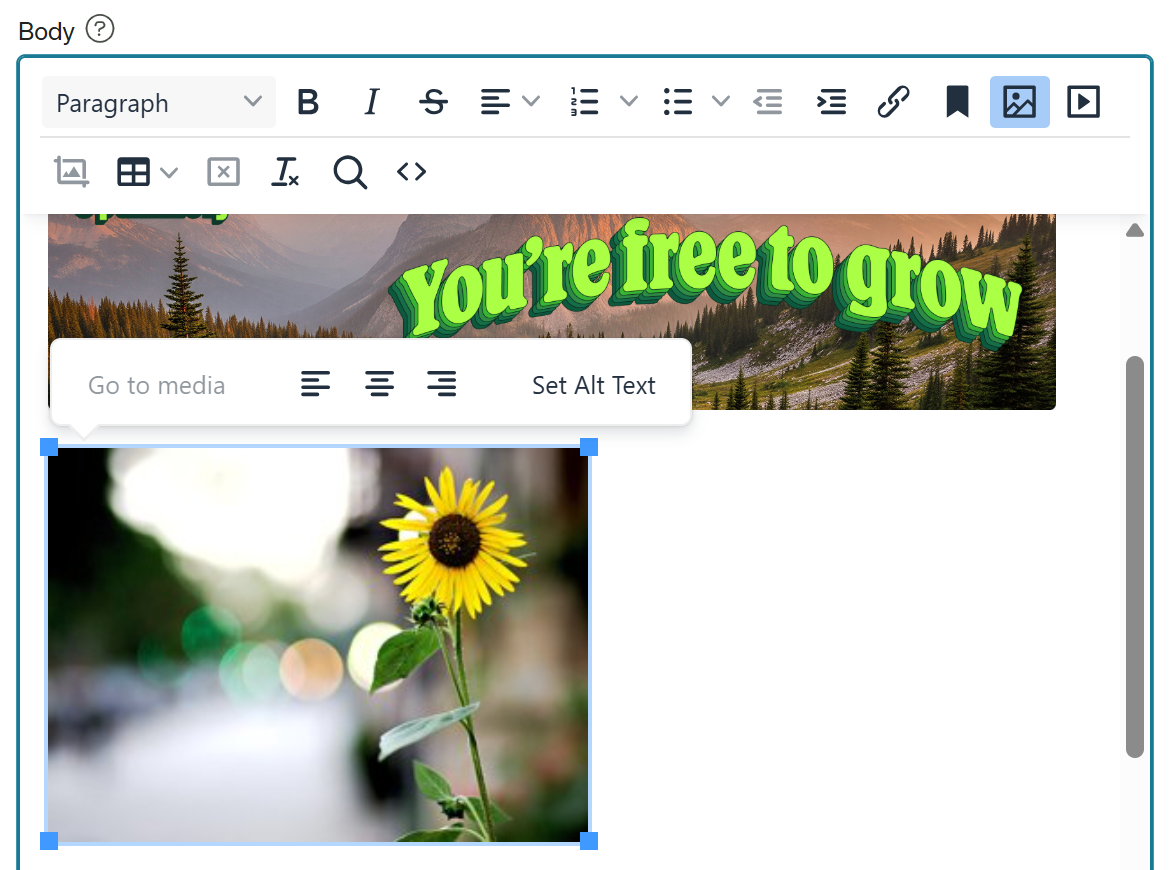
To change the alt text, select the image and choose Set Alt Text on the image toolbar. Clicking the image button while the image is selected does the same.
Pick from the DAM library with Browse DAM
Browse DAM opens the Optimizely DAM library in a popup. Find the image and select it, then click Choose in its details. If your browser blocks the popup, the editor asks you to allow popups for the site.
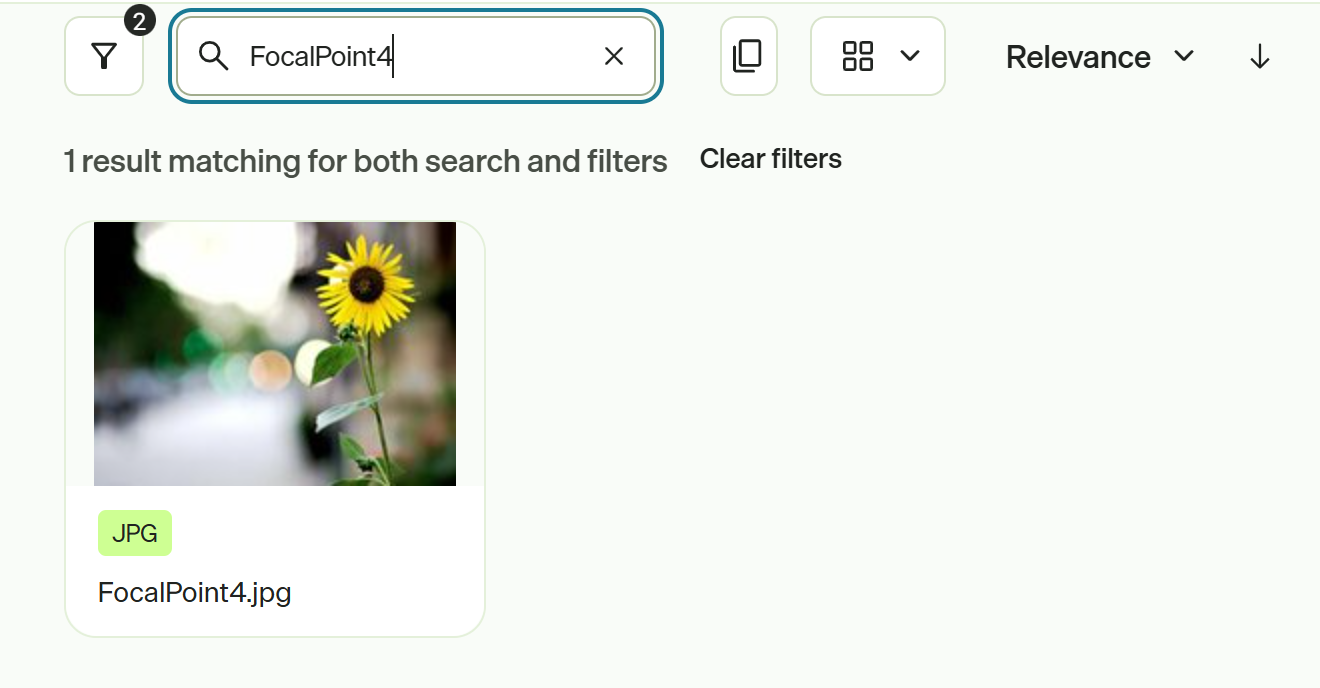
A DAM image comes in with the alt text from the DAM and behaves like any other image in the editor, except that Go to media and Image Editor are turned off for DAM images.
When you publish, the page gets the image's DAM URL, so the image is served from your DAM. DAM usage tracking works too: the image's usage in the DAM lists the page, with a link back to it in the CMS.
Which versions have it
- Optimizely CMS (SaaS): from SaaS-v2026.10.28.1227, for everyone.
- CMS 13: from 13.7.0, on sites that use the Content Manager.
There's a video picker too
On SaaS, rich text properties set up with the Expanded preset also get a video button. On CMS 13 the video button isn't added by default; the companion post shows how to add it. With Optimizely DAM set up, its menu has Browse and Browse DAM, and it puts the video you pick into the text.
Try it
Open a page with a rich text property and click the image button. Developers can read the companion post on setting the pickers up in CMS 13, what Optimizely Graph returns for DAM images, and adding them through the CMS REST API.
Comments