

Are you also having trouble with EPiServer Search (IndexingService.svc) and SSL?
For a long time I have been struggling with getting EPiServer Search up and running on a server with a public url. Today I also had to struggle with getting the service up and running with SSL. So I thought I should share my experience with you and try to collect a couple resources that might help you getting EPiServer Search up and running.
Please feel free to ad comments about this issue as well 
Are you using Multiple Bindings in IIS?
If so you have to make sure that you add <serviceHostingEnviroment multipleSiteBindingEnable= ”true”>. What is multiple bindings then… well if you are using yoursite.se and yoursite.com you have multiplebindings in your IIS instance for that specific website.
<system.serviceModel>.....
   <serviceHostingEnvironment aspNetCompatibilityEnabled="true"
                                multipleSiteBindingsEnabled="true" />
  ....
</system.serviceModel>
Test the IndexingService
If everything is working as expected you should be able to browse to the “indexingservice.svc”-file.
Browse: http://yousite.com/indexingservice/indexingservice.svc.
You should get this screen:
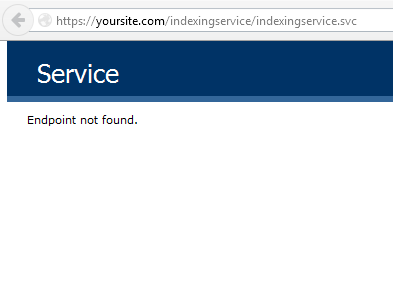
You are getting a 404 or other error message saying that it is not working?
First thing you should look at is if you have the Indexingservice installed on your server. Check the Deployment Center for the EPiServer Search module. Second make sure you have the folder specified in web.config for indexingservice. Should be a folder in your wwwroot-folder “Indexingservice/indexingservice.svc”
Still not luck with the service?
Ok now we need to make sure we have the WCF installed correctly on the IIS. Todo that you can ran the following command in your Command Prompt:
SystemServiceModelReg.exe – The tool can be found in the following directory: %SystemRoot%\Microsoft.Net\Framework\v3.0\Windows Communication Foundation\
And still no Index?
There are a few thing you could check if you still have no working index and search on you website.
- ReIndex your website
- There is a secret gem in EPiServer Admin-mode, browse: “http://yoursite/EPiServer/CMS/Admin/IndexContent.aspx”
- Make sure the service is indexing your server locally
- Add the public url to the host-file on the server: 127.0.0.1 yoursiterurl.com
- File located in: C:\Windows\System32\drivers\etc
- Add the public url to the host-file on the server: 127.0.0.1 yoursiterurl.com
Configure EPiServer Search with SSL
Last but not least. If you have SSL enabled on your website you will get a 404 message for your service. You will need to change some settings in web.config. To enable wcf service to work with SSL you just need to add the following:
 <binding name="IndexingServiceCustomBinding"
                    maxBufferPoolSize="1073741824"
                    maxReceivedMessageSize="2147483647"
                    maxBufferSize="2147483647">
            <security mode="Transport">
                <transport clientCredentialType="None"></transport>
            </security>
            <readerQuotas maxStringContentLength="10000000" />
 </binding>
The important part is to add:
<security mode="Transport">
     <transport clientCredentialType="None"></transport>
</security>
If your website use both secure and none secure http you can and a new CustomBinding to your web.config
Links that might help you and references.
- ServiceModel Registration Tool (ServiceModelReg.exe)
- How to install EPiServer Search for EPiServer CMS 7
- How to: Configure an IIS-hosted WCF service with SSL
- Using EPiServer Search with SSL
- IndexingService not mapped
hi Eric...
great pointers... so your last sentence "If your website use both secure and none secure http you can and a new CustomBinding to your web.config"
how do i do that?
Using IIS 8 on Windows Server 2012, VS15, CMS 9.2
After loading http://yousite.com/indexingservice/indexingservice.svc and still getting 404 or other error message. Then you can follow this steps as well.
Open Internet Information Services (IIS) Manager:
In the Connections pane, click the server connection that you want to add the native module to.
In the Home pane, double-click Handler Mappings.
On the Actions pane, click Add Managed Handler...
In the Add Managed Handler dialog box, specify the following:
*Get the info from the web.config
ref: https://www.iis.net/configreference/system.webserver/handlers/add