

Connect for SharePoint – logging configuration
In Connect for SharePoint 2.2 we use log4net for logging both on SharePoint and EPiServer CMS sides.
Logging on SharePoint side
You can enable logging to see debug information when items are being pushed from SharePoint to EPiServer CMS content channel.
Go to the home directory of your web application. By default WSS web application home directory can be found in your Inetpub folder:
C:\Inetpub\wwwroot\wss\VirtualDirectories\[web application port number]
Open web.config file, define log4net configuration section and configure logging.
Example configuration:
<?xml version="1.0" encoding="UTF-8" standalone="yes"?>
<configuration>
<configSections>
<section name="log4net" type="log4net.Config.Log4NetConfigurationSectionHandler, log4net, Version=1.2.10.0, Culture=neutral, PublicKeyToken=1b44e1d426115821" />
</configSections>
<log4net>
<!--Appender to write message to debug output-->
<appender name="OutputDebugStringAppender" type="log4net.Appender.OutputDebugStringAppender">
<layout type="log4net.Layout.PatternLayout">
<conversionPattern value="%date [%thread] %-5level %type.%method - %message%newline" />
</layout>
</appender>
<!--Appender to write messages to file ConnectForSharePoint.log.txt in Logs directory. File will be created for each day-->
<appender name="RollingLogFileAppender" type="log4net.Appender.RollingFileAppender">
<file value="Logs/ConnectForSharePoint.log.txt" />
<lockingModel type="log4net.Appender.FileAppender+MinimalLock" />
<appendToFile value="true" />
<rollingStyle value="Date" />
<datePattern value="yyyyMMdd " />
<layout type="log4net.Layout.PatternLayout">
<conversionPattern value="%date [%thread] %-5level %type.%method - %message%newline" />
</layout>
</appender>
<root>
<level value="ERROR" />
<appender-ref ref="OutputDebugStringAppender" />
<appender-ref ref="RollingLogFileAppender" />
</root>
</log4net>
</configuration>
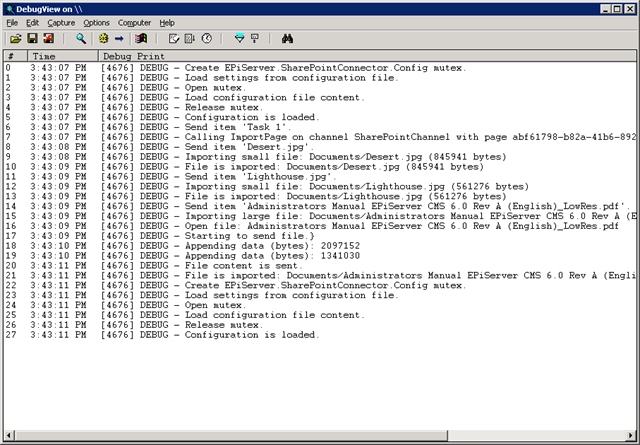
Now you can see logs when item is added/updated/deleted or content is resent to EPiServer CMS:
Logging on EPiServer CMS side
You can enable logging for virtual path provider for SharePoint and get debug information when CMS users are working with SharePoint files. Also you can debug how SharePoint items are imported with content channel.
On EPiServer CMS side you need to configure logging in EPiServerLog.config file.
You can use existing appenders or define new appenders to debug Connect for SharePoint module:
<?xml version="1.0" encoding="utf-8"?>
<log4net>
<appender name="OutputDebugStringAppender" type="log4net.Appender.OutputDebugStringAppender">
<layout type="log4net.Layout.PatternLayout">
<conversionPattern value="%date [%thread] %-5level %type.%method - %message%newline" />
</layout>
</appender>
<appender name="RollingLogFileAppender" type="log4net.Appender.RollingFileAppender">
<file value=" Logs/SharePointVPP.log.txt" />
<lockingModel type="log4net.Appender.FileAppender+MinimalLock" />
<appendToFile value="true" />
<rollingStyle value="Date" />
<datePattern value="yyyyMMdd " />
<layout type="log4net.Layout.PatternLayout">
<conversionPattern value="%date [%thread] %-5level %type.%method - %message%newline" />
</layout>
</appender>
<logger name="EPiServer.VirtualPathWssProvider">
<level value="Debug" />
<appender-ref ref="OutputDebugStringAppender" />
<!--<appender-ref ref="RollingLogFileAppender" />-->
</logger>
<root>
<level value="Warn" />
</root>
</log4net>
In this example we have logger named EPiServer.VirtualPathWssProvider which uses 2 appenders to write messages to debug output and to files. Logger name means that this logger will write only messages output by code from namespace EPiServer.VirtualPathWssProvider.
If you want to see how your items are processed in content channel, you can define logger for EPiServer.ContentChannels namespace.
Of course you don’t need to have all debug messages logged to files in normal situation, use All and Debug levels only to debug some issues.
See http://logging.apache.org/log4net/index.html for details regarding log4net configuration.
Couple of tips regarding logs and debug
Make sure that application is allowed to write to file in your log directory if you are using file appender.
I prefer to use DebugView tool to read logs for debug purposes. You see messages in DebugView window in real time. You don’t need to think about access rights to write messages on disk. You don’t need reopen any log files to see new messages. It’s easy to filter messages in DebugView to see only required.

Comments