

Category Listing Dynamic Content Module
Based on CMS 6 R2
From time to time we receive requests for displaying listings based on categories. Simple enough to code, right?
Allan Thraen recently posted a blog regarding using Page Providers to display an alternate navigation based on categories, with the idea in mind, that you could also use this same kind of functionality to create listings for things such as “Latest News” or something similar. Great stuff!
Prior to this Joe Bianco and I had kicked around some ideas for a Dynamic Content module that would allow content contributors to create listings based on categories. It seemed like before we could even finish our complete thoughts Jacob Kahn had already written the first round of code. We discussed some additional possibilities which Jacob then applied. Alas we have a nice usable and configurable “Content Listing” module.
The basics of how to use this are as follows:
1) Create a new EPiServer page.
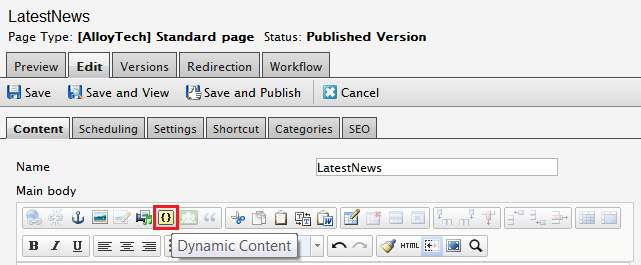
2) Select the Dynamic Content button on the rich text editor.
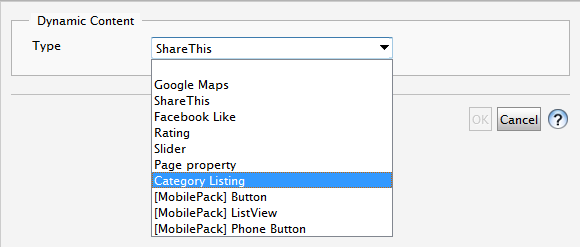
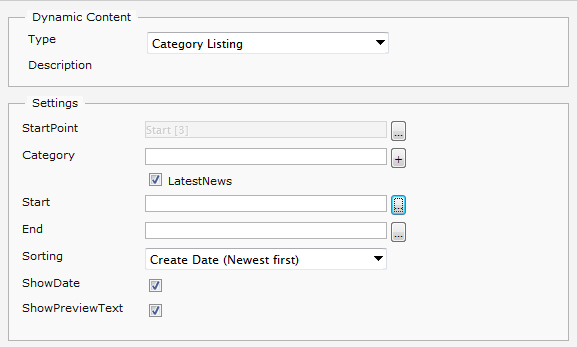
3) Select “Category Listing” from the drop down.
4) Select the “StartPoint” for the area of the tree structure where you want the module to begin searching categories.
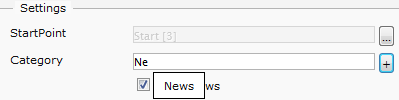
5) Enter one-to-many category names that the listing will be based on.
a) If a category exists in the system as you type it will be presented for you. Simply select it.
b) If you enter a category that is not already present in the system, select the “+” button, and it will be added below the category control as well as to the category list in the backend.
6) Optionally enter a “Start” and “End” date to filter the items in the listing based on the “Start publish” date. This is useful if you only want to list items that were published within a certain timeframe.
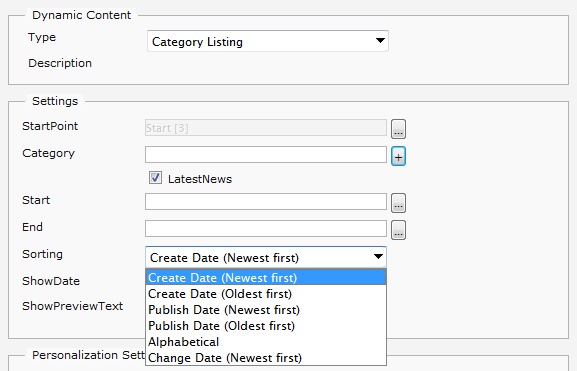
7) Select a “Sorting” order.
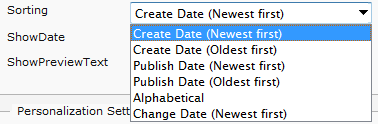
8) Select “ShowDate” if you want a date to be included in the listing.
9) Select “ShowPreviewText” if you want the preview text to be included in the listing.
Example result with “ShowDate” and “ShowPreviewText” selected:

Example result with “ShowDate” and “ShowPreviewText” NOT selected:

Download the EPiServer module file and use the install from a compressed file option.
Please note, this is intended as a starting point for you to customize for your project needs. The code is provided “as is” without warranty or guarantee of operation. Use at your own risk. Good luck and enjoy!

Awesome! Finally a use for Categories.
Brilliant use of categories, would definitely improve any 'related items' referencing. Would be extremely useful to do similar for documentation within the file manager.