

Working with personalized Content groups in CMS 6 R2
Introduction
Content groups is a concept used when working with content for Visitor Groups in EPiServer CMS 6 R2. If you are not yet familiar to Visitor Groups, check out Allan Thræn’s blog post announcing the CMS 6 R2 beta.
Content groups enable you to make sure only one piece of content is displayed to a visitor even if the visitor matches several Visitor groups. It also allows you to display content to visitors who don’t match any of your selected Visitor groups. This is best illustrated with an example.
The task
I want to display a friendly (more or less) greeting on the start page which varies with the time of day. For this I have created three visitor groups: Morning visitors (visit between 6AM-noon), Afternoon visitors (noon – 6PM) and Evening visitors (6PM-midnight). So let’s give them some personalized content!
Setting it up
First, I add a greeting intended for the Morning visitors, select that piece of content and click the Personalized content button:
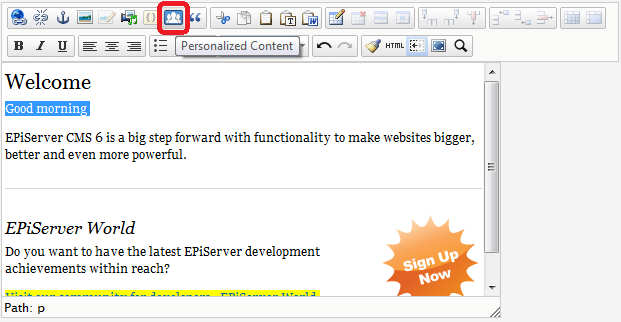
That displays the following dialog where I select my target Visitor group.
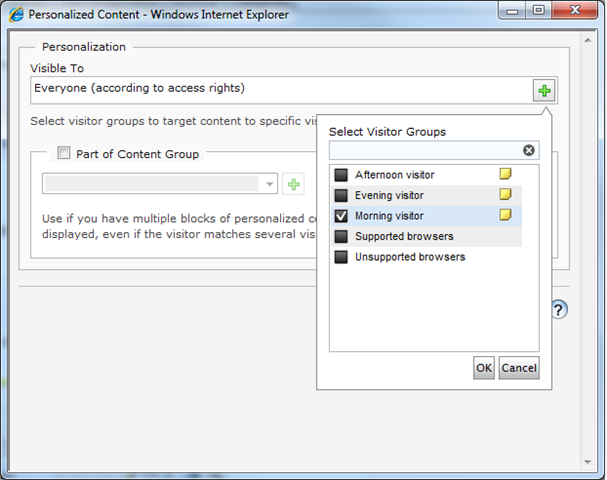
If I were to save and publish the page now, morning visitors would get a greeting and anyone visiting at a different time would see no greeting at all. Not very polite!
So, I go on to add a Content group which the greeting is part of. I call it “Greeting”:
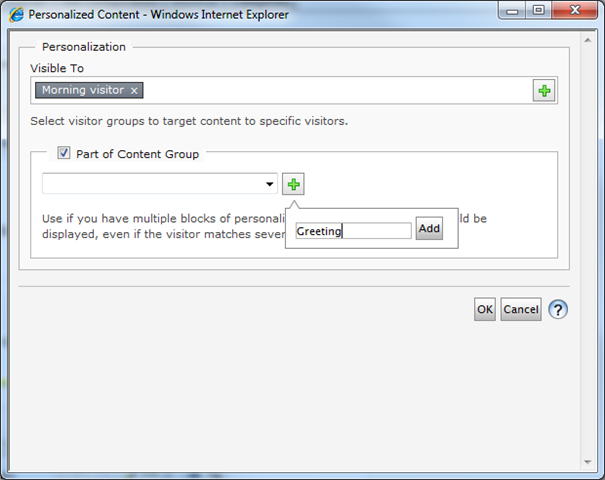
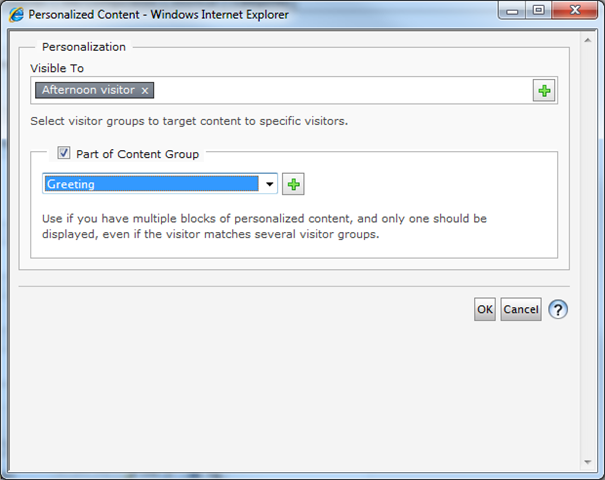
I click OK to add the personalization to the editor, and proceed to add a greeting for the Afternoon visitors. I mark that content and again click the Personalized Content button. I select to display the content for Afternoon visitors, and then select the (now already existing) content group Greeting:
I continue to add another one for Evening visitors, and then I add a final greeting where I don’t select anything in the Visible To box of the Personalized Content dialog. I still add it to the Content group Greeting though. In the editor the final result looks as follows:
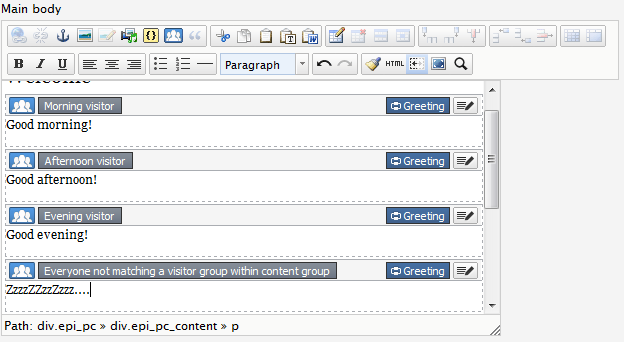
Note the blue Greeting icon with the connected cord. This means all of these pieces of content are in the Greeting Content group and only one of them will be displayed, just as we intended. Note also the text in the gray box of the last piece of content, which very nicely explains that it will be displayed to anyone not matching any of the other visitor groups. It will of course match visitors between midnight and 6 AM since the other Visitor groups cover all other hours of the day.
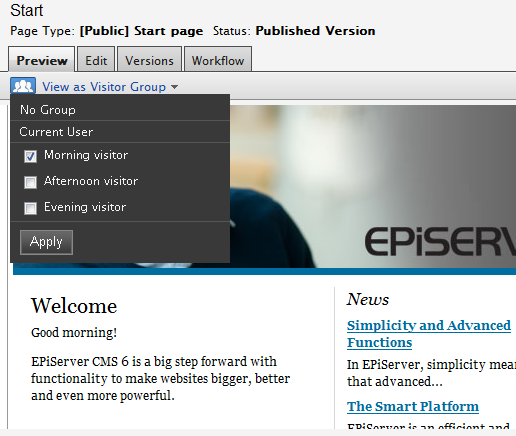
I can use the Preview in edit mode to view the page as a certain visitor group, for example a Morning visitor:
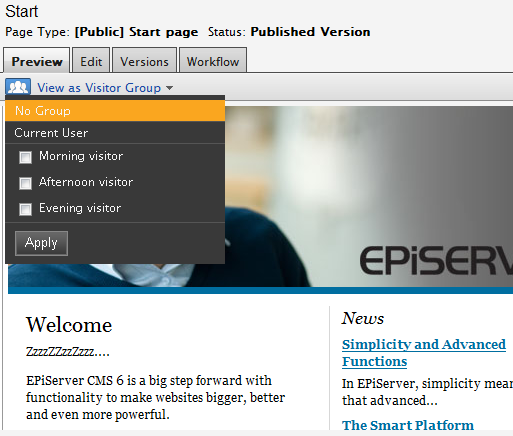
And I can select to view it as no Visitor group at all:
So now you know how to work with Content groups! Happy editing!
Very well explained! Cheers!