Petter Klang
Feb 27, 2015
  4203
(4 votes)

Setting up WebDeploy

After running in to the same problem over and over I though I would make this post to remind myself and to share with others.

WebDeploy is easy as long as you can get the Web Platform Installer and then just follow the steps in this guide.

But should you find yourself (like I do) on a server that doesn’t alow for the installer to go and get it’s goodies then there are some steps to remember in order to keep you from pulling your hair out.

  1. By default the port 8172 is used for Web Deploy so make sure the the firewall is open

  2.   Get the msi file for WebDeply and run it. Remember to click custom and add the Remote Agent Service.
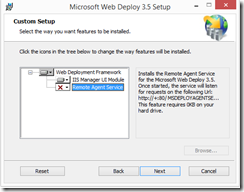
    MSWebDeploy 

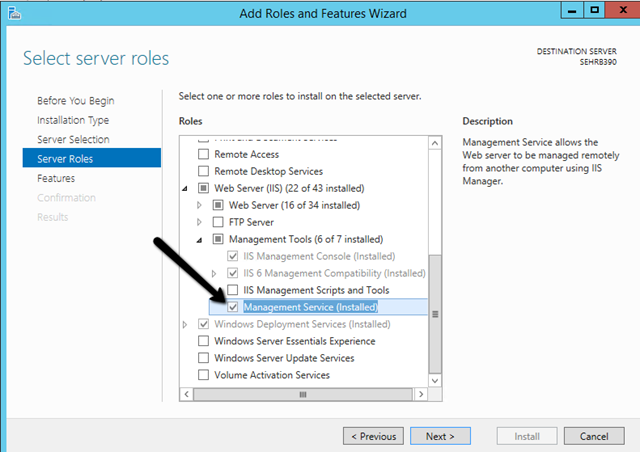
  3. Open up the server management and add the Role “Management Service” .
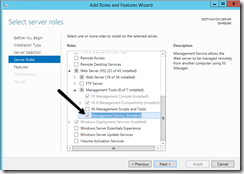
    ManagementService

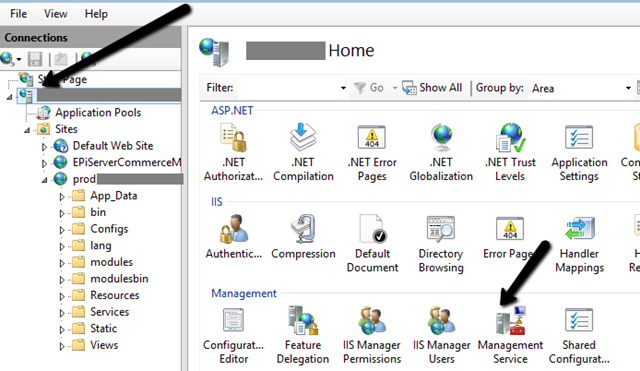
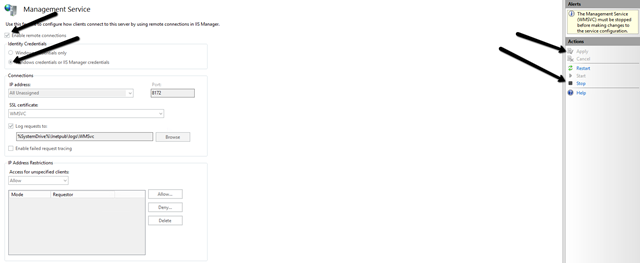
  4. Go to the IIS and EnableRemoteConnections for the Management Service.
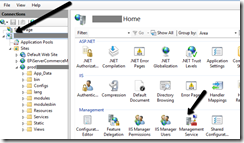
    IISManagementService
    EnableRemoteConnections

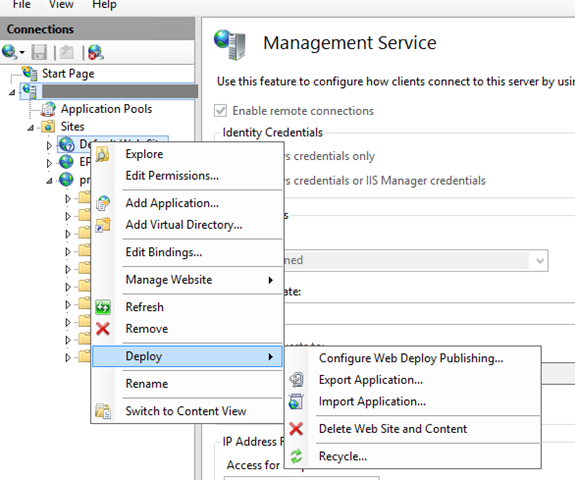
  5. Right click the site and get the Deploy configuration for the site and import this in Visual Studio
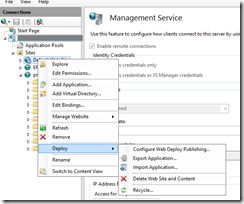
    Configure_web_deploy

And you are done!

Feb 27, 2015

Comments

Please login to comment.
Latest blogs
Meet the latest OMVPs - H1 2026 Cohort

Meet the Latest Cohort of Optimizely Most Valuable Professionals (OMVPs) Every year, the Optimizely Most Valuable Professional (OMVP) program...

Satata Satez | Mar 13, 2026

Optimizely Commerce vs Composable Commerce: What Should You Do with CMS 13?

As organizations modernize their digital experience platforms, a common architectural question emerges: Should we continue using Optimizely Commerc...

Aniket | Mar 12, 2026

Missing Properties tool for Optimizely CMS

If you have been working with Optimizely CMS for a while you have probably accumulated some technical debt in your property definitions. When you...

Per Nergård (MVP) | Mar 10, 2026

AI Generated Optimizely Developer Newsletter

Updates in the Optimizely ecosystem are everywhere: blog posts, forums, release notes, NuGet packages, and documentation changes. This newsletter...

Allan Thraen | Mar 10, 2026 |