
Adding a connected Company field to an EPiServer user – A love story
In the future posts about page provider I’ll add oil to the internal/private/coupled EPiServer classes fire started by Anders Hattestad. So before all that whining I wanted to share when implementing something in EPiServer is actually much smoother than I imagined. So suck up mode on!
Profile
What I want is to somehow connect a company name with an EPiServer user. My initial instinct was to use the asp.net functionality profiles (which EPiServer uses too to store for example the edit tree settings for a user) and then somehow enable the administrators of the site to administrate this on the regular user settings page.
So I looked at the profile section in web.config and it seems a Company setting was already in place for me to use:
<profile enabled="true" defaultProvider="SqlProfile" automaticSaveEnabled="true">
<properties>
<add name="Address" type="System.String" provider="SqlProfile"/>
<add name="ZipCode" type="System.String" provider="SqlProfile"/>
<add name="Locality" type="System.String" provider="SqlProfile"/>
<add name="Email" type="System.String" provider="SqlProfile"/>
<add name="FirstName" type="System.String" provider="SqlProfile"/>
<add name="LastName" type="System.String" provider="SqlProfile"/>
<add name="Language" type="System.String" provider="SqlProfile"/>
<add name="Country" type="System.String" provider="SqlProfile"/>
<add name="Company" type="System.String" provider="SqlProfile"/>
<add name="Title" type="System.String" provider="SqlProfile"/>
<add name="SubscriptionInfo" type="EPiServer.Personalization.SubscriptionInfo, EPiServer" provider="SqlProfile"/>
<add name="CustomExplorerTreePanel" type="System.String" provider="SqlProfile"/>
<add name="FileManagerFavourites" type="System.Collections.Generic.List`1[System.String]" provider="SqlProfile"/>
<add name="EditTreeSettings" type="EPiServer.Personalization.GuiSettings, EPiServer" provider="SqlProfile"/>
<add name="ClientToolsActivationKey" type="System.String" provider="SqlProfile"/>
<add name="FrameworkName" type="System.String" provider="SqlProfile"/>
</properties>
<providers>
<clear/>
<add name="SqlProfile" type="System.Web.Profile.SqlProfileProvider, System.Web, Version=2.0.0.0, Culture=neutral, PublicKeyToken=b03f5f7f11d50a3a" connectionStringName="EPiServerDB" applicationName="EPiServerSample"/>
</providers>
</profile>
Plugin control
To enable the end users to administrate this setting we’ll add a control to the area called SidSettingsArea (which is the user settings area). Then I implemented the interface IUserSettings which contains the two methods
public void LoadSettings(string userName, EPiServer.Personalization.EPiServerProfile data)
{
}
public void SaveSettings(string userName, EPiServer.Personalization.EPiServerProfile data)
{
}
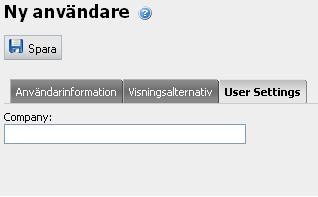
So luckily enough for me the profile data of the user is sent to these two methods which makes it easy to implement the functionality we want. Since company is one of the “built in” (sort to speak) profile values it’s available strongly typed in the EPiServerProfile class. So I added a textbox to my control (called tbCompany) where the user entered the company and bang, everything just worked. This is the complete code for the control:
[GuiPlugIn(DisplayName = "User Settings", Description = "Additional settings for the user", Area = PlugInArea.SidSettingsArea, Url = "~/UI/PlugIns/UserSettings.ascx")]
public partial class UserSettings : System.Web.UI.UserControl, IUserSettings, ICustomPlugInLoader
{
protected void Page_Load(object sender, EventArgs e)
{
}
#region IUserSettings Members
public void LoadSettings(string userName, EPiServer.Personalization.EPiServerProfile data)
{
if(!IsPostBack)
{
tbCompany.Text = data.Company;
}
}
private bool saveRequiresUIReload;
public bool SaveRequiresUIReload
{
get
{
return saveRequiresUIReload;
}
set
{
saveRequiresUIReload = value;
}
}
public void SaveSettings(string userName, EPiServer.Personalization.EPiServerProfile data)
{
data.Company = tbCompany.Text;
data.Save();
}
#endregion
#region ICustomPlugInLoader Members
public PlugInDescriptor[] List()
{
return new PlugInDescriptor[] { PlugInDescriptor.Load(typeof(UserSettings)) };
}
#endregion
}
Accessing the data
To access the data on the site we use the class EPiServer.Personalization.EPiServerProfile. It contains a a static property called Current that’s mapped to the current users profile. So to access the company of the currently logged in user we’d simply write
EPiServer.Personalization.EPiServerProfile.Current.Company
If you add additional profile properties (that aren’t mapped in the EPiServerProfile class) you can access those bracket style (in the same manner as PageData)
EPiServer.Personalization.EPiServerProfile.Current["SomeProperty"]
Somewhat late to this article ... But this was just what I needed for a CMS 11 client. Will be interesting to see if and how this is possible for CMS 12.