
Create Environment Banner that highlight current environment to editors!
Recently I got a request from editors, sometimes they forgot to check the browser URL and keep working, on wrong environment, and publish the content to wrong environment. for example, one of the editors was testing something on prep environment, and something came in between to small update to production, unintentionally he updated prop environment and thought he has done his job. So, editors requested if can we have banner on top of every page that indicate the current environment, It could help us to minimize the human error like this?
-
Let us see how I fulfill this requirement.
First of all, I created a new component class in business folder like this.
[Component(PlugInAreas = "/episerver/cms/action",
PlugInAreas:- it defines where in cms the content of Component should display. there are various ways to get the value for PlugInAreas is to Use
Categories = "cms",
WidgetType = "yourCompanyName/environments/environmentHighlighter")
]
public class EnvironmentHighlighterComponent
{}
There are three important part in component
EPiServer.Shell.PlugInArea class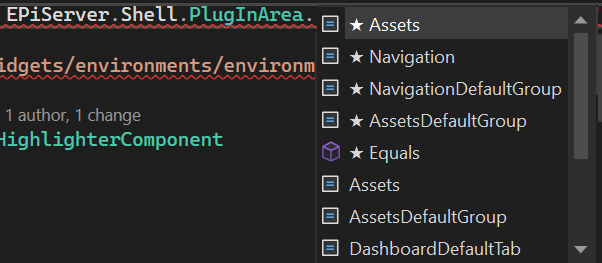
But for my requirement I did not found any value that could be used for global menu area in EPiServer.Shell.PlugInArea. So, I decided to check what pre-defined Components are available into the system. Among various predefined Components Toolbar was most closed to my requirement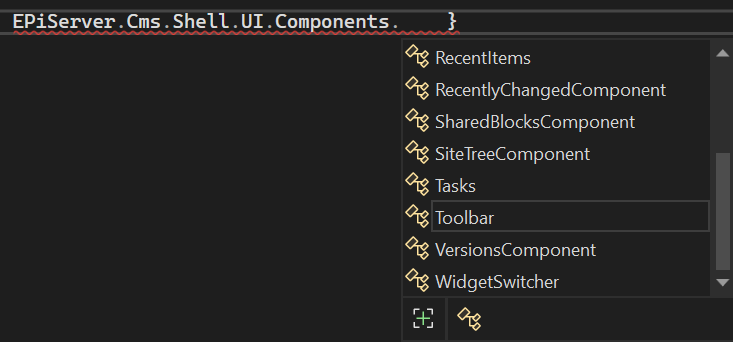
on further peek on the Toolbar definition, I found "/episerver/cms/action" PlugInAreas worked for me.
-
-
- Categories: I wanted to show the component for all cms pages, so I simply put "cms" as a category. other value could be "dashboard".
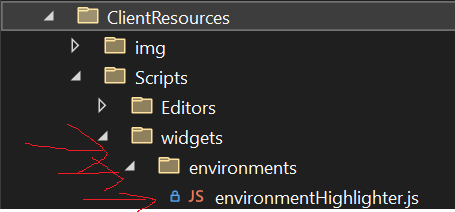
- WidgetType: this value belongs to various setings of your ClientResources, for example Editors, widgets etc. for our case we used
"yourCompanyName/environments/environmentHighlighter" - yourCompanyName is widget namespace name that will be used in module.config file.
- environments are folder path in ClientResources folder.
- environmentHighlighter is js file name where Dojo code is going to be written. like this
-
Second part is update or create new module.config file at the root of the website and update like this
<?xml version="1.0" encoding="utf-8"?>
<module>
<dojoModules>
<add name="yourcompanyname" path="Scripts/widgets" />
</dojoModules>
<dojo>
<paths>
<add name="yourcomapanyname" path="Scripts" />
</paths>
</dojo>
</module>
in the above config file, we are trying to map widgets folder with ClientResources folder.
Third part is to create Dojo script file. in our case file name is environmentHighlighter.js file.
define([
"dojo/_base/declare",
"dijit/_WidgetBase",
"dijit/_TemplatedMixin"
],
function (declare, _WidgetBase, _TemplatedMixin)
{
return declare("yourcomapanyname/environments/environmentHighlighter",
[
_WidgetBase,
_TemplatedMixin
],
{
templateString: dojo.cache("/EnvironmentHighlighter/Index")});
});
there are two important parts in above script.
- declare statement: the value is same as WidgetType value.
- templateString statement tell the dojo from where the html should come from, in our case EnvironmentHighlighter is a controller and Index is a method.
Four and final part is create controller, view and setup route, these parts are self-explanatory
Controller
public class EnvironmentHighlighterController : Controller
{
public ActionResult Index()
{
return PartialView();
}
}
View:
@{
var currentEnvironment = Environments.CurrentEnvironment;
var greenColor = "#2cd31f";
var orangeColor = "#ff6a00";
var colorScheme = currentEnvironment == Environments.Environment.Production.ToString() ? orangeColor : greenColor;
}
<div style="text-align: center;">
<div style="width:300px; margin:0 auto; background:@colorScheme; color:#FFF;">
You are working on @currentEnvironment environment
</div>
</div>
Routing:
RouteTable.Routes.MapRoute("EnvironmentHighlighter", "environmenthighlighter/Index", new { controller = "EnvironmentHighlighter", action = "Index" });
That’s it!

Nice Article. Loved it.