


Optimizely Content APIs: the Setup the Docs Don't Walk You Through
CMS 13 is pushing things firmly in the direction of Optimizely Graph, but plenty of teams are still running on older CMS versions, or have good reasons to stick with the Content Delivery, Content Definitions, or Content Management APIs regardless of what version they're on. This guide is for those teams.
What follows is a step-by-step walkthrough to get any of the content APIs up and running, tested locally, and fully understood, in one place. No jumping between API reference pages, no piecing together fragments from several different resources. Just the things the documentation doesn't make obvious, learned the hard way.
The mental model first
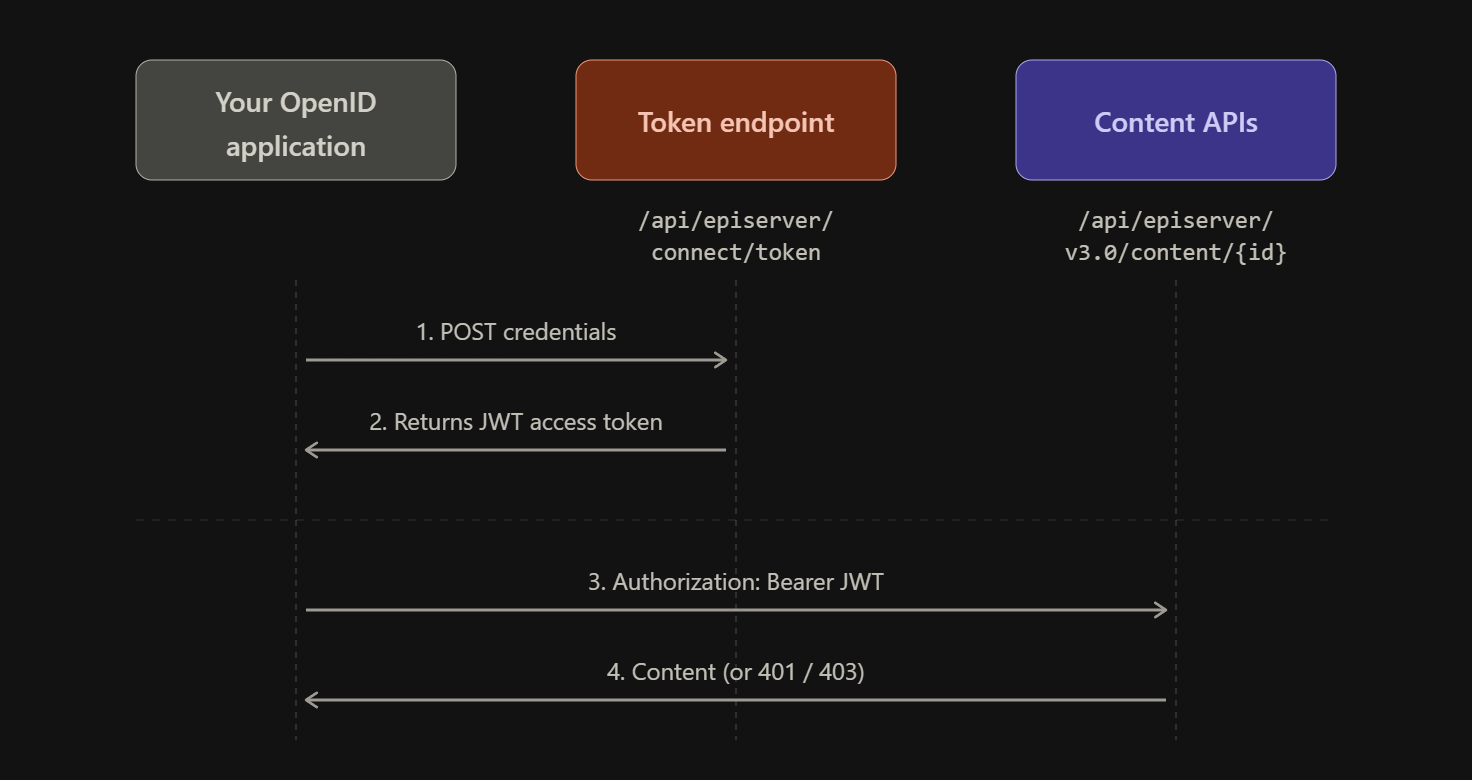
Optimizely uses OpenID Connect (via a library called OpenIddict under the hood) to issue JWT bearer tokens. When you want a system to be able to call one of the content APIs, you define it as an OpenID Connect application, either in code, in the CMS Admin UI, or both. We'll cover the specifics of each in the steps below.
"Application" in this context is not referring to your CMS instance or front-end site, it refers to discrete client identities registered specifically for machine-to-machine communication. Your CMS can have as many of these as you need.
Why grant_type=client_credentials and not something else
OAuth 2.0 has several grant types: different flows for getting a token, each suited to a different kind of requester or use case.
authorization_code is for interactive users: a person clicks login, gets redirected, enters their credentials, and the app receives a token on their behalf.
client_credentials is for machine-to-machine communication. Your service acts as itself, not on behalf of a user. There are no redirects, it simply exchanges its credentials directly for a token.
Why the token endpoint is at /connect/token
This is OpenIddict's default endpoint path, and OpenIddict is the OpenID Connect server library Optimizely uses under the hood. Optimizely didn't invent this URL, it's baked into the library. The /api/episerver prefix in front of it is the actual Optimizely part of the route, sitting in the same legacy episerver namespace you'll see across the older API paths.
The flow from here is straightforward: you request an access token for one of these applications, then pass that token in subsequent requests to the content APIs. Importantly, the access rights you configure in the CMS are tied to the application identity itself, so when a request comes in using that token, content access is evaluated against whatever permissions that application has been granted.

The Add User/Group dropdown showing the Applications section with two OpenID applications listed
Let's set it all up
Step 1: Install the required NuGet packages
dotnet add package EPiServer.OpenIDConnect
dotnet add package EPiServer.OpenIDConnect.UI # Optional
You'll also need the API package for whichever API you're securing:
- Content Delivery API: EPiServer.ContentDeliveryApi.Cms
- Content Management API: EPiServer.ContentManagementApi
- Content Definitions API: EPiServer.ContentDefinitionsApi
Version gotcha: Make sure your EPiServer.OpenIDConnect version is compatible with your CMS version. Mismatched versions are a common source of silent failures at startup.
Step 2: Wire up the configuration in code
In your Startup.cs, you need to configure OpenID Connect and register whichever content APIs you need:
public void ConfigureServices(IServiceCollection services)
{
    // ASP.NET Identity must be configured before OpenID Connect
    services.AddCmsAspNetIdentity<ApplicationUser>();

    services.AddOpenIDConnect<ApplicationUser>(
        useDevelopmentCertificate: _webHostingEnvironment.IsDevelopment(),
        createSchema: true,
        options =>
        {
            // Seeding an application here is optional: see note below
            options.Applications.Add(new OpenIDConnectApplication
            {
                ClientId = "your-client-id",
                ClientSecret = "your-client-secret",
                Scopes =
                {
                    "epi_content_delivery",
                    "epi_content_management",
                    "epi_content_definitions"
                }
            });
        });

    services.AddOpenIDConnectUI(); // Optional: adds the OpenID Connect panel in CMS Admin

    services.AddContentDeliveryApi(OpenIDConnectOptionsDefaults.AuthenticationScheme);
    services.AddContentDefinitionsApi(OpenIDConnectOptionsDefaults.AuthenticationScheme);
    services.AddContentManagementApi(OpenIDConnectOptionsDefaults.AuthenticationScheme);
}
A few things worth noting here:
- Each API registration method accepts an authentication scheme parameter, don't leave it out. Without it, the API has no way to validate incoming Bearer tokens and will return a 401 regardless of whether your token is valid. Pass OpenIDConnectOptionsDefaults.AuthenticationScheme to wire them up correctly.
- useDevelopmentCertificate : tying this to IsDevelopment() means it uses a local dev certificate in your local environment and expects a real one in production. On DXP, certificates are provided automatically via EPiServer.CloudPlatform.Cms 1.6.1 or later.
- Scopes: each scope string controls which API that client is permitted to call, and must match the scope you pass when requesting a token. There are constants available if you'd prefer not to use raw strings: ContentDeliveryOptionsDefaults.Scope, ContentDefinitionsApiOptionsDefaults.Scope, and ContentManagementApiOptionsDefaults.Scope.
- Seeding applications in code is optional. The options.Applications.Add(...) block pre-creates the client on startup, which is convenient for local development. If you'd rather manage clients entirely through the UI, you can omit it, that's what the AddOpenIDConnectUI() line enables. It adds an OpenID Connect section under Settings in CMS Admin where you can create and manage applications directly.

The "OpenID Connect" settings panel can be seen in the screenshot above.
Step 3: Request a token
Once you have an application configured, either in code or the UI, you first need to request an access token for the application before calls to any of the content APIs can be made.
Using curl:
curl -X POST https://your-site.com/api/episerver/connect/token \
  -H "Content-Type: application/x-www-form-urlencoded" \
  -d "grant_type=client_credentials&client_id=your-client-id&client_secret=your-client-secret&scope=epi_content_management"
Using Postman:

Set the request to POST, the URL to your token endpoint, and under the Body tab select x-www-form-urlencoded. Add the four key-value pairs: grant_type, client_id, client_secret, scope
A successful response looks like this:
{
  "access_token": "eyJhbGci...",
  "expires_in": 3599,
  "token_type": "Bearer"
}
Copy the access_token value, you'll use it in Step 5.
Step 4: Assign CMS access rights to the client
This is the most commonly missed step, and it causes some of the most confusing symptoms, you have a valid token, your requests aren't getting 401s, but you're getting empty results or unexpected 403s.
The API client you created is effectively a user in the CMS. Like any user, it needs to be granted access rights to the content it's trying to read or write. There are different levels you could configure access rights, let's get into them below.
Global access rights
Global access rights apply at the page or section level in your content tree and cascade down to every item beneath. For instance, if you want to deny a specific OpenID application Read access to a sensitive area, say, an "Admin" page or a "Members Only" section, you set the restriction at that page, and the cascade ensures every sub-page inherits the same rule automatically. You don't have to configure each one individually.

Navigate to Settings → Set Access Rights, select the page or section you want the client to access, and add it using Add User/Group. Your registered applications (from either the code or created in the CMS on the OpenID Connect settings panel) will appear under the Applications group in the dropdown.
Grant it the appropriate permissions: Read is sufficient for Content Delivery, while Content Management will need Read, Change, and Publish depending on what operations you need to perform. Check Apply settings for all subitems to cascade the rights down the content tree.

alloy-client application granted Read access on the Start page, cascading to all subitems.
Why this matters: Skipping this step produces one of two outcomes depending on your setup: either the API returns a 403 Forbidden response, or it returns content that was never actually restricted to begin with, because the Everyone group already has read access. In the latter case everything appears to be working, but your access rights configuration isn't doing anything. If you ever tighten down content permissions, your client will silently lose access.
Content-level access rights (per page/block instance in the tree)
Content-level access rights give you more granular control than the global settings screen, you can restrict access to specific pages or blocks directly in the content tree rather than applying a blanket rule across everything.
A practical example: imagine you have a pricing page that should only be visible to authenticated partners. Rather than locking down your entire content tree, you can grant your API client access to everything by default and then explicitly restrict access on those specific items, or invert it entirely, grant no global access, and only open up the specific content the client needs to see.

Same request, different response. The restricted client's "Pricing" entry isn't returned as a 403 error, it's simply omitted from the response. This is what makes content-level access rights powerful: the client doesn't need to know what they can't see, and the API does the filtering server-side.
The result isn't binary. It's not just 200 or 403, you can build quite precise access models by combining global and content-level rights.
Content-level access rights are set directly on a specific page or block in the edit interface. To access them, right-click the item in the content area or page tree and select Edit, then look for the Visible to panel at the top of the properties view. If access is unrestricted it will show as Everyone. Click Manage to open the Access Rights dialog and configure it the same way as the global screen.

Right-clicking a content item in the page tree to access its properties

The "Visible to" panel showing the current access restriction status for a content item, with the Manage link to open the Access Rights dialog

The Access Rights dialog for a specific content item, with alloy-client granted Read access and "Inherit settings from parent item" unchecked to override the global defaults
Step 5: Make your first authenticated request
With your token in hand (from Step 3) and access rights set, you can now call the API. Pass the token as a Bearer token in the Authorization header.
curl -X GET https://your-site.com/api/episerver/v3.0/content/{contentGuid} \
  -H "Authorization: Bearer eyJhbGci..."

Success response from the Content Delivery API (200 - OK)
However, if I revoke read access from the OpenId Application, I get the following:


Forbidden response from Content Delivery API (403 - Forbidden)
Common errors and what they actually mean
For the last example, the 403 is exactly what we'd expect, but it's worth understanding the difference between a 401 and a 403, since they're easy to confuse and point to very different problems.
401 Unauthorized means the API doesn't recognise or can't validate the token itself. Either it's malformed, it's expired, or the API isn't configured to accept it. Check that you're passing OpenIDConnectOptionsDefaults.AuthenticationScheme into your API registrations in Startup.cs, that your token hasn't expired (3599 seconds), and that your client_id and client_secret match exactly what's registered in CMS Admin.
403 Forbidden means the token is valid and recognised, but the application it belongs to doesn't have permission to access that content. This is the access rights problem covered in the previous step, the API knows who you are, it just won't let you in.
Token endpoint returns 404. The OpenID Connect middleware isn't registered, or the package isn't installed. Confirm the NuGet package is installed and correctly configured in Startup.cs.
invalid_client error from the token endpoint. The client_id or client_secret doesn't match what's registered in CMS Admin (or code). These must be identical, including case.
invalid_scope error from the token endpoint. The scope you're requesting (epi_content_management, etc.) doesn't match what was registered for the client in CMS Admin.
unsupported_grant_type from the token endpoint. The client was not registered with the client_credentials grant type. Check the application configuration in CMS Admin and ensure Client Credentials is selected as a permitted grant type.
Conclusion
Getting the Optimizely content APIs working for the first time involves piecing together information from several different sources, the official docs, community posts, and a fair amount of trial and error. Hopefully this post brings it all into one place and saves someone the same legwork.
If you're already on CMS 13 or considering the move, Optimizely Graph changes the delivery layer significantly and much of the authentication setup described here won't apply in the same way. But for teams on CMS 12 or those still needing to use any of the content APIs, this remains the path.
Comments