


Setting Up an Optimizely CMS 13 MCP Server Locally with Codex
Optimizely CMS 13 supports Model Context Protocol (MCP), allowing AI tools such as Claude and Codex to interact with CMS content and metadata through an MCP server.
In this post, I'll show how I configured the MCP server in my local CMS 13 Alloy project, connected it to Codex in Visual Studio Code, and used it to explore content types, create pages, and build a Visual Builder experience.
Prerequisites:
- Optimizely CMS 13 (I'm using Alloy with CMS 13.3.0).
- An MCP-compatible AI client (I'm using Codex in VS Code).
- A local CMS instance running over HTTPS, for example, https://localhost:5000.
Configure the MCP Server
Install the Optimizely.Cms.Opal.Tools NuGet package (version 13.2.0 or later):
dotnet add package Optimizely.Cms.Opal.Tools --version 13.2.0Register the MCP server in Startup.cs using client-secret authentication:
services.AddCmsMcpServer()
    .WithClientSecretAuthentication();
Then map the MCP endpoint and require client-secret authorization:
app.UseEndpoints(endpoints =>
{
    endpoints.MapContent();

    endpoints.MapMcp("/mcp")
        .RequireClientSecretAuthorization();
});
The MCP endpoint is now available at https://localhost:5000/mcp, or your application's configured HTTPS address.
Configure Client-Secret Authentication
Make sure a client secret is configured for your local CMS application. We'll use it to authenticate Codex when connecting to the MCP server.
Security note: Never commit your client secret to source control or expose it in screenshots.
Connect Codex in VS Code
Open Codex Settings → MCP servers → Add server and select Streamable HTTP.
- Name: optimizely-cms
- URL: https://localhost:5000/mcp
- Bearer token env var: Leave empty.
- Header: Authorization, with your configured client secret as the value.
Alternatively, configure the server in Codex's config.toml:
[mcp_servers.optimizely-cms]
type = "http"
url = "https://localhost:5000/mcp"

[mcp_servers.optimizely-cms.headers]
Authorization = "your-secret-value"
Replace the placeholder with your actual secret and enable the server in Codex Settings. The secret is passed directly in the Authorization header, without a Bearer prefix.
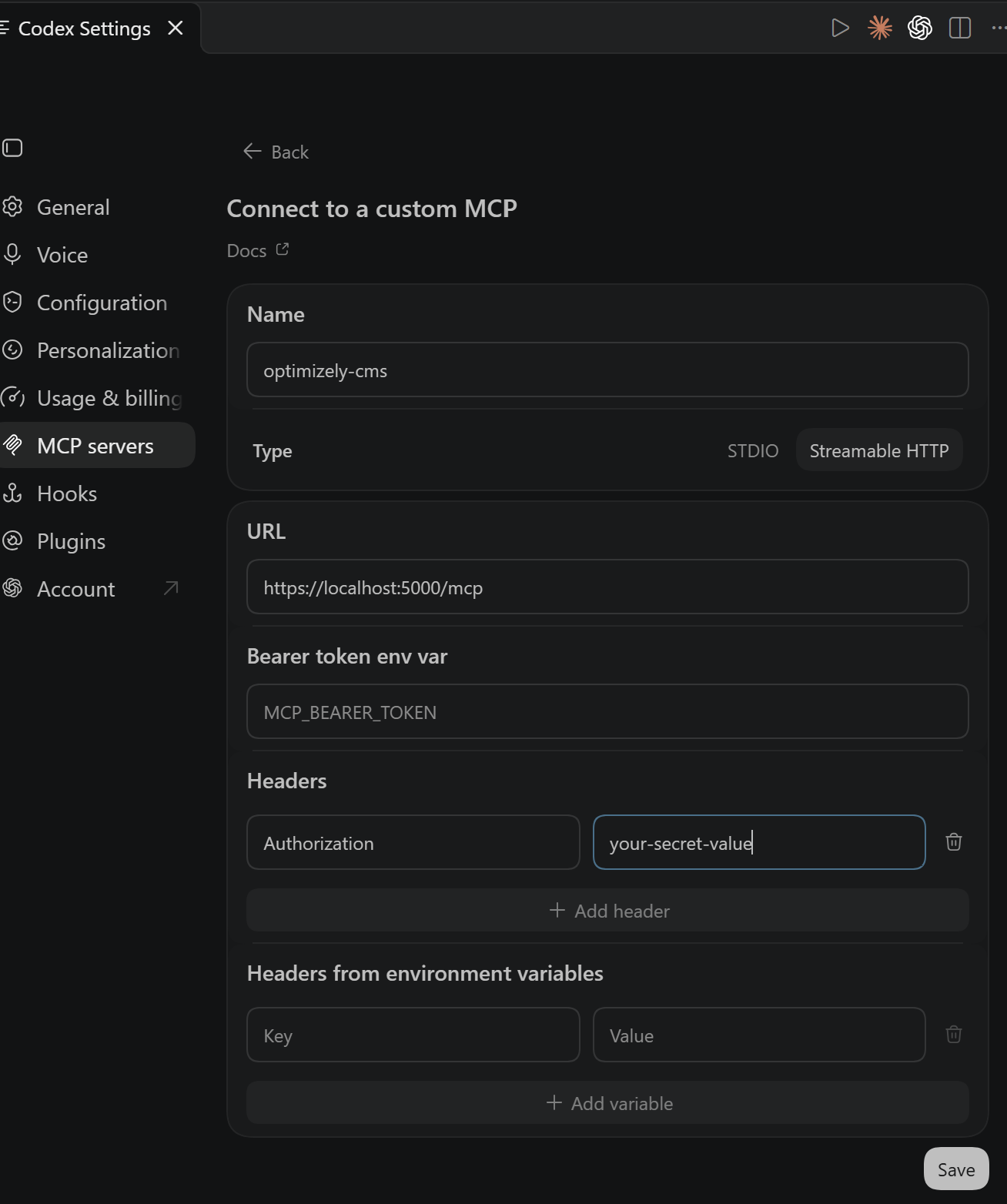
Configuring the local Optimizely MCP server in Codex.
Verify the Integration
With the CMS running, open a new Codex chat in VS Code and try:
List the available content types in my local Optimizely CMS instance using the MCP server.
Codex retrieved the registered content types, including StandardPage and StandardExperienceData, and could inspect their properties, locales, and available Visual Builder components.
You can also retrieve existing content:
Find the published content items of type ProductTestPage and show their properties.
These read-only operations confirm that Codex can access CMS content and metadata through MCP.
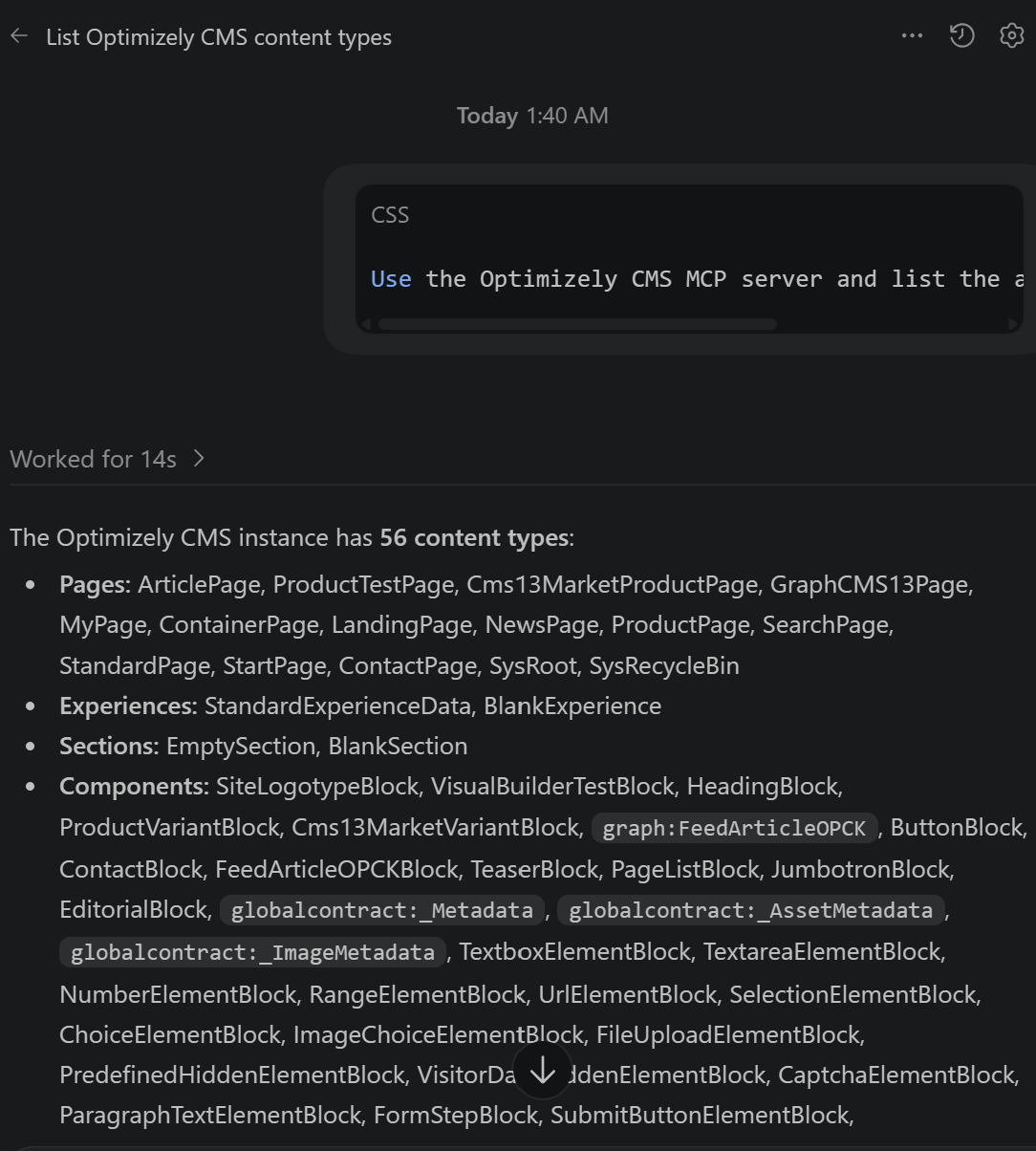
Codex retrieving content types from the local CMS instance.
Create Content Using Codex
Next, I asked Codex to create an unpublished page:
Create "MCP Demo Page" under Start using StandardPage. Add a heading and paragraph to MainBody, and save it as an English draft.
Codex created the page and updated its content through the MCP server.
I also tested Visual Builder:
Create an unpublished "Alloy Demo Experience" using StandardExperienceData, with a BlankSection containing a VisualBuilderTestBlock.
Codex created the experience using the existing CMS content types and Visual Builder components. Both items were saved as drafts without publishing.
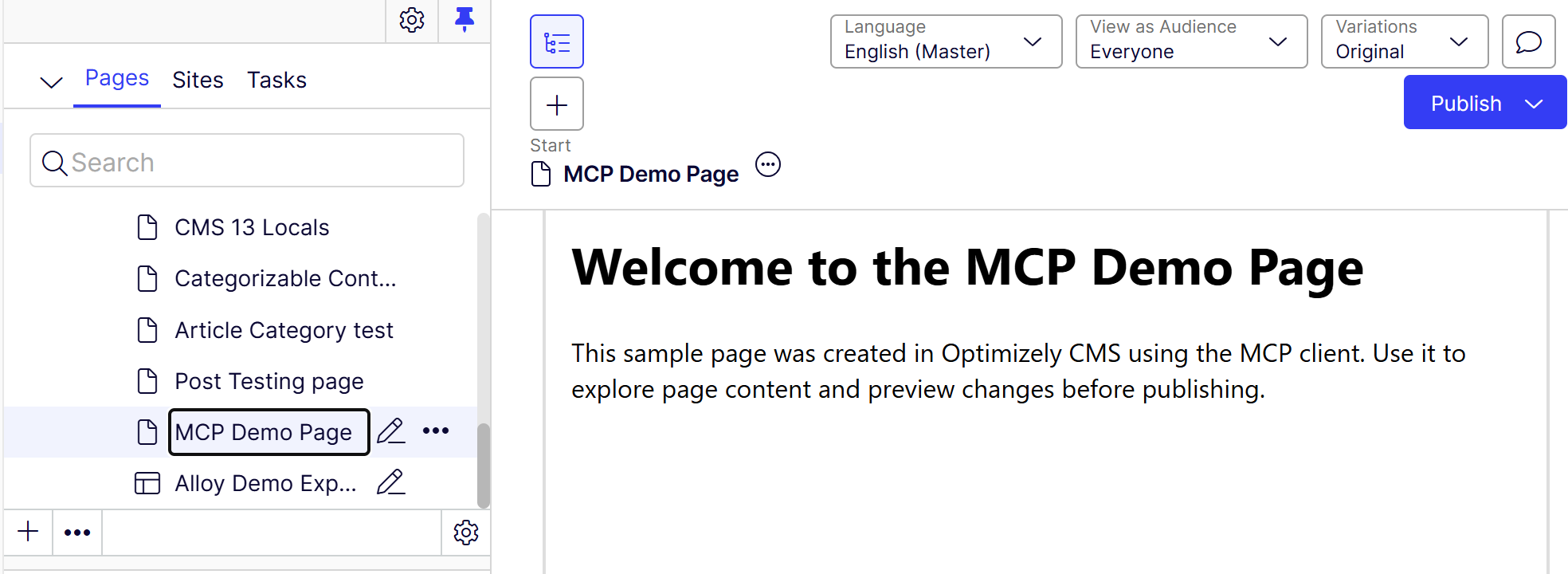
The MCP Demo Page created through Codex and saved as a draft.
Troubleshooting Content Permissions
During content creation, I encountered an authorization error:
Access denied: You do not have permission to create content in this location.
The MCP client authenticated successfully with a CmsAdmins role claim, which was mapped to WebAdmins in the application configuration. Although the Start page granted Create permission to WebAdmins, the MCP client was still denied access.
The issue was resolved by explicitly granting the MCP Client permissions on the Start page through CMS access rights. Afterward, Codex could create and update content.
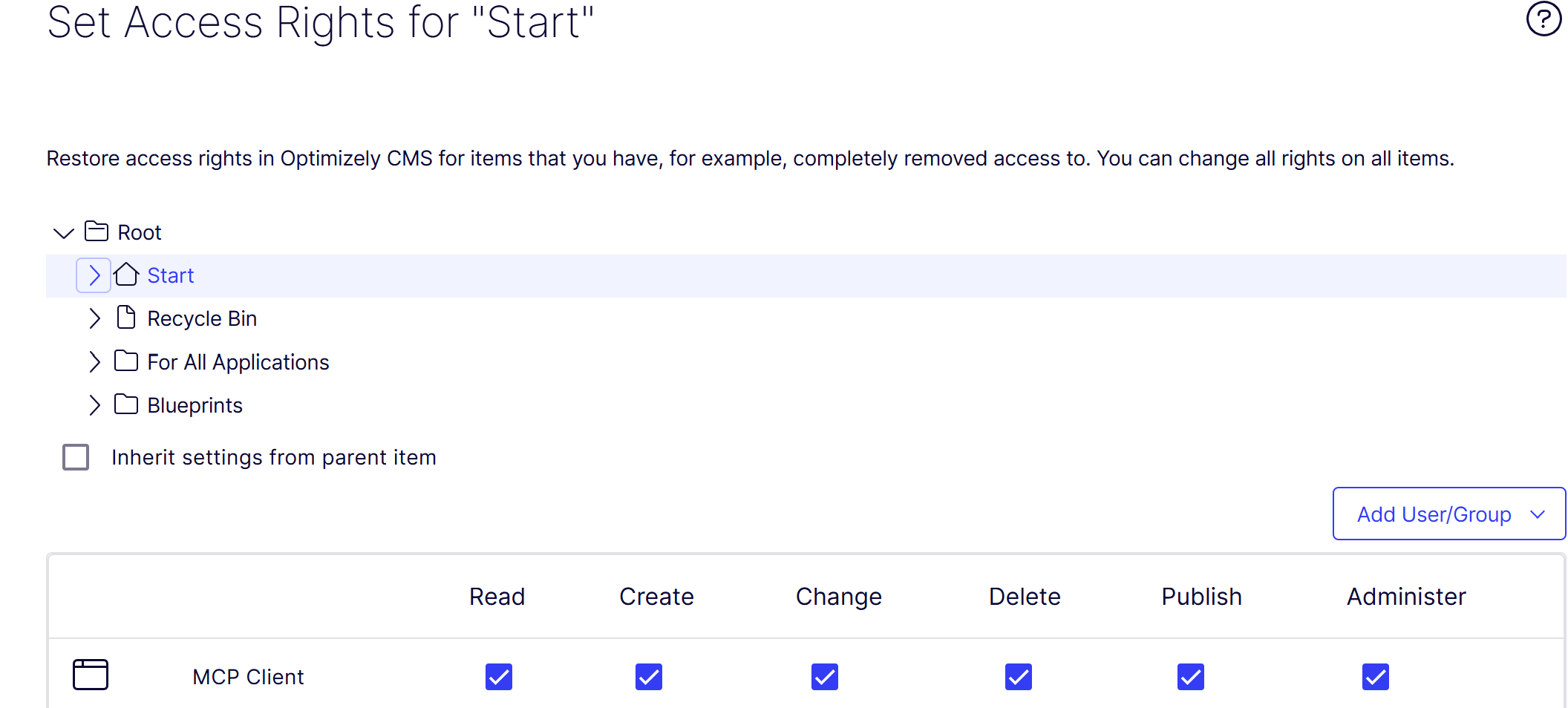
Granting the MCP Client access on the Start page resolved the create denial.
Security note: For this local demo, all permissions were enabled, including Publish and Administer. In a real environment, grant only the permissions needed for the intended operations.
Conclusion
With Codex connected to Optimizely CMS 13 through MCP, we were able to explore content types, create pages, and work with Visual Builder directly from VS Code.
One thing worth noting is that connecting successfully doesn't necessarily mean the MCP client has permission to create or update content. You'll still need to configure the appropriate access rights in CMS.
Comments