

From 12 to 13 preview: A Developer's Guide to testing an Optimizely CMS 13 Alloy Site
The release of Optimizely CMS 13 marks a significant step forward, embracing a more composable and headless-first architecture. While this unlocks powerful new capabilities, it also introduces important changes to the underlying framework.
This guide provides a hands-on walkthrough for upgrading a standard CMS 12 Alloy starter site to the CMS 13 preview. We'll cover dependency updates, code migrations for obsolete APIs, and the new application configuration model.
Step 1: Create a Baseline CMS 12 Site
First, let's establish a starting point. Create a fresh CMS 12 Alloy site using the Optimizely templates. This ensures we have a clean, working installation before we begin the upgrade.
# Create a new Alloy project
dotnet new epi-alloy-mvc -n alloy13preview

# Build and run the site
dotnet build
dotnet run
Once the site is running, register a new user account so you can log in. Verify that the site is fully functional. When you're ready, shut down the application.
Step 2: Update Project Dependencies
With our baseline established, the next step is to update the project file and NuGet packages.
-
Update the Target Framework: Open the .csproj file and change the target framework to
<PropertyGroup> <TargetFramework>net10.0</TargetFramework> </PropertyGroup> -
Update NuGet Packages: Update all EpiServer.* package versions to 13.0.0-preview2.
-
Add AspNetIdentity: CMS 13 decouples the UI's identity management. Add a new package reference for EPiServer.CMS.UI.AspNetIdentity.
<PackageReference Include="EPiServer.CMS.UI.AspNetIdentity" Version="13.0.0-preview2" />
Step 3: Code Migration and Mitigating Obsolete APIs
CMS 13 refactors several core APIs. The compiler will now report a series of warnings and errors related to obsolete members. Let's work through them.
A Friendly Pro-Tip: As you begin the migration, make it a habit to check the compiler warnings in your IDE or build output. These warnings are your roadmap to finding every instance of a deprecated or obsolete API in your specific project. While this guide covers the common changes for the Alloy template, your codebase may have other areas needing attention.
Use ContentReference and ContentLink
The PageReference and PageData.PageLink types are now obsolete. This change reflects a broader shift to treat all content more generically. The fix is a straightforward replacement across your solution:
-
Replace PageReference with ContentReference.
-
Replace .PageLink with .ContentLink.
Replace SiteDefinition with the New Application Model
The concept of SiteDefinition is replaced by a more flexible Application Model. An application connects a starting point in the content tree with a specific rendering mode (e.g., "In-Process" or "Headless") and hostnames.
To resolve this, you'll need to inject IApplicationResolver into your controllers and services to get the context of the current application (IApplication).
Here is an example of how to refactor the StartPageController:
using alloy13preview.Models.Pages;
using alloy13preview.Models.ViewModels;
using EPiServer.Web;
using EPiServer.Web.Mvc;
using Microsoft.AspNetCore.Mvc;
using EPiServer.Applications;
using EPiServer.Shell.Security;
using EPiServer.Web.Routing;

namespace alloy13preview.Controllers;

public class StartPageController : PageControllerBase<StartPage>
{
  private readonly IApplicationResolver _applicationResolver;

  public StartPageController(IApplicationResolver applicationResolver)
  {
    _applicationResolver = applicationResolver;
  }

  public async Task<IActionResult> Index(StartPage currentPage, CancellationToken cancellationToken)
  {
    var model = PageViewModel.Create(currentPage);
    var application = await _applicationResolver.GetByContextAsync(cancellationToken);

    var website = application as Website;

    if (website is not null && website.RoutingEntryPoint.CompareToIgnoreWorkID(currentPage.ContentLink))
    {
      // Connect the view models logotype property to the start page's to make it editable
      var editHints = ViewData.GetEditHints<PageViewModel<StartPage>, StartPage>();
      editHints.AddConnection(m => m.Layout.Logotype, p => p.SiteLogotype);
      editHints.AddConnection(m => m.Layout.ProductPages, p => p.ProductPageLinks);
      editHints.AddConnection(m => m.Layout.CompanyInformationPages, p => p.CompanyInformationPageLinks);
      editHints.AddConnection(m => m.Layout.NewsPages, p => p.NewsPageLinks);
      editHints.AddConnection(m => m.Layout.CustomerZonePages, p => p.CustomerZonePageLinks);
    }

    return View(model);
  }
}
You will need to apply a similar pattern to other places in the code that reference SiteDefinition.Current. For SiteDefinition.Current.RootPage, you can replace it with ContentReference.RootPage.
Modernize Dependency Injection
Service location using InitializationEngined.Locate is obsolete. Instead, use constructor injection to get an IServiceProvider instance.
-
Before: context.Locate.Advanced.GetInstance<T>()
-
After: Inject IServiceProvider and call serviceProvider.GetRequiredService<T>() In an IInitializationModule, you can access it via context.Services.
Other Small API Changes
- IContentTypeRepository<T>: The generic argument is no longer needed. Change IContentTypeRepository<PageType>() to IContentTypeRepository()
-
PageController.PageContext.Page This property is now of type IContent. Update your code to reflect this change.
Step 4: Configuration Updates
Next, we need to make a few adjustments in Startup.cs and appSetting.json
-
Enable Database Compatibility Update: In Startup.cs, add the following to allow the database compatibility level to be updated automatically.
services.Configure<DataAccessOptions>(options => { options.UpdateDatabaseCompatibilityLevel = true; }); -
Configure Content Graph: Content Graph is enabled by default in the preview of CMS 13 and cant be disabled. This will likely change in subsequent releases. You must add your credentials to appSettings.json.
"Optimizely": { "ContentGraph": { "GatewayAddress": "https://staging.cg.optimizely.com", "AllowSendingLog": "true", "SingleKey": "INSERT SINGLEKEY HERE", "AppKey": "INSERT APPKEY HERE", "Secret": "INSERT SECRET HERE" } } -
Install Visitor Groups: Due to a known issue in the preview, the menu system will not render correctly unless Visitor Groups are installed. Add this to Startup.cs
services.AddVisitorGroups();
Step 5: Fixing the Post-Upgrade 404
After making all the changes, run the application:
dotnet runYou will notice the site returns a 404 Not Found error. This is expected. The migrated database still has the old SiteDefinition configuration, which doesn't align with the new Application Model.
Follow these steps to fix it:
-
Navigate to the CMS admin interface:
https://localhost:5000/Optimizely/CMS. -
Go to Settings > Applications. If the page fails to render, clear your browser cache and reload. You will see a default "Headless" application.
-
Edit the application and click Delete Application.
-
Click Create New Application.
-
Set the Type to In Process.
-
Select your original Alloy start page as the Application start page.
-
Give it a name.
-
-
Edit the new "In Process" application you just created.
-
In the Hosts section, add a new host with the name localhost:5000 and set it as the default.
-
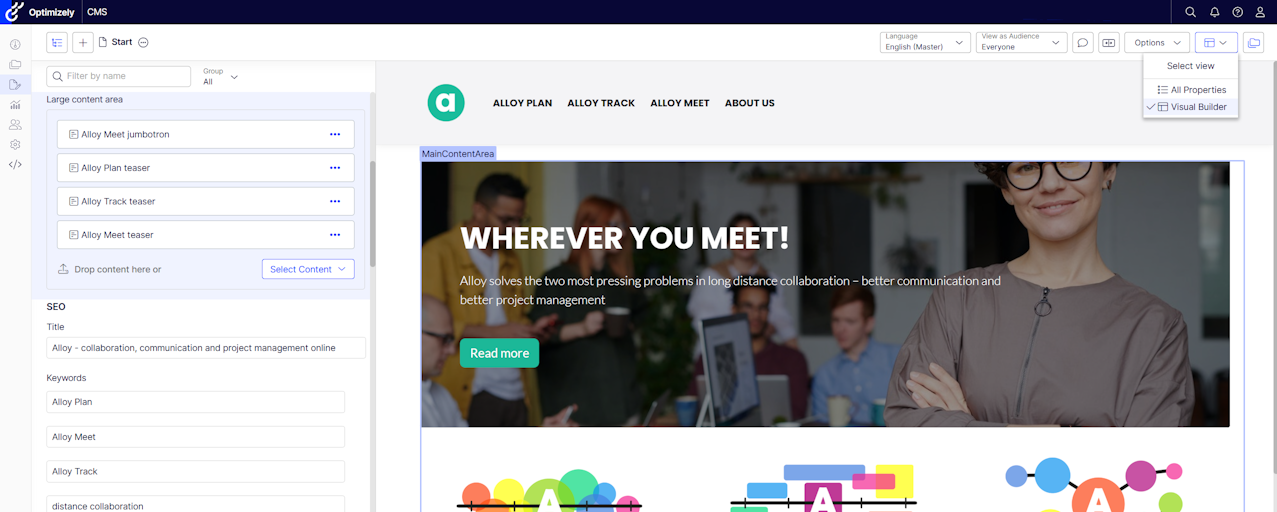
Your Alloy site should now render correctly on the frontend, and preview in Edit mode will be functional.
Conclusion
Congratulations! You have successfully upgraded your Alloy site to CMS 13. This process highlights the key architectural shifts in the new version, particularly the move to a composable Application Model and modernized APIs. You are now ready to explore the new features and possibilities of Optimizely CMS 13.
Important Note: The steps outlined in this guide are intended for developers to explore the CMS 13 preview with the Alloy template. This is an incomplete preview, and these instructions are not recommended for use with an actual development project and certainly not a live production site. We will share more as we get closer to the release date of CMS 13.
I am getting the following issue when trying to upgrade the Alloy site to CMS 13
'IUrlHelper' does not contain a definition for 'ContentLinkTarget' and no accessible extension method 'ContentLinkTarget' accepting a first argument of type 'IUrlHelper' could be found (are you missing a using directive or an assembly reference?)what do I need to change or reference to get round this issue??
For those, who like me may have missed Opti templates, you can install them with:
Graham, I would suggest discussing the CMS 13 preview on Slack in the channels.
Is the on-page-edit an option to enable or is it gone from CMS 13?
Karol, OPE is not gone. What is happening right now is that we are packaging features for the release of CMS 13.0.0 and OPE is being tested out to make sure that it works as intended. For the preview it is disabled.
Another small change to note is the shift to ContentType for the Load of IContentTypeRepository specifically in the PageTypeExtensions of the default Alloy templates. A simple cast back to PageType works whereas you cannot currently have ContentType as a PageProperty (altered from PageType as the Filter) which throws a runtime error.