
Implementing the Bynder DAM Connector with Optimizely SaaS CMS: Lessons Learned
What I learned while integrating Bynder DAM with Optimizely SaaS CMS, exploring Optimizely Graph, and building a headless frontend experience.
Introduction
While working on an Optimizely SaaS CMS implementation, I spent considerable time understanding how the Bynder DAM connector works, what data gets synchronized, how assets appear in Optimizely Graph, and how frontend applications should consume those assets.
Although both Optimizely and Bynder provide documentation, I found very little content that shows the complete end-to-end picture:
- What metadata gets synchronized?
- How do assets appear in Optimizely CMS?
- What does the data look like in Optimizely Graph?
- How do developers render images, videos, and documents?
- How do public and private assets behave?
- What are the limitations of the connector?
This article summarizes my findings and lessons learned from exploring the integration.
What is Optimizely SaaS CMS?
Optimizely SaaS CMS is a cloud-native content management platform that enables organizations to create and manage content experiences across websites, mobile applications, portals, and other digital channels.
Key capabilities include:
- Content modeling
- Headless content delivery
- Visual editing
- Multi-site architecture
- Optimizely Graph integration
- API-first content management
Unlike traditional CMS platforms, content in Optimizely SaaS is managed through content types and delivered through APIs and Optimizely Graph.
What is Bynder?
Bynder is an enterprise Digital Asset Management (DAM) platform.
Organizations typically use Bynder to manage:
- Images
- Videos
- Brand assets
- Product photography
- Brochures and documents
- Marketing collateral
- Digital media libraries
Bynder often serves as the single source of truth for digital assets while Optimizely serves as the source of truth for content.
Why Do We Need a Connector?
Without a connector, editorial teams typically follow this process:
Bynder DAM à Download Asset à Upload Asset to CMS à Use Asset on Website
OR
Bynder DAM à Copy Asset URL à Paste Asset URL to CMS à Use Asset on Website
This creates multiple problems:
- Duplicate storage
- Asset versioning issues
- Governance challenges
- Increased maintenance effort
- Multiple sources of truth
The Bynder Connector changes the process significantly:
Bynder DAM à DAM Connector à Optimizely Graph & CMS à Frontend Application
Benefits include:
- Single source of truth
- No duplicate assets
- Improved governance
- Centralized asset management
- Better scalability
Editors never need to download and re-upload assets.
Instead, references to Bynder assets become available directly within Optimizely CMS.
Understanding the Bynder Asset Model
One of the first things I wanted to understand was what data becomes available. A Bynder asset can be thought of as a combination of following:
-
Bynder Managed Fields - Maintained automatically by Bynder. These fields describe the physical asset itself.
-
User Managed Fields - These fields are managed by DAM users and are often used for: Search, Categorization, Filtering, Metadata enrichment.
-
User Managed Flags: These fields can influence asset behavior. These become particularly important when assets are exposed to public-facing websites.
-
URLs: Assets URLs based on asset object and various configurations and enabled features in Bynder.
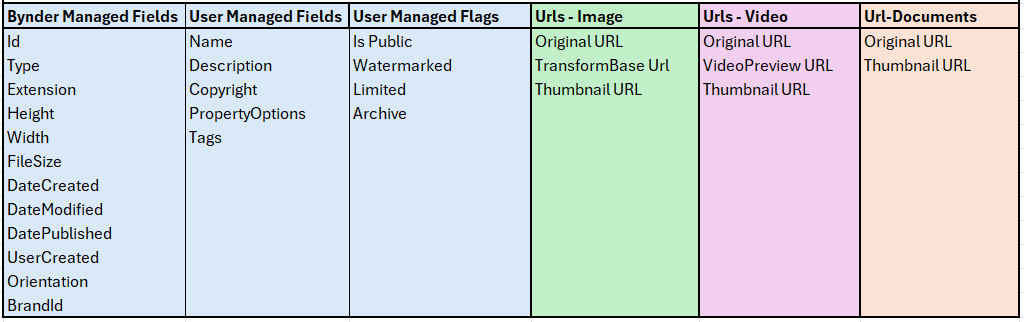
Understanding the Available Asset URLs
One of the most useful discoveries was understanding which URLs are available for different asset types. Not every asset type exposes the same URLs.
Image Assets - Image assets typically provide:
|
Original URL |
Thumbnail URL |
Transform Base URL |
|
Represents the original uploaded file. |
Represents a smaller version of the image. |
Instead of generating multiple physical image versions, Bynder allows images to be transformed dynamically. |
|
Use cases: High-resolution download, |
Use cases: Asset pickers, |
Use cases: Hero banners, |
Transform Base URL helps improve:
- Performance
- Page speed
- Bandwidth consumption
Video Assets - Video assets typically provide:
|
Original URL |
Thumbnail URL |
Video Preview URL |
|
The complete video asset |
Poster image for the video. |
Optimized preview version. |
|
Use cases: Full playback, |
Use cases: Video cards, |
Use cases: Video galleries, |
Document Assets - Document assets typically provide:
|
Original URL |
Thumbnail URL |
|
Used for: Document downloads,
|
Used for: Document previews, |
Setting Up the Connector
Connector setup is relatively straightforward. Follow the documentation here:
https://support.optimizely.com/hc/en-us/articles/37465644973069-Configure-the-Bynder-app
Typical configuration requires:
- Bynder Admin Access
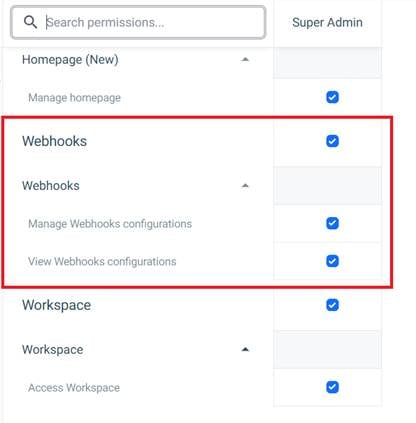
- Webhook permissions on your Bynder user profile to authorize this integration.
- Bynder OAuth App, Client ID, Client Secret
- OCP (Connect Platform) access in Optimizely SaaS instance.
Note that:
a) Setup separate sync for:
1. Each Bynder object i.e. image, document, video.
2. Each Optimizely environment i.e. Dev, Stage, Prod (test1, test2, Production)
3. Each Language (if applicable) otherwise use Neutral language
b) In the Destination create separate ContentType for each object i.e. Image à BynderImage, Document à BynderDocument, Video à BynderVideo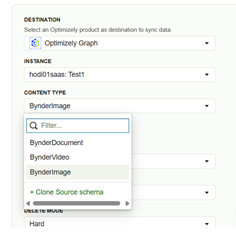
c) Ensure selection of “Make available as CMS Content” checkbox.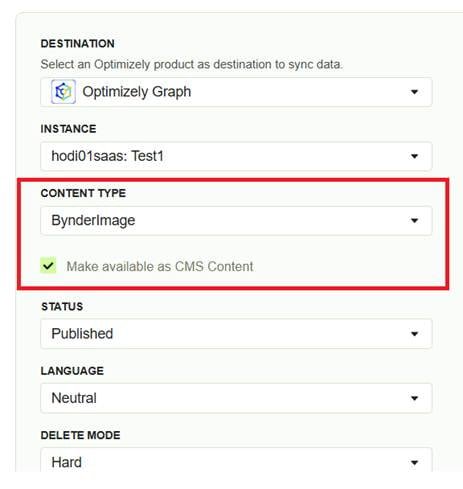
Once configured successfully:
Bynder Assets à DAM Connector à Optimizely Graph + CMS Content Type
Assets become available inside Optimizely Graph and CMS both without custom code.
Content Manager Experience
From an editorial perspective, this is where things become interesting.
After configuration, editors can browse DAM assets directly inside CMS.
The Content Manager navigation typically exposes a dedicated content provider area.
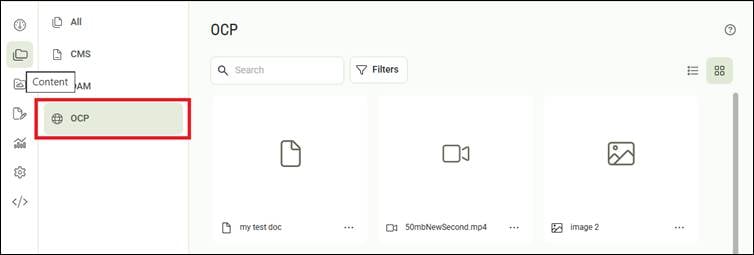
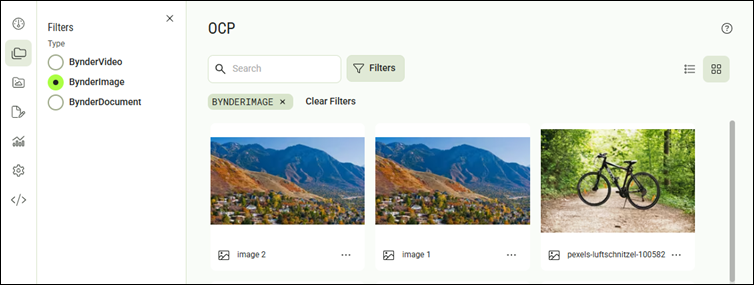
At this point, editors do not need to leave CMS to discover assets stored in Bynder.
They can: Search, Browse, Filter, Reference assets directly from the content authoring experience.
How Assets Appear in Optimizely Graph
Once synchronized, DAM assets become queryable through Graph.
A simplified query may look like (the exact query will depend on your field mappings)
|
Image |
Video |
Document |
|
query { BynderImage { items { id name originalUrl thumbnailUrl transformBaseUrl } } } |
query { BynderVideo { items { id name originalUrl thumbnailUrl videoPreviewURL } } } |
query { BynderDocument { items { id name originalUrl thumbnailUrl } } } |
One of the biggest advantages is that content and media can now be retrieved through a single API layer.
Using DAM Assets in Content Types
The connector enables DAM-specific property types.
Example:
|
News Article Page - Headline - Summary - Hero Image Where: Hero Image is a Bynder Image reference. |
Product Page - Title - Product Image - Product Video - Product Brochure Where: Each asset property can reference a different Bynder asset type i.e. BynderImage, BynderVideo, and BynderDocument |
Frontend Consumption
Once data is available through Graph, frontend applications can retrieve and render it.
Example:
|
query { NewsArticle { items { headline heroImage { name thumbnailUrl originalUrl transformBaseUrl } } } } |
query { Product { items { title productImage { name thumbnailUrl originalUrl transformBaseUrl } productVideo { name thumbnailUrl originalUrl videoPreviewUrl } productBrochure{ name thumbnailUrl originalUrl } } } } |
Asset Rendering:
|
Rendering Images |
Rendering Videos |
Rendering Documents |
|
Basic rendering:
|
Video example: Video Poster: |
PDF example: Preview example: |
An ideal worflow (Bynder à Optimizely à Frontend application):
- Asset will be uploaded into Bynder along with metadata.
- Asset will be marked as Public in Bynder (if asset must be available using a public URL).
- OCP Connector will sync the asset inforamtion into Optimizely Graph.
- Authors in Optimizely SaaS CMS will be able to ses/select the asset inside the content manager/content items for referencing on relevant fields.
- Content Items will be published in Optimizely SaaS CMS.
- Frontend application (nextjs) will retrieve the page item content along with asset URLs using Graph query.
- Appropriate URL of asset will be used to render/retrieve the asset infroamtion in the application/browser.
- If frontend application needs asset information that is not synced in Optimizely but available in Bynder then frontend application will use Bynder APIs to retrieve the information.
Public vs Private Assets
One area that deserves special attention is asset visibility.
|
Public Assets IsPublic = true Typically means:
|
Non-Public Assets IsPublic = false Potential implications:
This becomes extremely important for:
Use Retrieve asset download location from Bynder API to get the URL to dowlaod the asset item. |
Things I Learned
After exploring Bynder and the connector, several observations stood out.
- Not every asset type exposes the same URLs
Images typically expose more transformation capabilities than videos or documents.
- Transform Base URL is incredibly useful
The Transform Base URL alone can eliminate the need for multiple image renditions.
- Public vs Private matters early
Teams should decide asset visibility strategy before building the frontend application.
Changing this later can require rework.
Things to Validate Early
- Metadata Availability
- Not every Bynder field is necessarily synchronized.
- Always validate:
- Which fields are available?
- Which fields are searchable?
- Which fields appear in Graph?
- Filtering of Assets
- You may not need to have all assets in Optimizely. Ideally Assets used on your website or target channel must be synced but rest assets should be avoided.
- You may not need to have all assets in Optimizely. Ideally Assets used on your website or target channel must be synced but rest assets should be avoided.
- Private Asset Consumption
- Private assets often introduce additional frontend delivery considerations.
- Validate architecture before implementation.
- Transformation Support
- Image transformations are powerful.
- Equivalent functionality may not exist for every asset type.
- Connector Scope
- The connector solves many DAM scenarios, but not every possible Bynder feature, or workflow may be surfaced through the OOTB connector.
- The connector solves many DAM scenarios, but not every possible Bynder feature, or workflow may be surfaced through the OOTB connector.
- Language Translation
- Bynder does not have concept of language version of asset items hence if you need to store language specific content in your assets metadata properties then figure out where that content will be stored and how the translation workflow will be executed. One of the options to keep language specific content inside Bynder is to create language specific properties e.g. Title_en, Title_fr etc. These properties can then be read through the Retrieve specific asset endpoint.
- Also note that Bynder allows to set the language specific labels for the options inside single select and multi-select properties. But when you retrieve assets information using the API it only returns the default language labels. In case you need language specific labels in your frontend application then you need to get all metadata properties using Retrieve metaproperties API endpoint.
Frequently Asked Questions
- Does the connector synchronize custom metadata fields?
All text type metadata fields in Bynder are supposed to be exposed through synchronization but actual synchronization depends on the connector configuration.
Always validate available fields before finalizing content models. - Can filtering of assets be set during sync configuration?
OOTB connector does not support filtering; it is developed to sync all assets.
Using the Bynder API custom connector can be developed to support filtering. - Can I call Bynder APIs directly from my frontend application?
Absolutely. A common pattern is: DAM Connector + Bynder APIs.
The connector handles asset references while custom APIs handle advanced functionality.
Use Retrieve specific asset endpoint from Bynder API to retrieve metadata and URLs (including custom metadata) for a specific assets. - What if information is not synchronized?
Retrieve it directly from Bynder APIs. Examples: Workflow Status, Usage Rights, Approval State, Custom Metadata. - Can frontend applications retrieve private assets?
It depends on the DAM security model and implementation approach.
Possible solutions include: Authentication, Proxy APIs, Token-based access.
Final Thoughts
The Bynder DAM Connector provides a clean bridge between enterprise asset management and modern headless content delivery.
The most important takeaway for me was that the connector is not simply an asset picker. It establishes a relationship between:
Bynder DAM à Optimizely Graph & Optimizely CMS à Frontend Applications
When implemented correctly, it enables organizations to maintain Bynder as the single source of truth for digital assets while still providing content authors with a seamless CMS authoring experience.
For organizations already invested in Bynder and Optimizely SaaS CMS, the connector can significantly simplify asset governance, reduce duplication, and improve overall content delivery architecture.
Comments