A critical vulnerability was discovered in React Server Components (Next.js). Our systems remain protected but we advise to update packages to newest version. Learn More.
AI OnAI Off
A critical vulnerability was discovered in React Server Components (Next.js). Our systems remain protected but we advise to update packages to newest version. Learn More.
Optimizely Customer-Centric DXP uses Microsoft's Application Insights with ready-to-use tools to manage application performance and monitor Web Apps.
Application Insights lets you troubleshoot exceptions that happen in the Web Apps and performance issues. See Creating an Optimizely cloud account to request access to Application Insights for your environment. To learn more about how to use this tool, see Microsoft's documentation section, which includes links to free online video tutorials.
Application Insights is configured automatically for all sites in the DXP, but depending on the site architecture, some further configuration might be needed to fully use its features.
Customers and partners can request an Application Insights API key for envionments from support@optimizely.com.
For information about read API access key, see Using the API.
By default, sites in DXP use Runtime instrumentation, which does not require any changes in the web application, but does not store log messages from the Optimizely platform in Application Insights; you can find the logs in the DXP Management Portal.
To use all the Application Insights features, you need to use both runtime and buildtime instrumentation. The buildtime instrumentation is enabled when installing Application Insights SDK. This consists of two NuGet packages:
See Instrument Web Apps at runtime with Application Insights Codeless Attach (Microsoft documentation) for details about the difference between runtime and buildtime instrumentation.
Set up usage tracking parameters to ensure that the website traffic volume monitoring is correct. For websites using the Single Page Application (SPA) concept, you need to specifically configure the page view tracking, because pages on these websites will not reload during usage. See Consumption metrics how to configure page view tracking for SPAs.
To direct Optimizely logs to Application Insights as traces for you to explore and search, configure diagnostics tracing with System.Diagnostics.Trace.
Install the NuGet package Microsoft.ApplicationInsights.TraceListener, which modifies your web.config to add trace listeners. When installed, a configuration entry similar to the following code is added to web.config.
<system.diagnostics>
   <trace autoflush="true" indentsize="0">
     <listeners>
       <add name="myAppInsightsListener"
            type="Microsoft.ApplicationInsights.TraceListener.ApplicationInsightsTraceListener,
                  Microsoft.ApplicationInsights.TraceListener" />
     </listeners>
   </trace>
</system.diagnostics>
See Application Insights logging adapters and Explore .NET/.NET Core and Python trace logs in Application Insights (Microsoft Documentation) for information and examples.
Note: After you have installed the Microsoft.ApplicationInsights.TraceListener package, you also need to install Microsoft.ApplicationInsights.Web package, to collect site telemetry.
When configured, your logs are merged with the other telemetry coming from your application, so that you can identify the traces associated with servicing each user request, and correlate them with other events and exception reports.
If you already have your own Application Insights settings via ApplicationInsights.config file when you deploy your site to DXP, the Applications Insights resource provisioned by DXP overwrites your Instrumentation Key, which means that any custom logs or telemetry information that you are adding is saved to an Application Insights resource provisioned by DXP.
Default instrumentation in the environment does not support content security policy (CSP). To configure instrumentation with CSP enabled, support@optimizely.com can disable the default instrumentation and then you can inject the script using a nonce token. Set the nonce token in the CSP header or a meta-tag; it must be unique for each page load. The following example shows how this can look using the meta-tag:
@{
    // Create a nonce so that it is random on each page load
    var cspNonce = Convert.ToBase64String(Guid.NewGuid().ToByteArray());
}

// Add the nonce to the CSP, either in the meta-tag or in the HTTP header
<meta http-equiv="Content-Security-Policy" content="default-src 'self' 'nonce-@cspNonce' js.monitor.azure.com; connect-src 'self' dc.services.visualstudio.com; child-src 'none';">

// When adding the script, include the nonce attribute which will allow it to be loaded with the page
@if (System.Web.Configuration.WebConfigurationManager.AppSettings["APPINSIGHTS_INSTRUMENTATIONKEY"] != null)
{
    <script type="text/javascript" nonce="@cspNonce">
        !function(T,l,y){var S=T.location,k="script",D="instrumentationKey",C="ingestionendpoint",I="disableExceptionTracking",E="ai.device.",b="toLowerCase",w="crossOrigin",N="POST",e="appInsightsSDK",t=y.name||"appInsights";(y.name||T[e])&&(T[e]=t);var n=T[t]||function(d){var g=!1,f=!1,m={initialize:!0,queue:[],sv:"5",version:2,config:d};function v(e,t){var n={},a="Browser";return n[E+"id"]=a[b](),n[E+"type"]=a,n["ai.operation.name"]=S&&S.pathname||"_unknown_",n["ai.internal.sdkVersion"]="javascript:snippet_"+(m.sv||m.version),{time:function(){var e=new Date;function t(e){var t=""+e;return 1===t.length&&(t="0"+t),t}return e.getUTCFullYear()+"-"+t(1+e.getUTCMonth())+"-"+t(e.getUTCDate())+"T"+t(e.getUTCHours())+":"+t(e.getUTCMinutes())+":"+t(e.getUTCSeconds())+"."+((e.getUTCMilliseconds()/1e3).toFixed(3)+"").slice(2,5)+"Z"}(),iKey:e,name:"Microsoft.ApplicationInsights."+e.replace(/-/g,"")+"."+t,sampleRate:100,tags:n,data:{baseData:{ver:2}}}}var h=d.url||y.src;if(h){function a(e){var t,n,a,i,r,o,s,c,u,p,l;g=!0,m.queue=[],f||(f=!0,t=h,s=function(){var e={},t=d.connectionString;if(t)for(var n=t.split(";"),a=0;a<n.length;a++){var i=n[a].split("=");2===i.length&&(e[i[0][b]()]=i[1])}if(!e[C]){var r=e.endpointsuffix,o=r?e.location:null;e[C]="https://"+(o?o+".":"")+"dc."+(r||"services.visualstudio.com")}return e}(),c=s[D]||d[D]||"",u=s[C],p=u?u+"/v2/track":d.endpointUrl,(l=[]).push((n="SDK LOAD Failure: Failed to load Application Insights SDK script (See stack for details)",a=t,i=p,(o=(r=v(c,"Exception")).data).baseType="ExceptionData",o.baseData.exceptions=[{typeName:"SDKLoadFailed",message:n.replace(/\./g,"-"),hasFullStack:!1,stack:n+"\nSnippet failed to load ["+a+"] -- Telemetry is disabled\nHelp Link: https://go.microsoft.com/fwlink/?linkid=2128109\nHost: "+(S&&S.pathname||"_unknown_")+"\nEndpoint: "+i,parsedStack:[]}],r)),l.push(function(e,t,n,a){var i=v(c,"Message"),r=i.data;r.baseType="MessageData";var o=r.baseData;return o.message='AI (Internal): 99 message:"'+("SDK LOAD Failure: Failed to load Application Insights SDK script (See stack for details) ("+n+")").replace(/\"/g,"")+'"',o.properties={endpoint:a},i}(0,0,t,p)),function(e,t){if(JSON){var n=T.fetch;if(n&&!y.useXhr)n(t,{method:N,body:JSON.stringify(e),mode:"cors"});else if(XMLHttpRequest){var a=new XMLHttpRequest;a.open(N,t),a.setRequestHeader("Content-type","application/json"),a.send(JSON.stringify(e))}}}(l,p))}function i(e,t){f||setTimeout(function(){!t&&m.core||a()},500)}var e=function(){var n=l.createElement(k);n.src=h;var e=y[w];return!e&&""!==e||"undefined"==n[w]||(n[w]=e),n.onload=i,n.onerror=a,n.onreadystatechange=function(e,t){"loaded"!==n.readyState&&"complete"!==n.readyState||i(0,t)},n}();y.ld<0?l.getElementsByTagName("head")[0].appendChild(e):setTimeout(function(){l.getElementsByTagName(k)[0].parentNode.appendChild(e)},y.ld||0)}try{m.cookie=l.cookie}catch(p){}function t(e){for(;e.length;)!function(t){m[t]=function(){var e=arguments;g||m.queue.push(function(){m[t].apply(m,e)})}}(e.pop())}var n="track",r="TrackPage",o="TrackEvent";t([n+"Event",n+"PageView",n+"Exception",n+"Trace",n+"DependencyData",n+"Metric",n+"PageViewPerformance","start"+r,"stop"+r,"start"+o,"stop"+o,"addTelemetryInitializer","setAuthenticatedUserContext","clearAuthenticatedUserContext","flush"]),m.SeverityLevel={Verbose:0,Information:1,Warning:2,Error:3,Critical:4};var s=(d.extensionConfig||{}).ApplicationInsightsAnalytics||{};if(!0!==d[I]&&!0!==s[I]){var c="onerror";t(["_"+c]);var u=T[c];T[c]=function(e,t,n,a,i){var r=u&&u(e,t,n,a,i);return!0!==r&&m["_"+c]({message:e,url:t,lineNumber:n,columnNumber:a,error:i}),r},d.autoExceptionInstrumented=!0}return m}(y.cfg);function a(){y.onInit&&y.onInit(n)}(T[t]=n).queue&&0===n.queue.length?(n.queue.push(a),n.trackPageView({})):a()}(window,document,{
            src: "https://js.monitor.azure.com/scripts/b/ai.2.min.js",
            crossOrigin: "anonymous",
            cfg: {
                instrumentationKey: "@System.Web.Configuration.WebConfigurationManager.AppSettings["APPINSIGHTS_INSTRUMENTATIONKEY"]"
            }});
    </script>
}If any of the following entries exist, it causes the codeless monitoring to stop working or “back off.” You should remove the following packages from your application to give way for codeless monitoring:
Recommendation
The Microsoft article Add Application Insights Automatically suggests that a change in Visual Studio should be a very simple step, and that doing it once should resolve all future conflict issues you may face. To automatically add Application Insights to a template-based ASP.NET web app, perform the following steps from within your ASP.NET web app project in Visual Studio. The DXP solution uses an app setting for InstrumentationKey, so you do not need to add it to the ApplicationsInsights.config file.
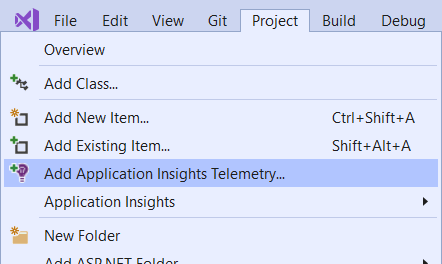
If you do not want to use Visual Studio, you can manually install it also by following the instructions in the Microsoft article: Add Application Insights Manually
Last updated: Sep 28, 2021
