


Use a workflow to resize images upon upload
Here’s a little timesaver for you all to enjoy. Usually when you work with the web, it’s important to ensure that you use images in the size. And typically that size is not the same as you get the pictures in. Naturally you can fire up photoshop and resize your images, or better yet, use the image editing tool in EPiServer CMS to do the same. However, that gets a bit tedious when you have a lot of images to resize, like I had recently. In fact, I had so many images that I needed to convert to two different sizes, that after the first 8 I gave up and figured “there’s got to be an easier way”. And voila! Why not use workflows to do the job for us? Building custom workflows is no where as scary as it may sound – and the WF engine in .NET (with support in EPiServer as well) has a few advantages we can use here, like a build-in UI to set start parameters, attaching to file system events and a workflow engine to ensure async execution of multiple workflows.
First, install from NuGet (when available) or download the source code here.
When the workflow is installed either configure it in the episerver.config, by putting this in:
<workflowSettings>
<definitions>
<definition type="EPiServer.Labs.Workflows.ImageResize.ResizeImage,EPiServer.Labs.Workflows.ImageResize"
name="Resize uploaded images" description="Will automatically resize images to your specifications" />
</definitions>
</workflowSettings>
Or adding it manually in the Admin UI.

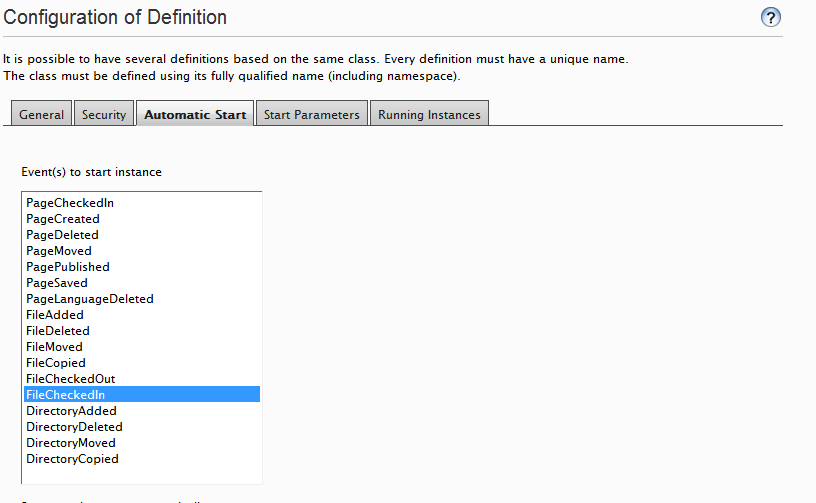
Once the workflow type has been configured (and saved) you are ready to attach it to an automatic start event – in this case it makes the most sense to attach to “FileCheckedIn” which happens whenever a new version of a file is checked in.
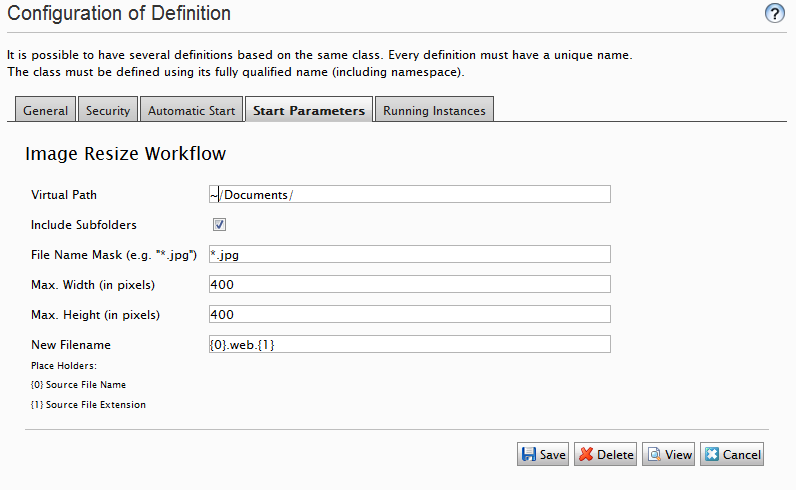
However, we only want to resize certain image files, so under “Start Parameters” we configure the virtual path they are under, a file mask, and the max height/width we want to generate. The workflow will always ensure the correct aspect ration.
You also define a new file name for the generated image, where {0} and {1} are used as placeholders for the old filename and old file extension.
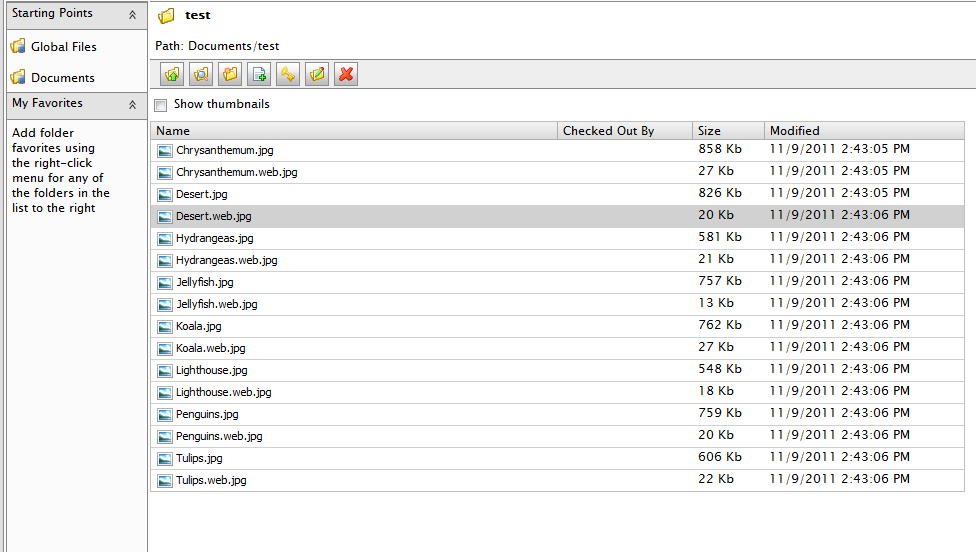
When all this is done, you can just start uploading files and see how resized versions magically appear.
Brilliant!
Great way to use a workflow, will definitely try this out!
Great! A standard workflow for the next release?
Wow! That is neat. Can you suggest any use cases for it?
Nice :-)
It would be even nicer if you copied the Unifiedfile-summary to the created files. In ResizeImage.cs, line 118, add something like:
var originalPath = File;
var originalUnifiedFile = HostingEnvironment.VirtualPathProvider.GetFile(originalPath) as UnifiedFile;
UnifiedFile.CopySummary(originalUnifiedFile, newfile);
Is this source code compatible with EPiServer 7.5?
Is it compatiple with later versions of Episerver 7.5 and higher.