

Mastering Optimizely DXP: How to Download Blobs Like a Pro with PowerShell
In 2021 I wrote a blog post with detailed instuctions on how to download blobs from Optimizely DXP environment. I at least have used that blog post ever since as my notes "What were the steps" when ever I've needed to download projects blobs to my local. But every time I've downloaded blobs I have thinked that I should write a simple PowerShell script that does all the steps for me after I have provided the API credential and environment information. It would be also nice, if the script would print out the container names and I could select which container to download.
Well it took me four years to find the time to write the PowerShell script but here it is.
Prerequisities
- EpiCloud PowerShell module installed
- Optimizely EpiCloud module install and other documentation related to it
- AzCopy installed
- Download Microsoft AzCopy
- Optimizely DXP API credential or access to PAAS-portal to create API credential
- Get my script from GitHub Gist (might be updated in future) and save it as download-dxp-blobs.ps1, or use the one this page
You can check my old blog post for the install instructions.
Using the PowerShell script
- Open command prompt and navigate to the folder where you have the script
- The Optimizely EpiCloud module is not signed and therefore You have to run PowerShell bypassing execution policy, so in command prompt run the following command:
powershell.exe -ExecutionPolicy Bypass
- Now execute the script with the required arguments
& .\download-dxp-blobs.ps1-ApiKey [your API key]-ApiSecret [your API secret]-ProjectId [your project id]-Environment [Optimizely DXP environment string]-DownloadPath [path where to download in double quotes]-RetentionHours [how many hours SAS link is valid]- This is optional, default is four hours
Sample command:
& .\download-dxp-blobs.ps1 -ApiKey 1234567890123456238937223 -ApiSecret 9874677436746763443434dsaJKDSSJKHD -ProjectId 4D50395E-3805-498E-AD8C-82D7F530A596 -Environment Production -DownloadPath "C:\Downloads\DXP\ProjectXBlobs" -RetentionHours 6Sample output from the script:
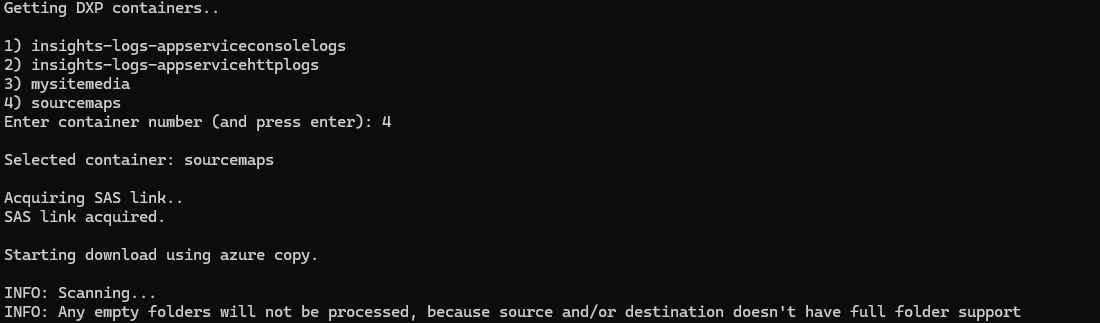
PowerShell script for reference
Here is the script for reference, but you can also get it from this gist.
# Simple script to download Optimizely DXP blobs
# Created by Antti Alasvuo
# https://github.com/alasvant
# https://world.optimizely.com/blogs/Antti-Alasvuo/
#
# Gist: https://gist.github.com/alasvant/f41f8ffec7826b94efdc1b5796ae4d36
#
# ApiKey, ApiSecret and ProjectId You get from Optimizely PAAS-portal (DXP Management Portal) from API tab,
# create new API credential there if you don't have one yet
#
# Environment: Integration, Preproduction or Production
#
# DownloadPath, is the path where the selected container is downloaded to
#
# RetentionHours, how many hours the created SAS link is valid (how long this script can access the containers blobs)
# Default is 4 hours, you should ensure it is greater value than how long it takes to download all the blobs

# Get needed arguments for Optimizely cmd-lets
param (
 [Parameter(Mandatory)]
 [string]
 $ApiKey,
 [Parameter(Mandatory)]
 [string]
 $ApiSecret,
 [Parameter(Mandatory)]
 [string]
 $ProjectId,
 [Parameter(Mandatory)]
 [string]
 $Environment,
 [Parameter(Mandatory)]
 [string]
 $DownloadPath,
 [int]
 $RetentionHours = 4
)

# Not using Connect-EpiCloud because then when calling Get-EpiStorageContainer the "table"
# output is printed to console where ever I try to redirect the output :D

Write-Host 'Getting DXP containers..'
Write-Host ''

$containers = Get-EpiStorageContainer -ClientKey $ApiKey -ClientSecret $ApiSecret -ProjectId $ProjectId -Environment $Environment | Select-Object -ExpandProperty storageContainers

# Just a counter used in the loop to have not zero based numbers in the selection
$foreachCounter = 1

foreach ($containerName in $containers)
{
	Write-Host ("{0}) {1}" -f ($foreachCounter++), $containerName)
}

$selectedIndex = -1

do
{
	$isInputValid = [int]::TryParse((Read-Host 'Enter container number (and press enter)'), [ref]$selectedIndex)

	if ((-not $isInputValid))
	{
		Write-Host 'Invalid value entered.'
	}
	elseif (($selectedIndex -lt 1) -or ($selectedIndex -gt $containers.length))
	{
		Write-Host 'Invalid number selected for container.'
		$isInputValid = $false
	}
} while (-not $isInputValid)

$selectedContainerName = $containers[$selectedindex-1]

Write-Host ''
Write-Host ("Selected container: {0}" -f $selectedContainerName)

Write-Host ''
Write-Host 'Acquiring SAS link..'

$sasLink = Get-EpiStorageContainerSasLink -ClientKey $ApiKey -ClientSecret $ApiSecret -ProjectId $ProjectId -Environment $Environment -StorageContainer $selectedContainerName -RetentionHours $RetentionHours | Select-Object -ExpandProperty sasLink

Write-Host 'SAS link acquired.'
Write-Host ''

Write-Host 'Starting download using azure copy.'
Write-Host ''

azcopy copy $sasLink $DownloadPath --recursive

Write-Host "Done."
Footer note: Would you have guessed that the blog post heading was created by Copilot :D
Comments