
Generate QR Code for EPiServer Page/Commerce Product
What is QR Code?
A QR code (abbreviated from Quick Response code) is a specific matrix barcode (or two-dimensional code) that is readable by dedicated QR barcode readers and camera telephones. The code consists of black modules arranged in a square pattern on a white background. The information encoded may be text, URL, or other data.
Common in Japan, where it was created by Toyota subsidiary Denso-Wave in 1994, the QR code is one of the most popular types of two-dimensional barcodes. The QR code was designed to allow its contents to be decoded at high speed.
The technology has seen frequent use in Japan, the Netherlands, and South Korea, while the rest of the world has been slower in the adoption of QR codes.
Reference: http://en.wikipedia.org/wiki/QR_code
QR Code Generator Library:
Using open source QRCode Library: http://www.codeproject.com/KB/cs/qrcode.aspx
Author: twit88
Name: ThoughtWorks.QRCode.NET
Generate QR Code for EPiServer Page
Basic idea is convert to current page url to QR Code as an image. People can use mobile phone with QRCode reader to read the link.
1. Create QR Code generator handler
Create new class inherited from IHttpHandler
1: /// <summary>
2: /// QR Code Generator HttpModules. Retrieves QR Code from cache, render to memory, and streams to browser
3: /// </summary>
4: public class QRCodeGeneratorHandler : IHttpHandler
5: {
6: public void ProcessRequest(HttpContext context)
7: {
8: var application = context.ApplicationInstance;
9: // get the url to generate qr code; this must be passed in via the querystring
10: var url = application.Request.QueryString["url"];
11: if (string.IsNullOrEmpty(url))
12: {
13: application.Response.StatusCode = 404;
14: context.ApplicationInstance.CompleteRequest();
15: return;
16: }
17:
18: // generate new qr code for current url
19: var qrCodeEncoder = new QRCodeEncoder
20: {
21: QRCodeEncodeMode = QRCodeEncoder.ENCODE_MODE.BYTE,
22: QRCodeScale = 4,
23: QRCodeVersion = 7,
24: QRCodeErrorCorrect = QRCodeEncoder.ERROR_CORRECTION.L
25: };
26: using (Bitmap qrImage = qrCodeEncoder.Encode(url))
27: {
28: // write the image to the HTTP output stream as an array of bytes
29: qrImage.Save(application.Response.OutputStream, ImageFormat.Jpeg);
30: }
31:
32: application.Response.ContentType = "image/jpeg";
33: application.Response.StatusCode = 200;
34: context.ApplicationInstance.CompleteRequest();
35: }
36:
37: public bool IsReusable
38: {
39: get { return true; }
40: }
41: }
2. Configure the handler in web.config
Add new handler to <system.webServer> (IIS7) or <system.web> for IIS 6
<add name="QRCodeGenerator" verb="GET" path="QRCodeGenerator.aspx" type="EPiServer.Sample.CustomProperties.QRCodeGeneratorHandler, EPiServer.Templates.AlloyTech"/>
3. Using handler as image url
For AlloyTech:
Open PageFooter.acx, add new <img> tag to display QR Code
<img src="<%# QRCodeImageUrl %>" alt="QR Code for current page"/>
Code-behind:
1: protected string QRCodeImageUrl
2: {
3: get
4: {
5: var urlBuilder = new UrlBuilder(UriSupport.Combine(UriSupport.SiteUrl.AbsoluteUri, CurrentPage.LinkURL));
6: if (UrlRewriteProvider.IsFurlEnabled)
7: {
8: EPiServer.Global.UrlRewriteProvider.ConvertToExternal(urlBuilder, null, Encoding.UTF8);
9: }
10:
11: var linkUrl = System.Web.HttpContext.Current.Server.HtmlEncode((string)urlBuilder);
12:
13: return string.Format("QRCodeGenerator.aspx?url={0}", linkUrl);
14: }
15: }
For Commerce Sample:
Open ProductDisplayModule.ascx (Templates/ClickTalk/Units/Placeable)
Add new img tag under “Product image” section
1: <div class="image">
2: <img src="<%# QRCodeImageUrl %>" alt="QR Code for current page"/>
3: </div>
Code-behind:
1: protected string QRCodeImageUrl
2: {
3: get
4: {
5: var productLink = GetProductUrl(Entry);
6: var urlBuilder = new UrlBuilder(UriSupport.Combine(UriSupport.SiteUrl.AbsoluteUri, productLink));
7: if (UrlRewriteProvider.IsFurlEnabled)
8: {
9: Global.UrlRewriteProvider.ConvertToExternal(urlBuilder, null, Encoding.UTF8);
10: }
11:
12: var linkUrl = System.Web.HttpContext.Current.Server.HtmlEncode((string)urlBuilder);
13:
14: return string.Format("QRCodeGenerator.aspx?url={0}", linkUrl);
15: }
16: }
17:
18: /// <summary>
19: /// Gets the entry handler path.
20: /// </summary>
21: /// <value>The entry handler path.</value>
22: private static string EntryHandlerPath
23: {
24: get
25: {
26: string path = Providers.StaticUrlProvider.Instance.GetUrl(Commerce.Constants.EntryViewCommandName);
27: if (!string.IsNullOrEmpty(path) && path.StartsWith("~", StringComparison.OrdinalIgnoreCase))
28: {
29: path = path.Substring(1);
30: }
31: return path;
32: }
33: }
34:
35: private string GetProductUrl(Entry entry)
36: {
37: var language = CultureInfo.CurrentUICulture.Name;
38: var url = string.Empty;
39: Seo languageSeo = entry.SeoInfo.Where(seo => seo.LanguageCode.Equals(language, StringComparison.OrdinalIgnoreCase)).FirstOrDefault();
40: if (languageSeo != null)
41: {
42: url = languageSeo.Uri;
43: }
44: else
45: {
46: url = EntryHandlerPath;
47: url = UriSupport.AddQueryString(url, Commerce.Constants.ParameterEntryCode, entry.ID);
48: UriSupport.AddLanguageSelection(url, language);
49: }
50:
51: return url;
52: }
4. Result
Now you can try with your mobile, open QR code scanner application and scan it!
AlloyTech:


Click Talk Commerce Sample:
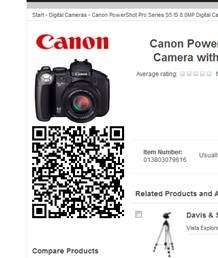
Hope this will help marketing guy to have QR Code for your campaign. Enjoy EPiServer CMS, EPiServer Commerce and QR Code together

Comments