Scheduled jobs with parameters
Scheduled jobs is an integral part of most Optimizely solution but the UI has, in my opinon, always been lacking in usability and features. Earlier this year I did a small tool that tried to give a better overview and make it easier digging into log messages when troubleshooting errors.
It kinda solved some issues but the look and feel was quite bad so I have been thinking about how to make it better now and then since then. Link to old blog post "Scheduled job overview" So this lead up to this blog post.
TL;DR
Nergard.ScheduledJobsAdmin is my new attemt on a complement or replacment for the built in scheduled jobs admin UI.
!Important! I have not been able to test it out fully in a production environment so use at your own risk. If you try it and run inte issues feedback or pull request are welcome.
Features
Searchable job roster - give a good overview of builtin and custom scheduled jobs
Health state indicator - at a glance you can see which jobs are healthy, failing, or overdue
Typed parameters - declare a strongly-typed parameters class on your job and the tool renders a form for it automatically. No more hardcoding values in job logic.
Sleep window - define quiet hours for a job in code or let operators configure them per-job in the UI. Manual runs always bypass them.
History drill down - click any run in the history timeline to see the full log output, which parameters were active, and how long it took
Feature details
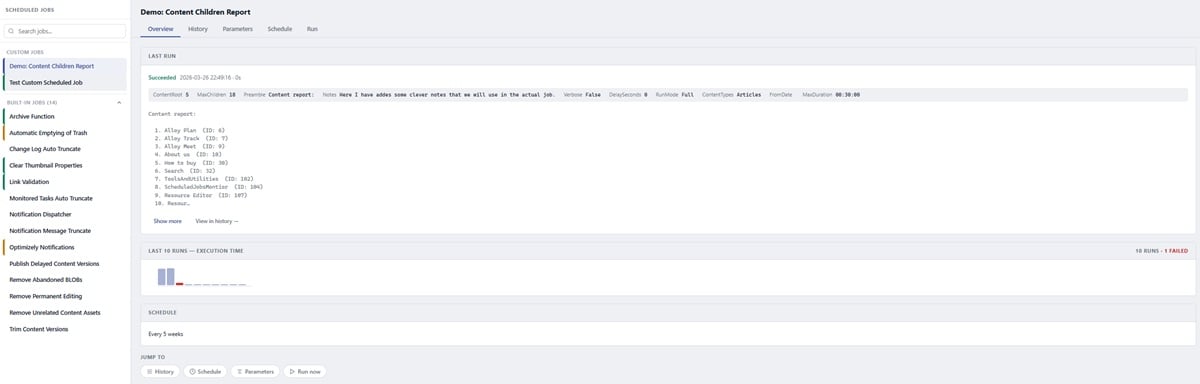
Job roster
The left panel shows all your scheduled jobs in a scrollable list with a search box at the top. Jobs are split into two groups: your own custom jobs at the top, and Optimizely's built-in system jobs in a collapsed section below. The built-in section is collapsed by default so it does not clutter the view, but you can expand it if you need to manage one.
Each job in the list shows a colour-coded health state: succeeded, failed, overdue (has not run within twice its configured interval), never run, or manual-only. You can also exclude specific jobs entirely via configuration if there are system jobs you never want to see.
History tab
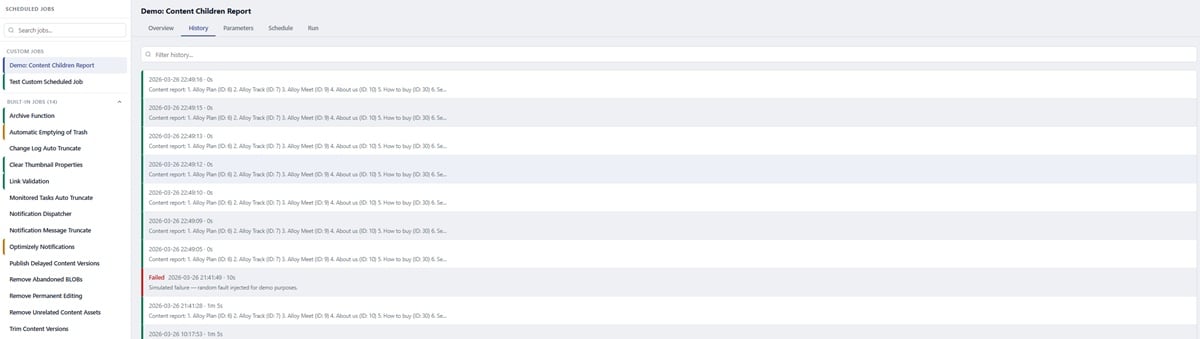
The History tab shows a paginated timeline of all past runs for the selected job, newest first. You can filter by keyword to find specific runs quickly.
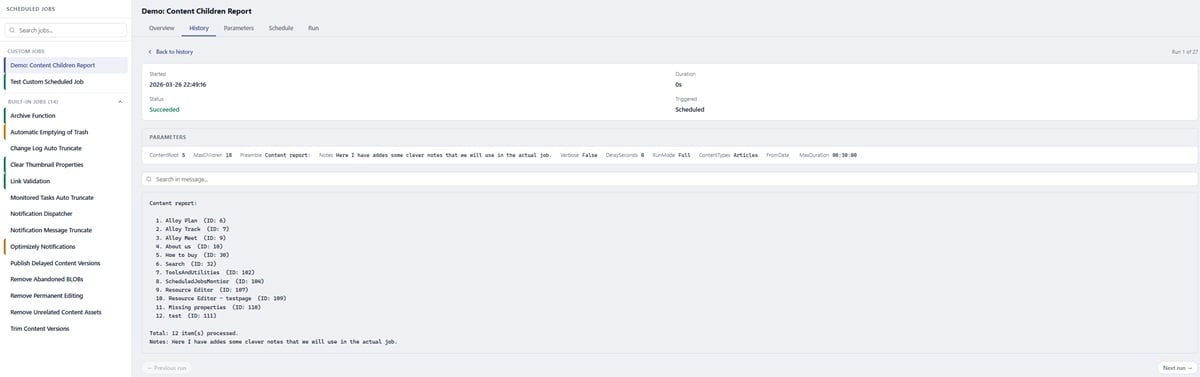
Click any row to drill into that run: you see the start time, duration, whether it succeeded or failed, how it was triggered (scheduled or manual), and which parameter values were active when it ran. The full log output is shown below with its own search box so you can hunt for specific lines. Prev/Next buttons let you step through runs without going back to the list.
Parameters tab
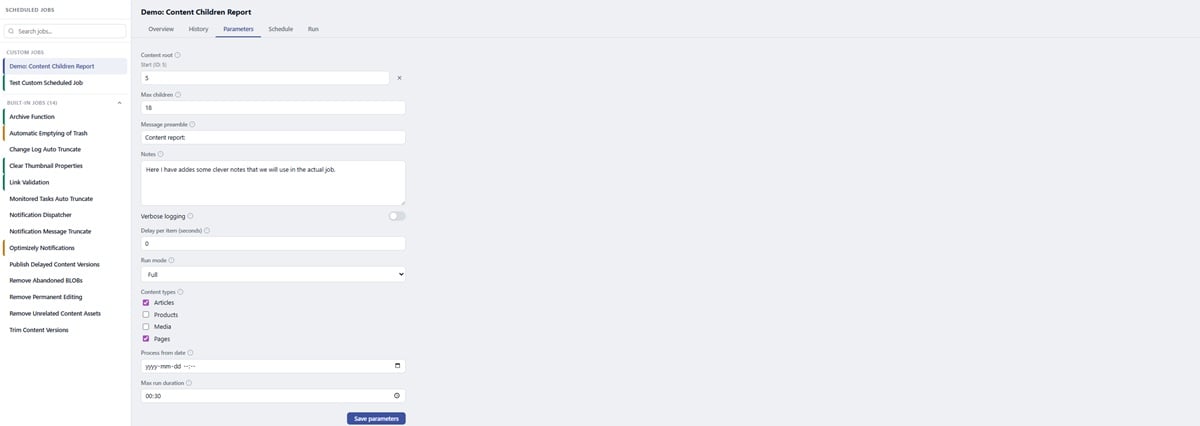
This is the feature I been wanting forever for my self but never took the time to build it until now. The built-in scheduled jobs admin has no concept of job parameters — you either hardcode values in the job or manage your own settings page somewhere. With this tool you can declare a typed parameters class, decorate it with a couple of attributes, and the tool renders a form for it automatically.
Supported field types: `string` (single line or multiline), `int`, `decimal`, `bool` (toggle), `ContentReference` (numeric ID with live name resolution), `enum` (dropdown), `[Flags] enum` (checkboxes), `DateTime`, and `TimeSpan`.
public class MyJobParams
{
    [JobParam("Content root", Description = "The page to process.")]
    public ContentReference? ContentRoot { get; set; }

    [JobParam("Batch size")]
    public int BatchSize { get; set; } = 100;

    [JobParam("Dry run", Group = "Safety")]
    public bool DryRun { get; set; }

    [JobParam("Run mode")]
    public RunMode Mode { get; set; } = RunMode.Incremental;
}
Parameters are saved to DDS per job and loaded automatically before each execution — whether the job runs on schedule or is triggered manually.
Schedule tab
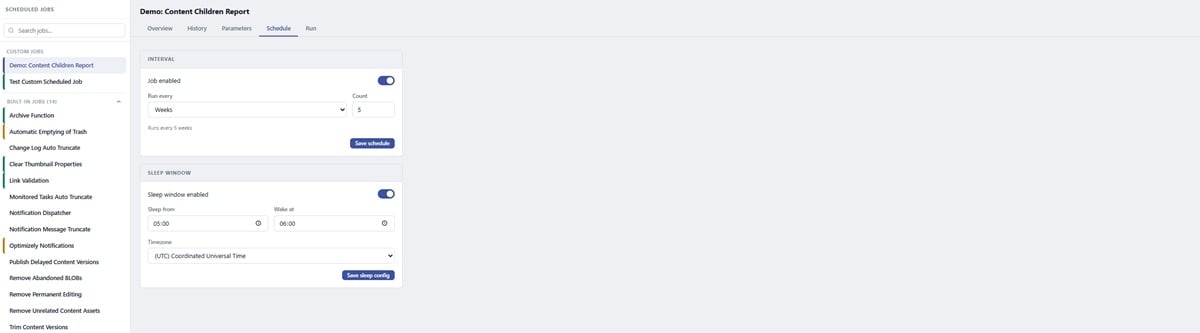
The Schedule tab lets you enable or disable a job and change its run interval without going through the built-in admin. It also exposes the sleep window configuration (see below).
A warning is shown if you select a built-in Optimizely job, since schedule changes for those may get reset by CMS updates.
Sleep windows
Sleep windows let you define a time range during which a job should not execute — useful for jobs that should not run during business hours or during nightly maintenance windows.
You can declare a default sleep window directly on your job class:
[ScheduledPlugIn(DisplayName = "My nightly import")]
[SleepWindow("07:00", "22:00", "Europe/Stockholm")]
public class MyImportJob : ParameterizedScheduledJob<MyImportParams> { ... }
Operators can override the sleep window per-job in the Schedule tab without touching code. The UI always shows what the code default is so it is clear what the fallback is if the override is cleared. Manual runs always bypass the sleep window regardless.
Sleep window enforcement only applies to jobs that extend `ParameterizedScheduledJob<TParams>`.
Run tab
The Run tab has one job: start the selected job right now. While the job is running a progress bar and live status log are shown, updating every 500 ms as the job reports progress. A Stop button appears next to the Run button during execution.
Adding a parameterized job
To take advantage of typed parameters your job extends `ParameterizedScheduledJob<TParams>` instead of `ScheduledJobBase`, and you implement `ExecuteInternal()` instead of `Execute()`.
[ScheduledPlugIn(DisplayName = "My job")]
[JobParameters(typeof(MyJobParams))]
public class MyJob : ParameterizedScheduledJob<MyJobParams>
{
    public MyJob(JobConfigRepository cfg, IManualRunFlagService flag)
        : base(cfg, flag) { }

    protected override void ExecuteInternal()
    {
        Status.Add($"Starting with batch size {Parameters.BatchSize}");

        // your logic here

        Status.AddCount("Items processed", processedCount);
    }
}
`Status` is a `JobStatusBuilder` — a simple fluent builder that handles Optimizely's 2048-character limit on the status message field gracefully (it appends a truncation notice rather than silently cutting off). Before `ExecuteInternal()` runs, the base class pre-seeds `Status` with a compact summary of the current parameter values, so every run in the history log shows exactly what configuration was active.
Setup
Register the tool in your `Startup.cs`:
services.AddJobMonitor(options =>
{
    options.DisplayTimeZoneId = "Europe/Stockholm"; // or any TimeZoneInfo.GetSystemTimeZones() Id
    options.ShowDetailedErrors = true; // set false in production
});
Create a page in the CMS tree using the included `ScheduledJobsAdminPage` content type (or adapt it to your own base page class). The page just needs a controller that renders the Blazor `JobMonitorShell` component.
That is it.
Source code
The source contains a readme with more details.
As mentioned above — this has not been fully tested in a production environment. If you try it and hit something broken, or have ideas for improvements, issues and pull requests are very welcome.
Apr 14, 2026




Comments