


List Properties of a Optimizely Content Type programmatically
Properties are simply fields used to create a content type in Optimizely. Lets explore how to get a list of properties of a specific content type defined in Optimizely. These properties can be simple text, rich text, images, links, etc. The blog is useful for devs aiming to map opti content type properties while migrating content.
Content
In Optimizely CMS, the first term you will hear is content. Content is just like items in Sitecore.
Content Type
The different types of content could be of type page, block, media, video, image, or a custom type.
IContentTypeRepository
To get a list of all available content types defined in Optimizely CMS project, first, we will need an instance of IContentTypeRepository, as this is the primary API for accessing the repository methods.
Through the content type repository instance, we can perform CRUD (Create, Read, Update and Delete) operations on content. Alternatively, if you only need read-only access, use the IContentLoader instance.
var repository = ServiceLocator.Current.GetInstance<IContentTypeRepository>();
The list() method lists all available content types (Block, Media, Page, Image, Video) in the repository.
var contentTypeList = repository.List();
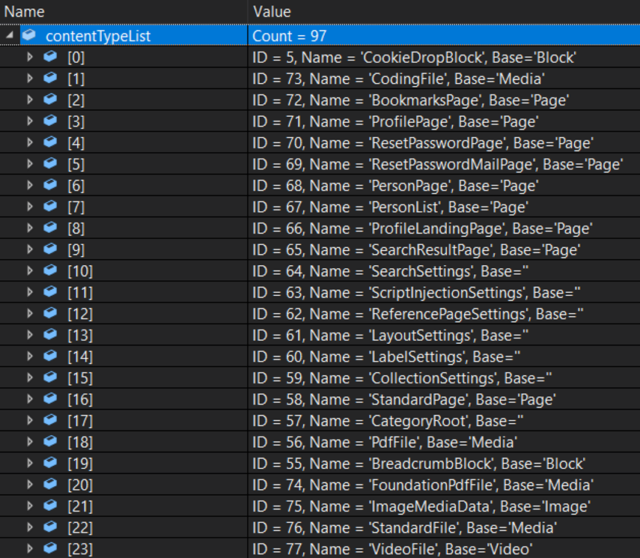
Content type - To get the content type of block or page type, we can filter the list by passing the content type.
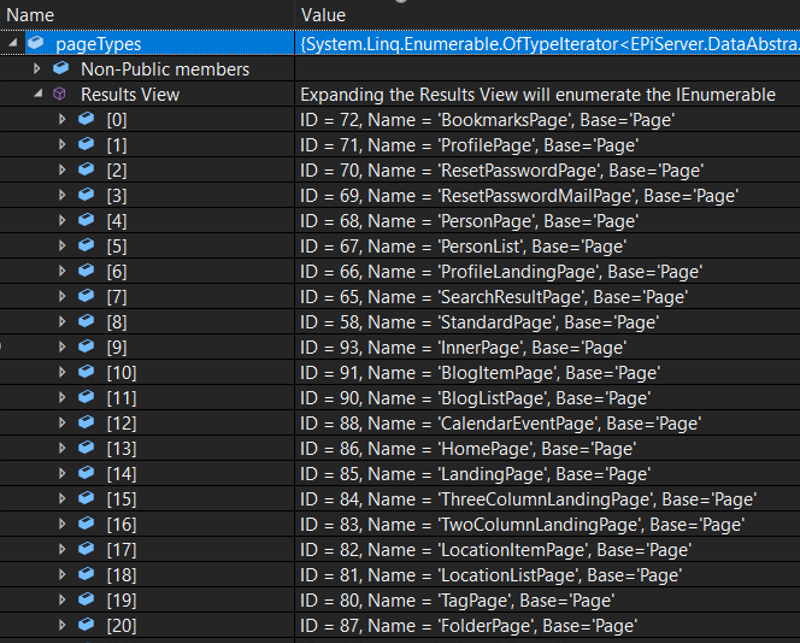
var pageTypes = repository.List().OfType<PageType>();
var blockTypes = repository.List().OfType<BlockType>();
By passing PageType as a parameter, we shall get all the content of the type page.
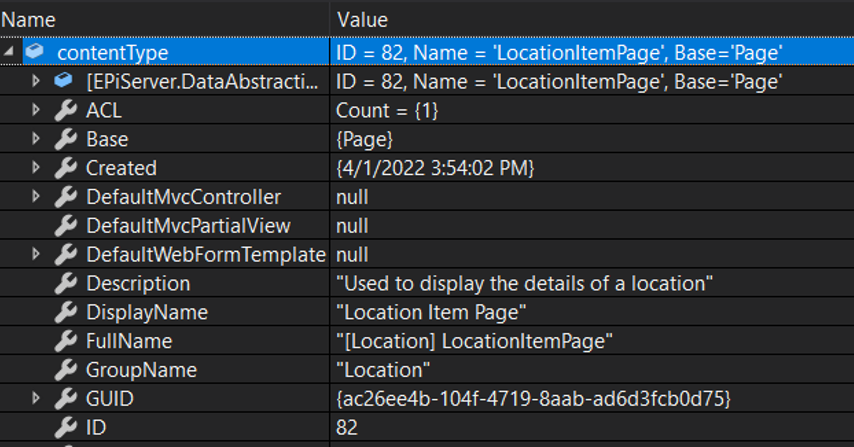
To get a specific content type, use the Load() method on the repository instance. The Load() methods have overloads, and we can get the specific content type by passing Id, Guid, ContentType, or Name as parameter.
var contentType = repository.Load<LocationItemPage>();
In solutions, which do not have a reference to the Optimizely CMS project example a razor class library project. The specific content type is not accessible, which is present in Optimizely Project. In such a scenario, we can use the Guid or Id saved in global constants file.
var contentTypeById = contentTypeRepository.Load(contentTypeId);
PropertyDefinitions
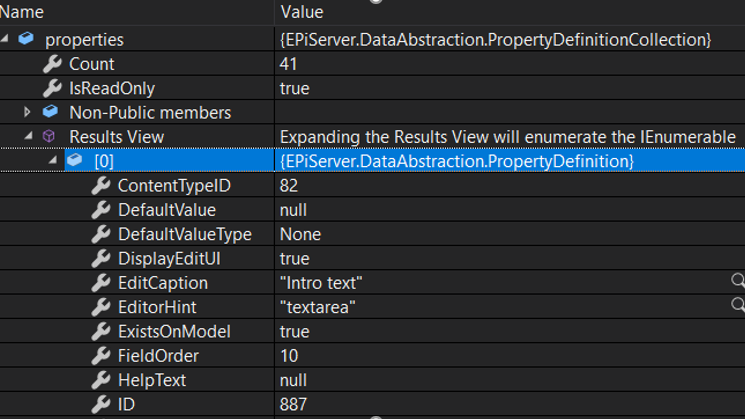
Returns a property collection containing all properties defined in a specific content type.
var properties = contentType.PropertyDefinitions;
Getting property names
We can retrieve the properties and save them in list. we can use EditCaption property for getting display names of properties. If one needs actual property names use Name property.
List Properties = new List<string>();
foreach (var property in properties)
{
string propertyName = property.EditCaption;
Properties.Add(propertyName);
}
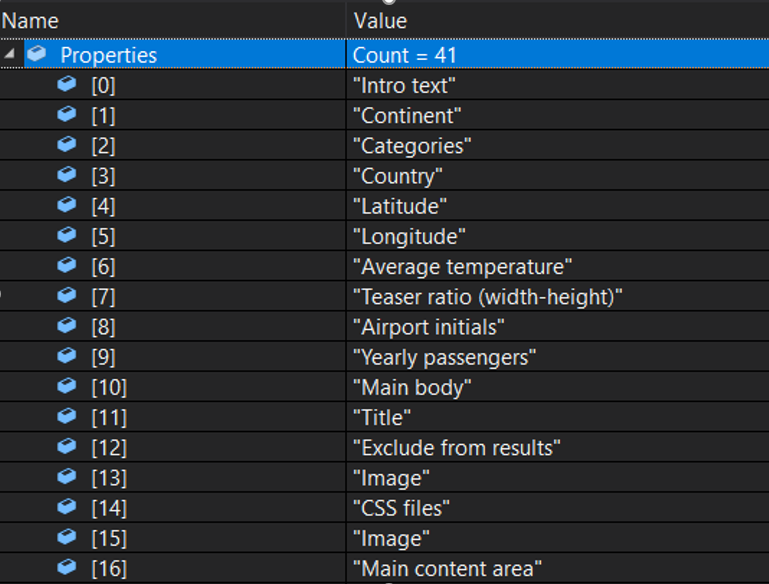
You can further explore PropertyDefinitions class as it gives access to other properties and methods which can be of use in development.
Happy Learning!
Comments