


Building Your First Optimizely Opal AI Agent: a Hands-On Walkthrough
Introduction
There's a common assumption that building an AI agent is something only engineers or developers can do. It isn't. At the Optimizely ANZ Ai-ccelerate Opal Workshop in Melbourne this May, a room full of marketeers built their own working Opal agents in a single 2-hour session. For some of them it was the first time they’ve seen Optimizely Opal.
A specialised agent in Optimizely Opal is, at its core, a set of written instructions and a few settings – there’s no code writing required. The main skill is being able to describe a task clearly: if you can write a clear brief for a colleague, you have most of what you need. Of course, understanding the subject matter is also very important. The rest is understanding few key concepts and some best practices – this is what this article covers.
This article is for anyone who has started using Opal and wants to understand how specialised agents are built. You don't need to be technical, and you don't need a developer's background. It's written with marketing managers, content managers, and CRO specialists in mind, but it's just as useful if you're still getting familiar with Opal and want a clear picture of what's going on under the hood before you build anything yourself.
To keep it practical, we will use example of building Answer Readiness Reviewer agent: you give it a page URL and a question, and it tells you whether an AI assistant (ChatGPT, Claude, Perplexity, and the like) could actually pull the answer to that question off that page. It reads the content, decides whether the answer is explicit, buried, fragmented, or missing, and then suggests what to change so the page is more likely to be the one an AI quotes. Deciding whether a page actually answers a question well enough for an AI assistant to use it is a judgement call, not a straightforward check that can be done by a script, and that's exactly the kind of work an agent is good at. We'll use it as our running example so that every concept has something solid attached to it.
What an agent actually is
Let’s start with understanding key concepts used in Opal: agents, tools, and skills.
An agent is the assistant that completes the task. It follows a set of written instructions to complete it, and it can call on tools to take action along the way. Opal describes agents as intelligent assistants that use natural language prompts and tools to complete tasks on your behalf, with each agent having a specific purpose – generating content, analysing data, or automating a step in a workflow.
A tool is a single action the agent can take. Opal's own analogy is an attachment on a Swiss Army knife – each one does one specific thing. Examples of tools include searching the web, creating a campaign, generating an image, or fetching the HTML of a web page. The agent decides which tools it needs and calls them; you don't run them by hand. Our example agent will use a tool called browse_web_html. This tool fetches the raw contents of a web page. Agent will use it to read the actual page it's been asked to review, exactly as a browser would see it. Opal has an rich catalogue of tools available out of the box – you can find it here https://support.optimizely.com/hc/en-us/articles/39340107628429-System-tools-overview
The relationship between the two is simple: the agent is the worker, the tools are its equipment. An agent with no tools can only think and write. An agent with the right tools can also do things – read a page, send an email, update a record. You give an agent access to a tool by naming it in the agent's instructions and adding it in the agent's Tools section.
Skills (which Opal used to call "instructions") are the third piece. Skills are reusable context and guidelines that shape how Opal behaves, like your brand voice, your product descriptions, your target personas, or your formatting rules. The point of skills is that you write them once and reuse them everywhere, instead of repeating "here's our tone of voice" in every single agent. One thing worth knowing: a specialized agent does not automatically pull in your skills. If you want an agent to use one, you reference it explicitly in the agent's instructions. So skills are the shared knowledge your agents use if needed.
Put together: an agent does a job by following its prompt, using shared skills for context, and calling tools to take actions.
The three types of agents
Opal has three kinds of agents, and knowing the difference saves you from building something that already exists.
Out-of-the-box agents (also called default agents) live in the Agent Directory. Optimizely builds and maintains these, and they're ready to run without any setup. They cover common jobs like reviewing content for tone and style, generating competitive insights, or drafting support responses. Each listing tells you what the agent does, which tools it includes, and what you can configure. If one of these already does what you need – try using it first. They're also worth checking out even when you plan to build your own, because they show you working examples of how an agent is structured. You can see list of available agents if you select Agents from the left frame menu in Opal and then select Agent Directory.
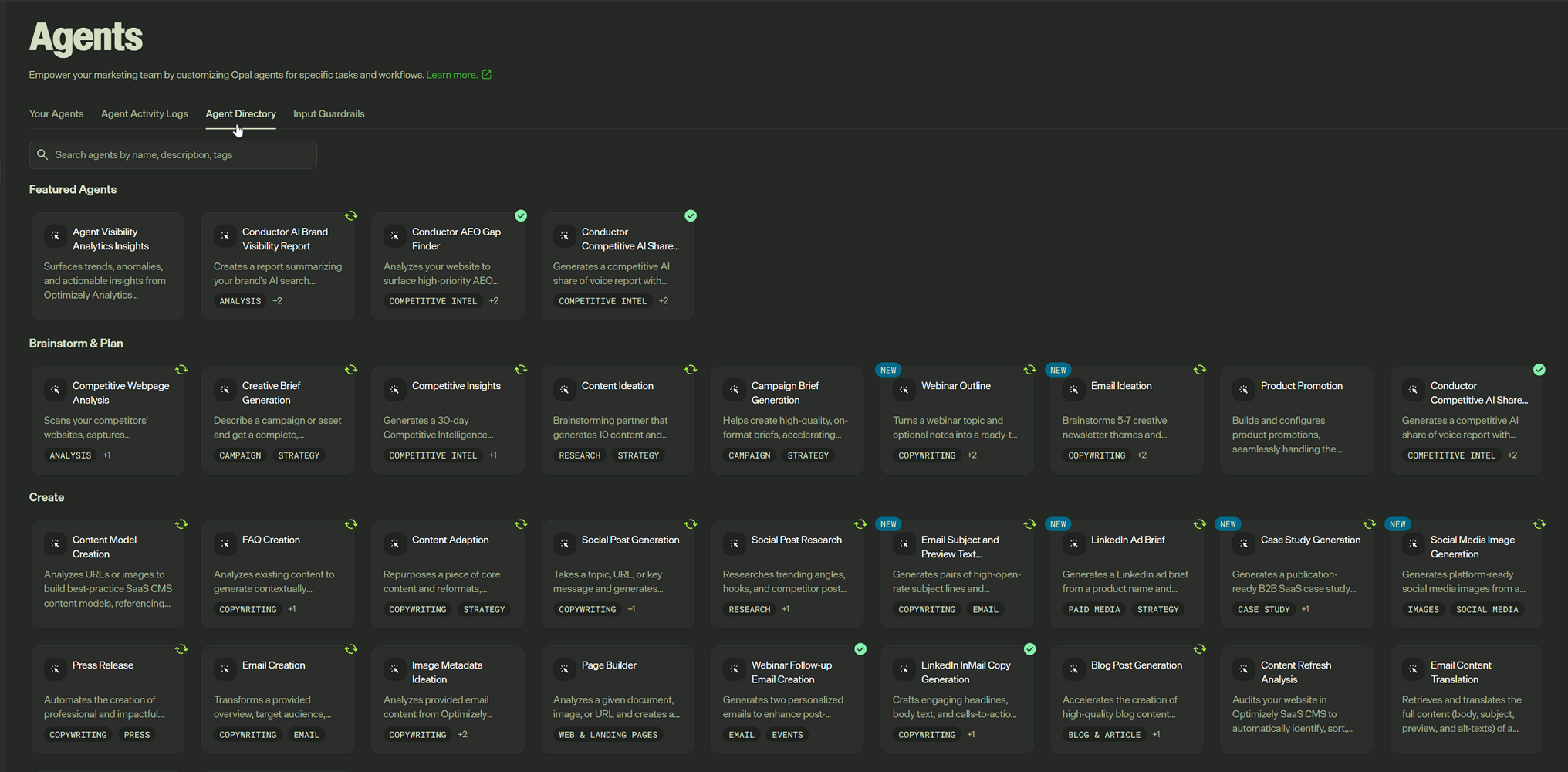
If you don’t yet have access to Opal, you can find agent directory here: https://www.optimizely.com/agents/
Specialised agents are the custom agents you build. Specialised agents are the right choice when no default agent covers your task and you want precise control over the inputs, the output, and the behaviour.
Workflow agents are the third type, and they're more advanced. A workflow agent chains several default and specialised agents together into a multi-step process, with the output of one feeding into the next. Think of it as assembling a small team where each member does their part and hands off to the next.
This article focuses on building Specialised agents, we’ll cover Workflow agents in another article.
Before you start: the prerequisites
A few things need to be in place before you can create a specialised agent.
Opal license that supports creating specialised agents. If you're unsure what your Opal license covers, your Customer Success Manager can confirm.
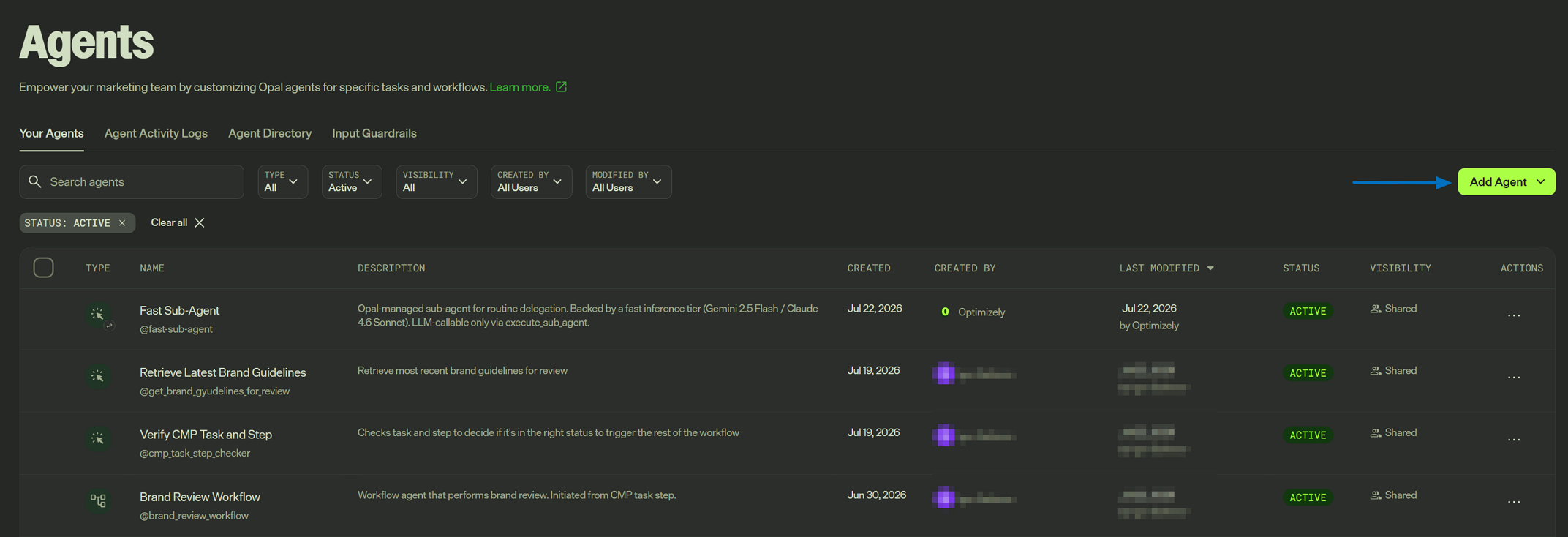
The right role assigned to your user. The roles that can create agents are Agent Builder, Opal Administrator or any custom role that's been given the "Add, edit, and install specialized agents" permission. If you can see the Agents page but the Add Agent button isn't there, you most likely have Opal User role that lets you use Opal but does not allow to create or edit agents.
Best practices: keep each agent small
Before proceed with agent configuration, you need to plan what you want this agent to do and what part of the overall workflow it will handle. There is an important best practice worth remembering when doing the planning: give each agent one job, keep agents simple.
You may be tempted to build one big agent that does everything – fetches the pages, analyses them, rewrites the content, and emails a report. Avoid doing this. Big agents are hard to maintain. They are slower and more expensive to test, because each run does more work and consumes more Opal credits. They are harder to troubleshoot, because when the result is wrong, it's not always obvious which part failed. And they are harder to improve, because any change you make carries a higher risk of breaking something that was working.
Better approach is to break a process into individual steps and for each step decide who will handle it – a person, an external system, an existing tool, out-of-the-box Opal agent or a specialised Opal agent. Our example is a good illustration. The broad goal is "make our content perform well with AI assistants," which is a big task. But the Answer Readiness Reviewer doesn't try to own all of it. It does exactly one thing: given one page and one question, decide whether an AI could extract the answer, and suggest what would make it better. It doesn't crawl your whole site, it doesn't pick which questions matter, and it doesn't rewrite the page for you. Such agent is easy to describe, easy to test, and easy to reuse – including as one step inside a bigger workflow later.
If this principle sounds familiar, it's because it isn't new. This is one of the things I liked about Linux when I started learning it: the idea that each program should do one thing well, and that you chain small programs together to do complex work.
A few related habits that come from the same principle:
-
Define the job in 1-2 sentences before you build. If you can't, the scope could be too big and you may need to break it down further. Our example's sentence: "Given a page and a question, judge whether an AI could extract the answer, and suggest how to improve the page's chances of being cited."
-
Be clear about the output. Decide upfront what the agent should return as result – plain text, a table, a file, or structured data like JSON (to pass to another agent or tool) and how that output will be used. Our example returns a short text summary a person can act on: a rating, the evidence behind it, and a list of suggested fixes.
Know which tools it will need. List only the tools required for that one job. Our example needs to read one web page, so it gets one tool: browse_web_html.
Getting started
You can build a specialised agent completely from scratch. But there's usually a faster path, especially if you are new to this: find the existing agent that's closest to what you want and use it as a starting point. A close-enough agent already has a sensible structure – a prompt laid out in steps, the right kind of tools selected, an output format chosen. You can keep this structure and change the details, instead of trying to think of everything from scratch. The default agents in the Agent Directory are good candidates for this, and so is any agent your team has already built.
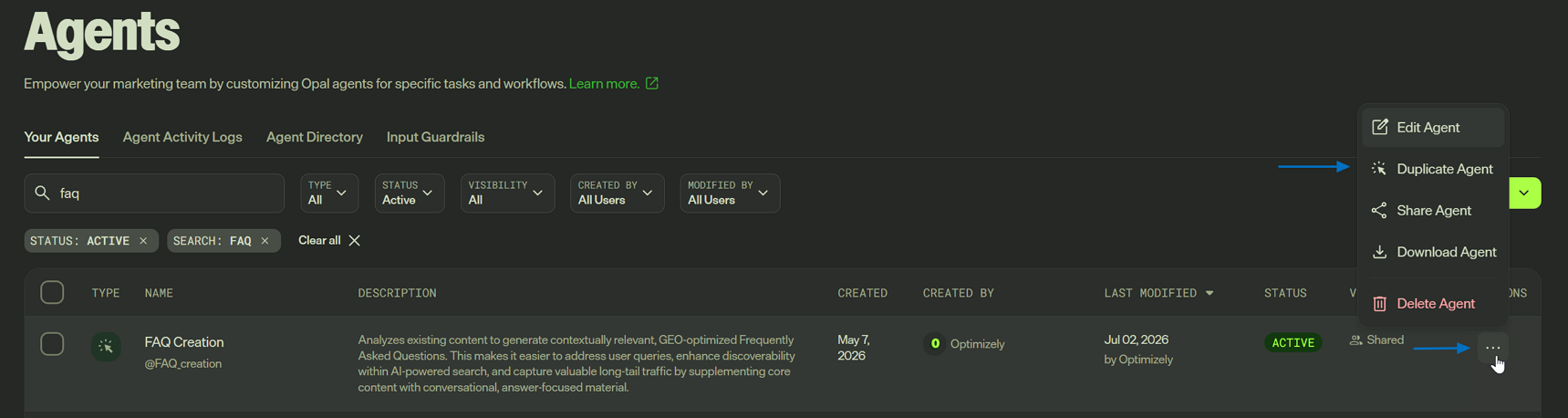
In our example, we will use FAQ Creation agent as starting point.
Use Duplicate Agent from the context menu to create a copy of an existing agent.
Agent Configuration
Now that we've started creating the agent, let's look at what it's made up of.
Name, Id, and Description
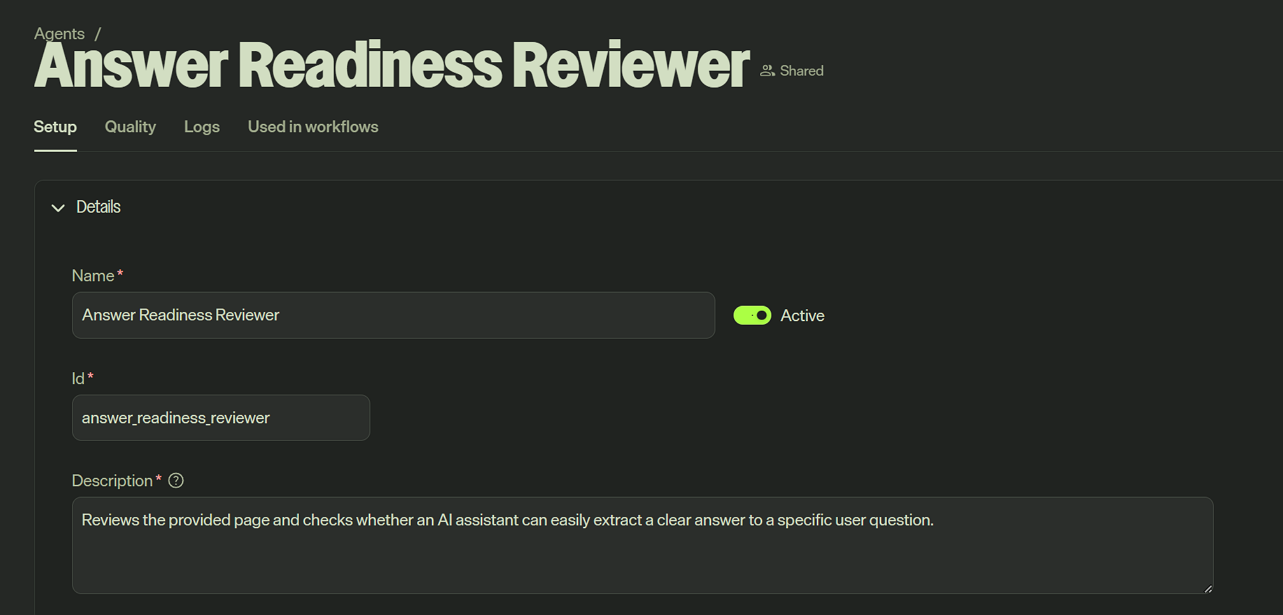
Name is for you and your team to understand what agent does and find it.
Id is how the agent gets invoked — it's prefixed with @, so you'd call this one with something like @answer_readiness_reviewer. This Id must be unique, Opal checks that the Id is available and suggests alternatives if it's taken.
Description explains what the agent does and when to use it. It's a required field. Treat it as documentation for the next person who has to maintain, troubleshoot, or reuse the agent - and this could be a future you who hasn't looked at it in six months :). A clear description also makes it easier to find the right agent when your library grows and someone needs to choose between several similar ones.
Interaction mode
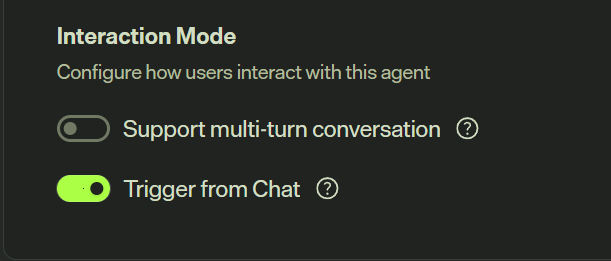
Support multi-turn conversation is off by default, which means the agent runs in single-shot mode: you provide the inputs, it runs once and returns a final result. There is no back-and-forth. This is the right choice for most specialised agents that handle tasks that are well-defined enough that a single run with clear inputs produces a usable output. It's also suitable for agents that are going to perform a step in a multi-step workflow. Multi-turn mode keeps the agent active in Opal Chat for continued conversation, which is better suited to tasks where you expect to refine the output through follow-up such as content draft you want to iterate on.
Trigger from Chat controls whether people can invoke the agent directly in Opal Chat.
Input
Variables. Variables are the inputs the agent collects before it runs, and they're what make an agent reusable instead of hard-coded. Each variable has a type, a name, a description, and a flag for whether it's required.
In our example we have 2 variables – URL and Question and both are required.
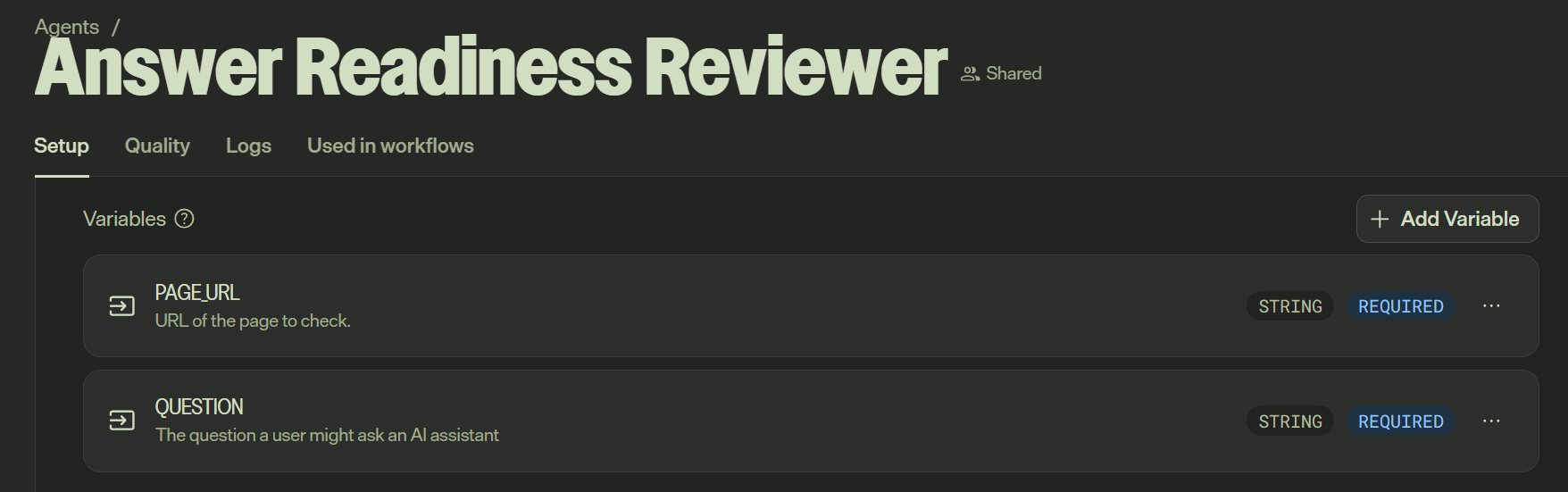
Tools. This is where you give the agent its equipment. You can let Opal predict and add relevant tools automatically or add them manually by selecting from the tools available in your instance.
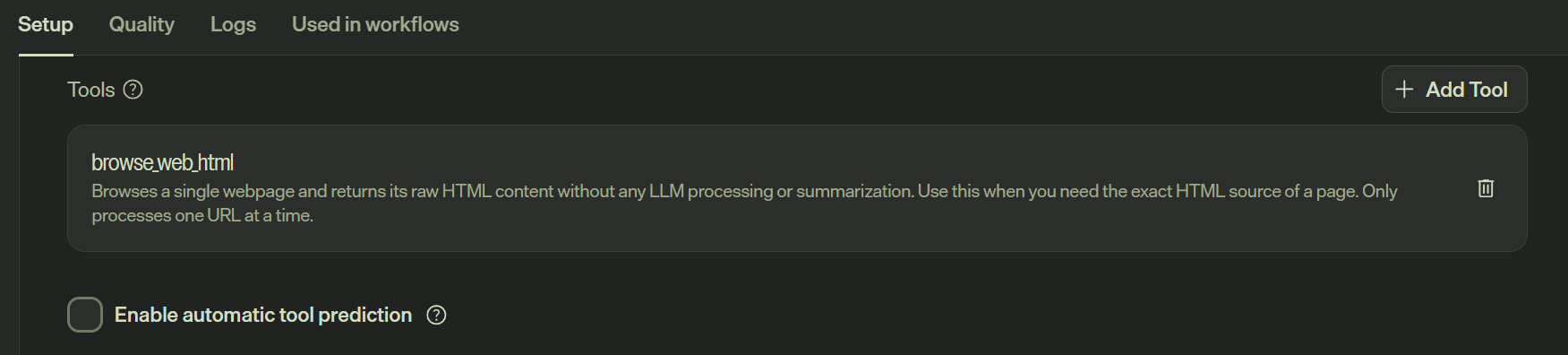
In our example we only need one tool – browse_web_html. It will be used to fetch the page so agent can read page content.
Inference level. This controls how hard Opal thinks before answering. Higher levels improve quality on complex, multi-step reasoning but take longer to run and cost more (in terms of Opal credits). You match the level to the task. In our example, I will set it to Complex, because deciding whether an answer is explicit, buried, fragmented, or missing is genuine reasoning as the agent has to understand the question, comprehend the page, and judge the relationship between them.
Model Provider. As of June 2026, Opal allows selecting between Google Gemini or Antropic Claude as AI model provider for specialised agents.
Files (optional). You can attach files the agent should reference every time it runs. This can be used when you have guidelines already documented in a file. Going to keep this empty for our example as all the instructions will be in the prompt.
Writing the prompt
The prompt (Opal calls it the prompt template) is the agent's standing instructions, the brief it follows every single time it runs. This is where most of your effort goes, and what defines how good your agent will be.
Optimizely guidance for prompts is very straightforward, and it matches how you'd brief a capable teammate:
-
Write in clear, direct language. Say what you want done, not what to "consider."
-
Build a clear hierarchy. Use headers, bold text, and lists so the structure of the task is obvious.
-
Break the work into explicit steps. Number them. An agent following "Step 1, Step 2, Step 3" is better than unstructured wall of text.
A few additional prompt-writing techniques that are worth mentioning:
-
Reference variables and tools explicitly. In the prompt, variables are written in double square brackets like
[[PAGE_URL]]and[[QUESTION]], and tools are written in backticks likebrowse_web_html. This is how you wire the prompt to the inputs and equipment you configured in the other sections.
Spelling out when and how to use a tool rather than just making it available produces far more consistent results. -
Define what to do when things go wrong. A robust prompt tells the agent how to handle not just the happy path, but also negative scenarios and edge cases.
In our example it could be some of these: a page that won't load (empty or returns an error), a page behind a login, content is presented as picture rather than text, a question that doesn't really relate to the page at all or a questions that is not a question but a statement.
If you want to get better at writing these prompts or just needs an inspiration, you can always check out prompts used in the out-of-the-box agents or check the recommendations here: https://support.optimizely.com/hc/en-us/articles/39300056376717-Prompts-for-specialized-agents
And another tip - you can use Opal or your favourite LLM (ChatGPT, Claude) to generate prompt for your agent or improve existing prompt - they are all quite good at writing and can give ideas for some instruction points or directions you didn't think about. Just make sure to always review the result before you use it.
Prompt for our example agent is too big to put here but you can find it at https://gist.github.com/igor-safonov/696c1a07e93e8e4f3aa446cc63348f60
Output
You select an Output Data Type from a list and you can optionally add a brief Description of what the output is.
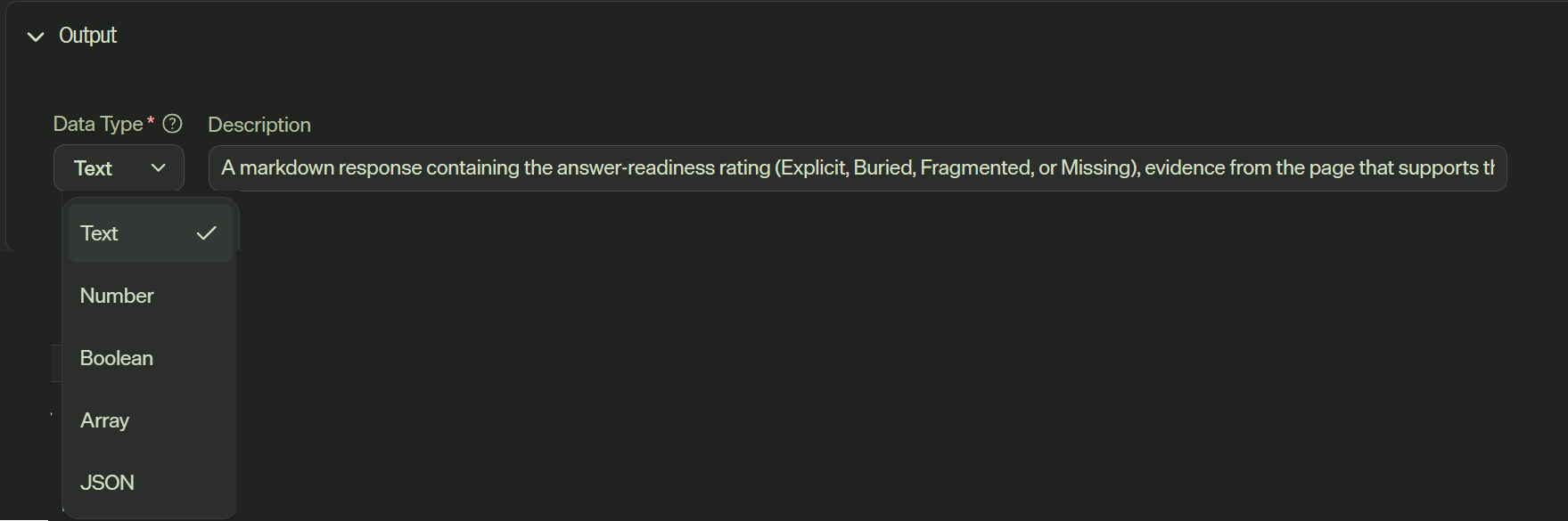
Two important things to keep in mind:
-
The detailed shape of the output is defined in the prompt, not here. Whether the response uses a table, what columns it has, what the four ratings are - all of that lives in your prompt template. The Output section just tells Opal what kind of data the response is and (optionally) describes it at a high level.
-
What the Description field is for. It's a short, plain-language summary of what the agent returns. It's most useful when the agent is later used as a step inside a workflow agent, because the next step in the workflow needs to know what shape of result it's getting. If the agent only ever runs on its own, the description is less critical, but it's still good documentation for your teammates.
The choice of data type usually comes down to who or what is going to consume the output. If the result will be passed to another agent or to an automated step in a workflow, JSON is the better choice - it's structured and machine-readable, and you can pin down the exact shape with an Output Schema. If the result is meant for a person to read and act on, Text is the right choice.
In our example, the output is meant for a person, so we'll set:
-
Output Data Type: Text
-
Description: "A markdown response containing the answer-readiness rating (Explicit, Buried, Fragmented, or Missing), evidence from the page that supports the rating, and a short list of concrete suggested improvements. Returns an error template instead if the question is invalid, the page can't be read, or the question is off-topic for the page."
One more practice worth mentioning, even though it isn't part of the Output section itself: preferred outputs. After you've run the agent a few times, you can mark a particularly good result as a preferred output. Opal can then use it as an example to guide future runs, which helps tune the agent toward the style and quality you want. This is done from the agent's execution logs after the fact, not configured upfront - so you'll come back to it once the agent is built and you've seen a few real results. More details available at https://support.optimizely.com/hc/en-us/articles/43244850788109-Preferred-output-examples
Testing and improving the agent
Building the agent is the first draft, not the finished product. You will then need to do a few rounds of testing and adjustment until you’re happy with the result.
Run a test. Save the agent and use Test Run to try it with real inputs. For our example, that means a real page URL and a real question – ideally start with cases where you already know the answer, so you can tell whether the agent got it right.
Build yourself a small set of known cases to test every time you make some big changes to the agent. This way you can check if baseline still works well or recent change made things worse.
Look at what the agent did, not just what it returned. Opal keeps execution logs that show the steps the agent took and the tools it called. If the result is not what you expected, the log can help you see where it went wrong.
Adjust one thing at a time. When something's off, the fix is usually adjusting the prompt: a rule that wasn't explicit enough, a step that needed splitting, an edge case you didn't mention. Change one thing, test it again, compare.
Do not forget the settings can play a part too – if adjusting prompt gets you nowhere, check if inference level as well as output instructions and examples.
Save versions as you go. Opal keeps versions of specialised agents, so you can make changes confidently and go back to a previous version anytime.
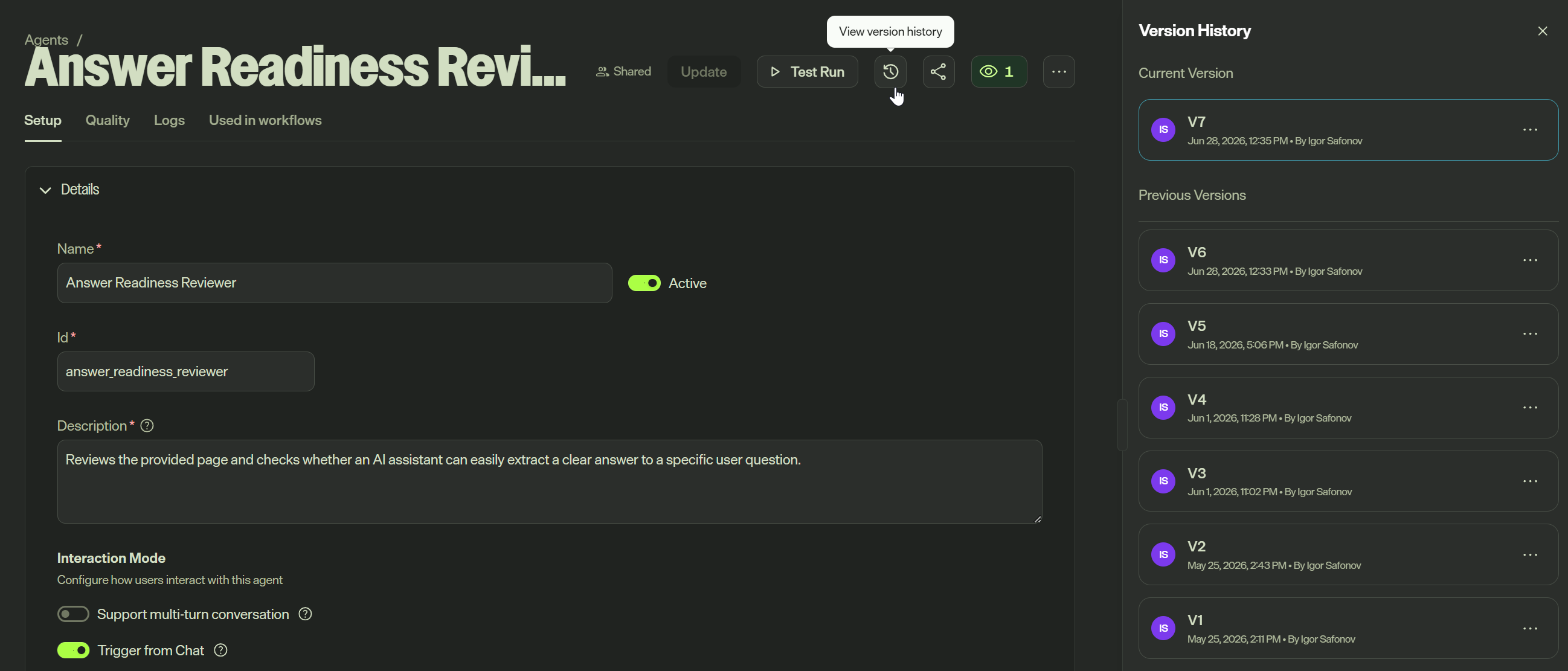
Or you can just test it by calling it from Opal chat. Let's give our example agent a try and see how it goes:
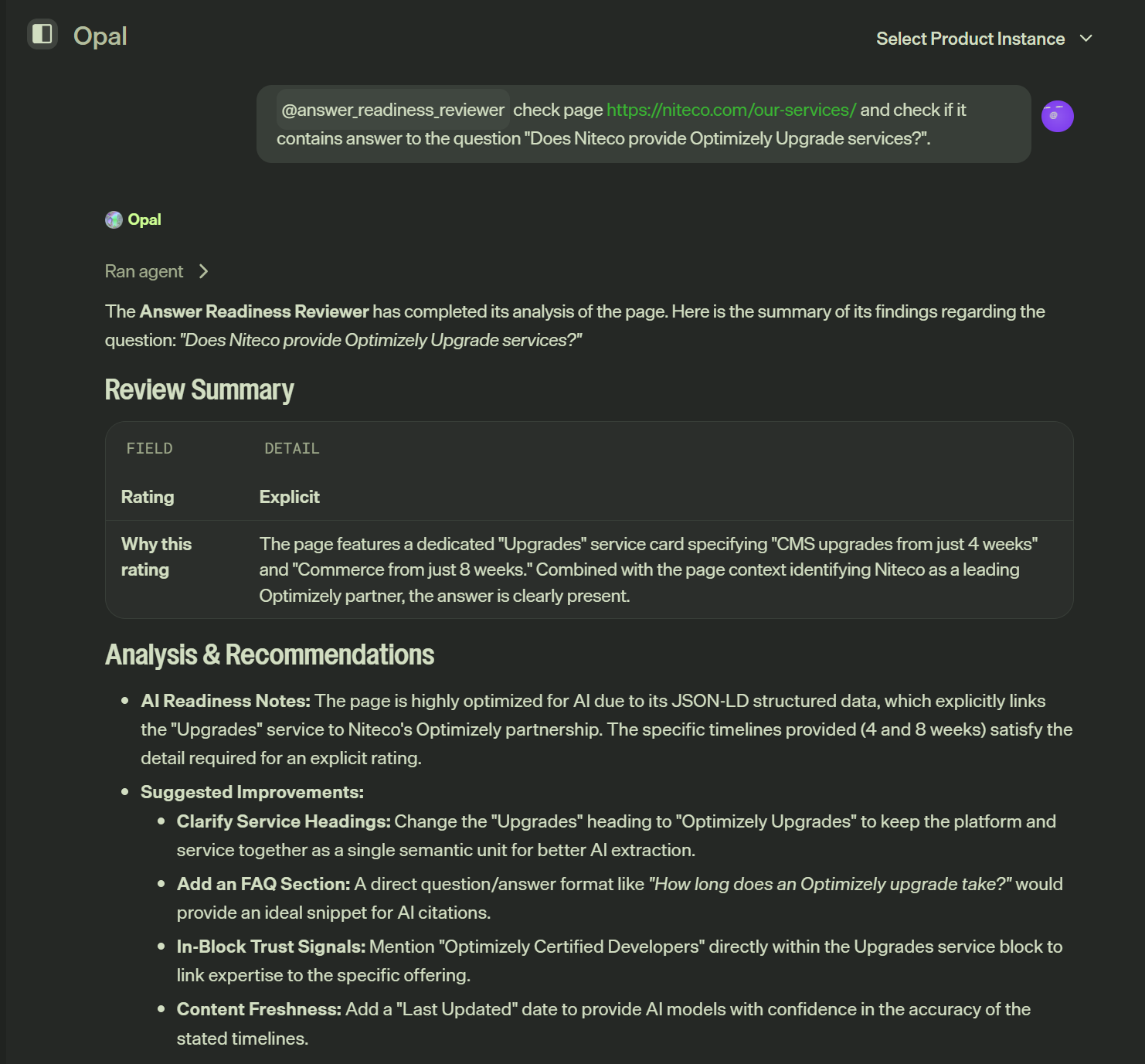
Looks pretty good to me :)
And if you're worried you'll consume too many Opal credits with your agent - there is a very simple way to check how many tokens each run consumes - from agent editor go to Logs tab and it's all there.
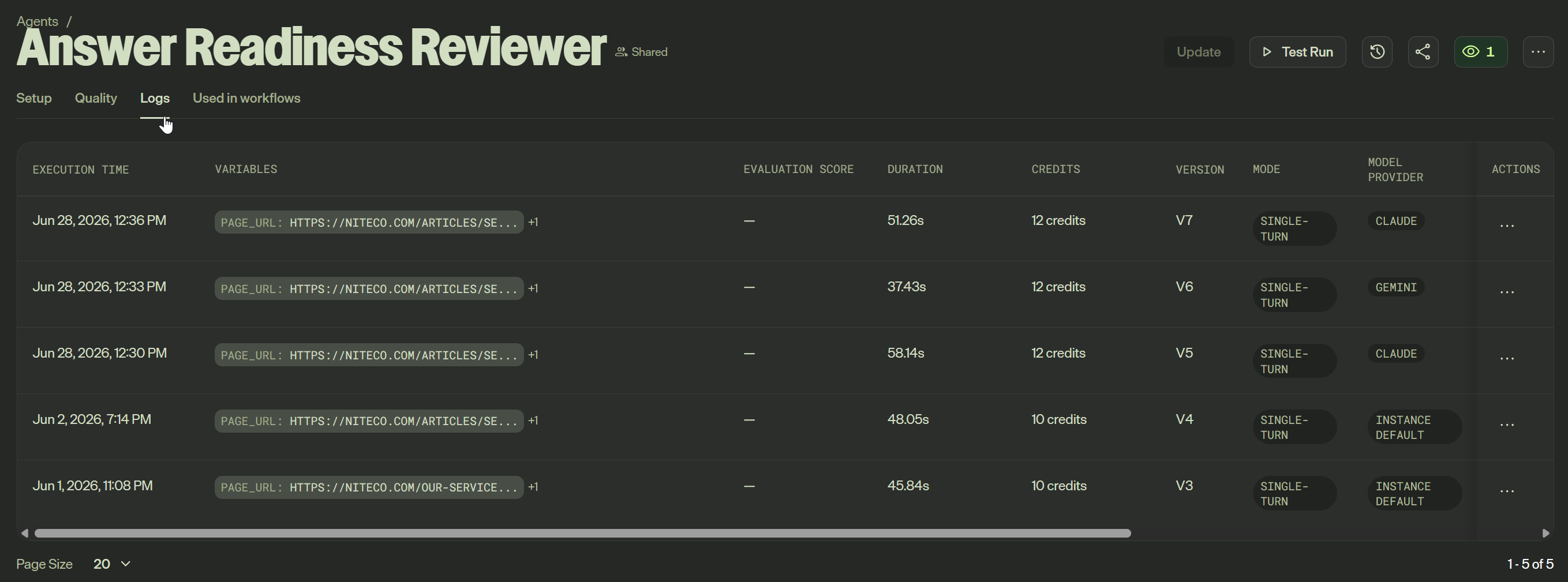
As you see, the amount of credits consumed by our agent is very reasonable which is another reminder that small agents focused on one task are easier to maintain and more cost efficient that complex do-it-all agents.
Conclusion
If there's one thing to take from this, it's that building an Opal agent is mostly clear thinking written down and knowing some best practices. You define a job, describe it in clear direct language with steps by step instructions, give the agent the inputs and the tools it needs, and then test and tune it until it's reliable. The Answer Readiness Reviewer we used as example is straightforward under the hood – two main inputs, one tool, a well-structured but simple prompt. And yet it does something quite useful and something that a generic script cannot do.
For now, the best next step is a simple one: open Opal, find the agent closest to something you'd find useful, duplicate it, and start changing it. You learn this far faster by building than by reading.
Comments