


Optimizely Graph - Provisioning, User Management & Developer Instances
Upgrading to Optimizely CMS 13 marks a major architectural shift as Optimizely Graph takes over as the central query and delivery engine, retiring the legacy Search & Navigation system. Delivering these enterprise solutions at Niteco frequently reveals a common hurdle: the initial confusion surrounding user access. Graph utilizes a new beta management interface, and before developers or content teams can even see it in their product dropdown, explicit permissions must be configured within the Opti ID Admin Center.
Provisioning an instance
If you are on the SaaS product, you already have an instance of Optimizely Graph created for you, so you can skip this step. If you are moving to PaaS CMS13, you first need to make sure you have an instance.
This is first achieved by navigating into your DXP management portal for your project
- Access https://paasportal.episerver.net/
- Select the project you want to enable Graph for
- Switch to the API tab
- Click on Enable Graph Service (note that if you had a pre-CMS13 instance, it may be showing a "Prepare for CMS 13" which will provision you another instance that you can use during the CMS13 project in parallel to the CMS12 version)

This should then enable the Graph service, which shouldn't take too long. It will tell you it's done and provide you with all of the access keys straight away that you can use for integration, preproduction, and production (don't worry about having to note these down straight away. Unlike some other API credentials, these can always be viewed)
Once this is done, you can provision user access.
Provisioning User Access via Opti ID
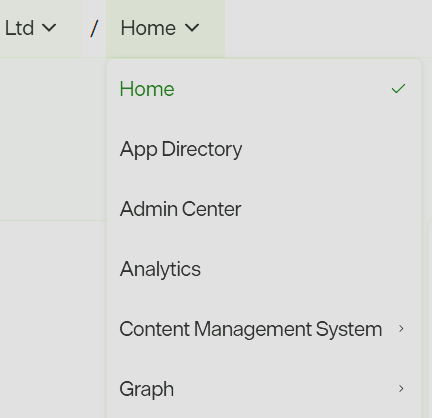
Optimizely Graph leverages Opti ID for authentication, meaning access is completely governed by the Admin Center. By default, a new Graph instance will not automatically appear for all users in the product dropdown in the Optimizely Home. To unblock a team, access must be manually assigned through the admin portal (this needs to be done by someone with admin access in the admin center via https://home.optimizely.com/)
- Navigating to a user directly and adding the product (search user, click, add product access)
- Going through the products tab and importing a user or a CSV
- Navigate to the Products tab
- Click on Graph (you should then see all of the instances)
- Click any instance that you want to add users to
- You'll see all of the users that are currently in that instance. In the top right-hand corner, click on Invite User. (Also, handily, here you can import a CSV if you have multiple users, which makes it a lot easier. You can download the format when you click on Import users with CSV)
- When adding a user, add their email, and then under product access select Add Product Access, it will prepopulate this instance and just give them the required permission level, such as Administrator.
- Complete this and save it, and then the user will have access.
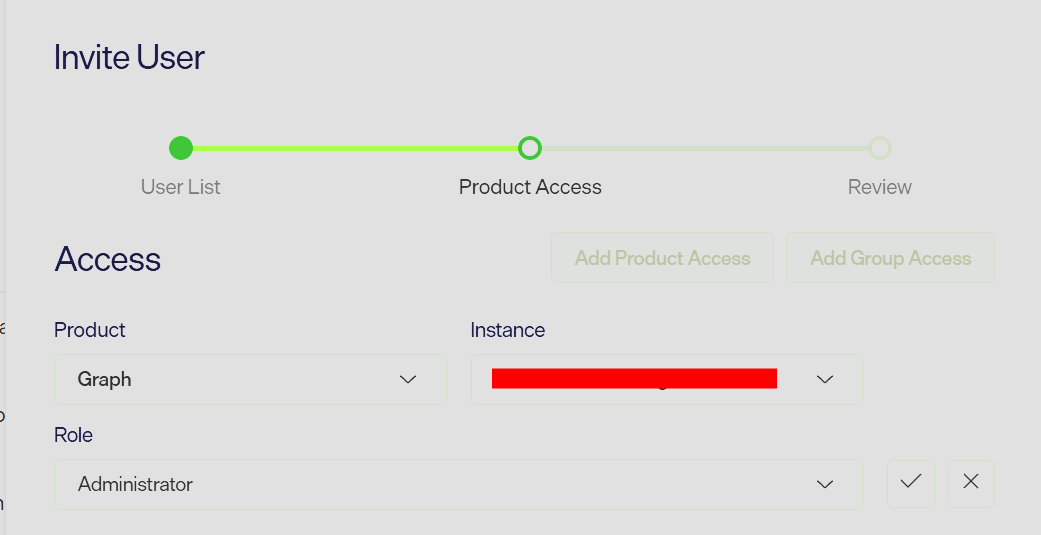
Users who are given access should get an email invite, and then they will see Graph inside their dropdown of products at https://home.optimizely.com/.
Navigating the Search Management Portal
The Graph management system is currently in a BETA—officially known as the Search Management portal—provides centralized oversight for your search implementation. The left-hand navigation is categorized into distinct operational areas.
-
Health & Monitoring: Contains the Search Overview and Performance dashboards for tracking metrics like total queries and click-through rates.
-
Search Tools: Provides editorial control over the search experience through features like Pinned Results and Synonyms.
-
Developer: Houses the Development Accounts section for managing isolated testing instances.
Generating Developer Accounts for Sandbox Testing
A critical feature for engineering teams building headless implementations or testing complex Graph queries is the ability to spin up isolated sandbox environments. These self-service development instances ensure that experimental queries and prototype integrations do not impact production data. These temporary accounts support up to 50 queries per second and automatically expire 90 days after creation.
-
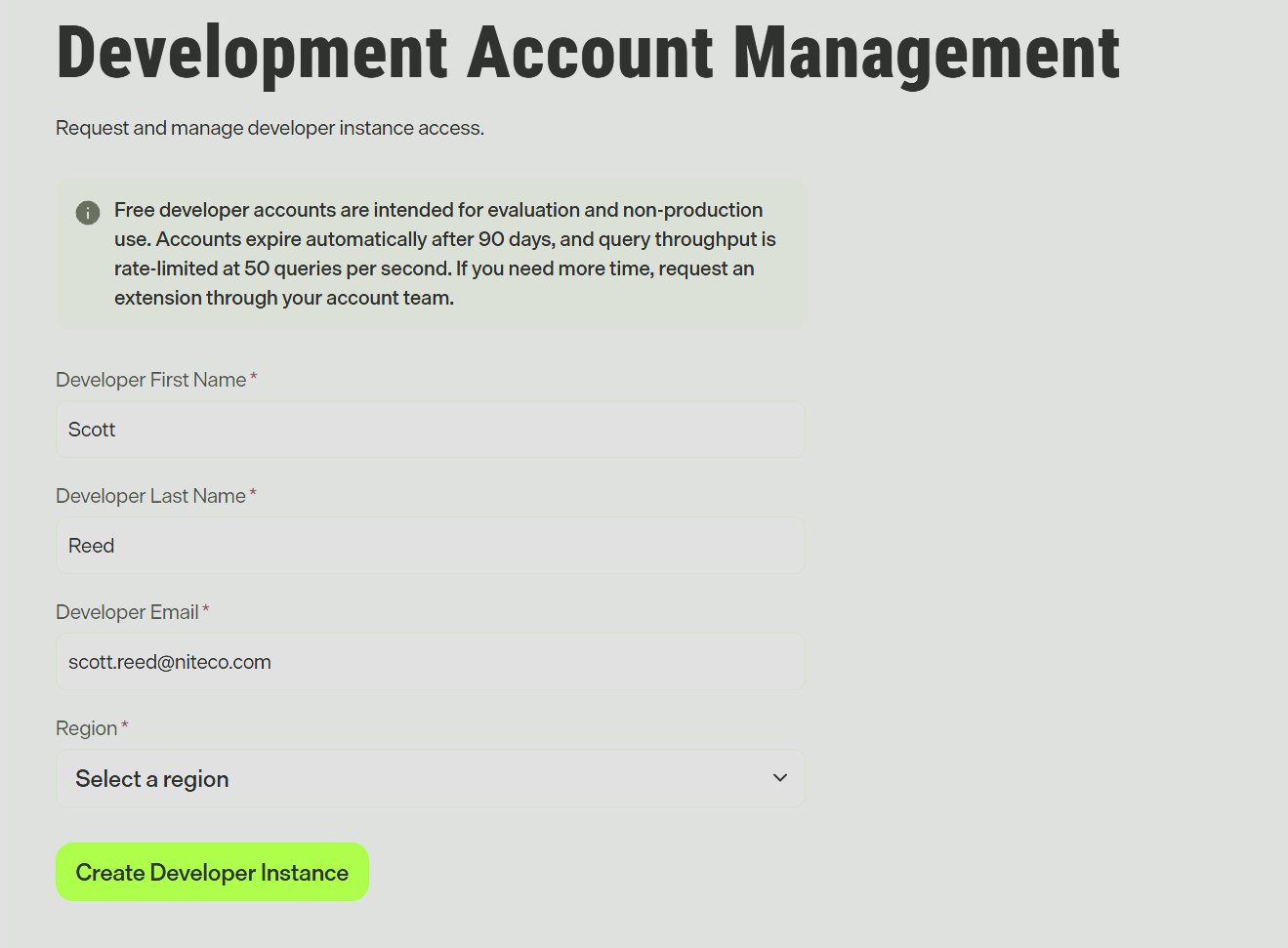
Within the Search Management portal, navigate to the Developer heading in the sidebar and select Development Accounts.
-
Fill out the required provisioning fields: Developer First Name, Developer Last Name, Developer Email, and the target hosting Region. The email address provided here will be granted administrator access to the new instance.
-
Click Create Developer Instance and wait for the provisioning process to complete.
-
The system will display a one-time credentials screen containing the Instance Name, Instance ID, Portal URL, AppKey, Secret, and a read-only Single key.
These credentials are only displayed once upon creation. It is imperative to copy and store them securely in a password manager immediately, as they cannot be retrieved once the window is closed. With these keys secured, developers can connect their local CMS 13 environments directly to the temporary Graph instance and begin querying.
great insight... thanks for sharing