

Developers: Before You Build that Alloy 7 Project…
Based on EPiServer 7 and the new Alloy templates
If you have been able to get your hands on EPiServer 7 or experienced any kind of demo you’ll probably be pretty excited about it. It’s pretty slick! Since there’s plenty of blogs that tell this story already I won’t re-hash the greatness in this one. Instead I want to make sure you are aware of a change to the Alloy template project before you build for the first time.
The new project includes some post build steps that will copy some of the configs from a new location in the file/project structure over to the root.

Post Build Events
One of my colleagues explained this process based on some information that was presented at one of the summits this week:
“Every time the project is built, the following is executed by the MSBuild scripts in the [MSBuild] folder:
1. Retrieve default EPiServer configuration files from the "[Configuration]\EPiServer" folder
2. Apply common config transforms from the "[Configuration]\Common" folder
3. Apply build configuration-specific transforms from the "[Configuration]\BUILDCONFIGNAME" folder
(where BUILDCONFIGNAME is the current build configuration name, such as "Debug" or "Release")
4. Overwrite any existing configuration files in the site root
Note: The MSBuild scripts are executed through a post-build event.
Make sure all files in this folder have their Build Action set to "None" to avoid this folder being included when performing a Publish”
You’ll also find the above conveniently placed in “_ReadMe.txt” in the Alloy project under the “[Configuration]” folder.
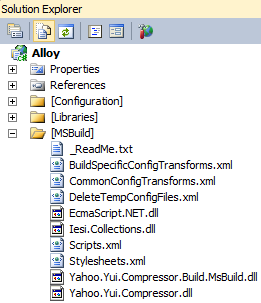 | 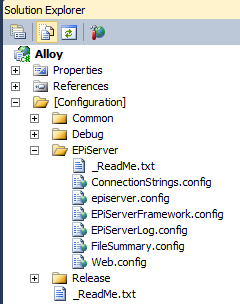 |
[MSBuild] folder and [Configuration] folders
You might notice the “Web.config.ReadMe.txt” file in the site root also reads as follows:
“Note that the Web.config file in the root should not be modified directly as it will be overwritten every time the web application is built (because of config transforms).
Configuration changes should be done in the [Configuration] folder.
See the readme file in the [Configuration] folder for detail”
Obviously, in general, this is good knowledge to have for Alloy. Developers who build Add-on modules that update configs, via Nuget or otherwise, may want to account for this in the current project state or if this approach is to be carried forward in other projects. If developers do not account for this by adding these changes below the “[Configuration]” folder their changes may be overwritten when a build occurs. Site owner Add-ons should not update the configs but that’s a different story.
It appears that the CMO module has this issue since it updates configs such as web.config, episerverframework.config, connectionstrings.config, etc at the site root. It does not update the files under [Configuration] currently. What this means to you is that if you install CMO on a standard Alloy 7 site and build your project the CMO configs will be overwritten and CMO will no longer be available in the UI.
For the time being you have a couple of obvious choices:
1) Update the configs appropriately under the “[Configuration]” folder to included any necessary changes
2) Remove the post build steps – this is more of a workaround of the intended build process so not the best long term approach
UPDATE: Ted Nyberg has provided an excellent article explaining technical details on the new templates including the config transforms.
Now that you are “in the know” get back to enjoying this excellent new release!
A workaround for installing modules on Alloy is also described here: http://world.episerver.com/Documentation/Items/Installation-Instructions/Installation-Instructions---EPiServer-7/Modules-and-Alloy-Templates-Configuration/
Great point Sergii. Thanks for adding that link!
Still not very sure how to do it before building the Alloy project.
Thanks a lot for helping me fix this problem!